Coupon code list
In the coupon code list, you can issue coupon codes and view the list of coupon codes.
Accessing the screen
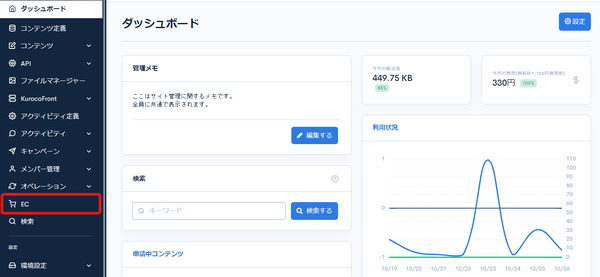
Click [EC].
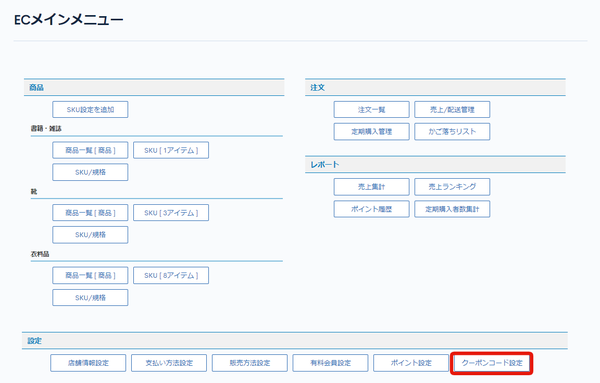
 In the E-commerce main menu, click [Coupon code settings].
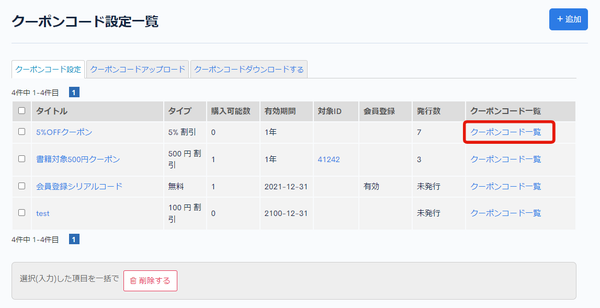
 On the Coupon code settings page, click [Coupon code list] for the coupon code you want to edit.
Creating coupon codes
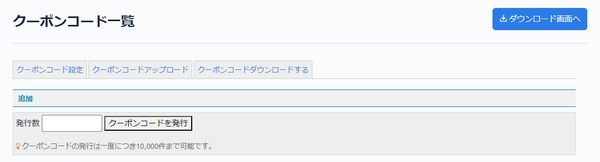
| Field | Description |
|---|---|
| Publish count | Enter the number of coupon codes to issue. |
| Issue coupon code | Click to issue coupon codes. |
Coupon code list
Search
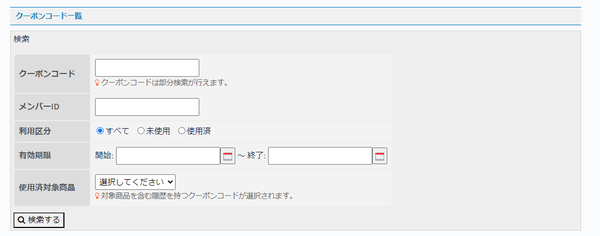
| Field | Description |
|---|---|
| Coupon code | Enter the coupon code. Partial matches are searched. |
| Member ID | Enter the member ID. |
| Condition | Select the usage condition. |
| Expiry date | Set the range of the expiry date. |
| Used target product | Select the target product. |
| Search | Click to search coupon codes with the configured conditions. |
Coupon code list
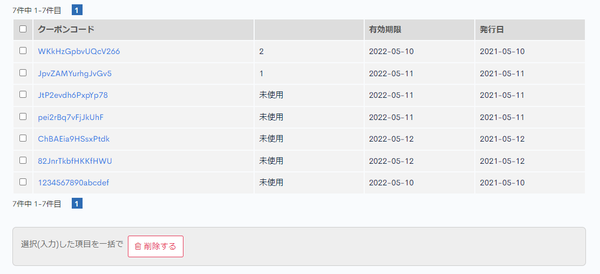
| Field | Description |
|---|---|
| Coupon code | Displays the coupon code. |
| Condition | Displays the usage status of the coupon. |
| Expiry date | Displays the expiry date. |
| Published date | Displays the issue date. |
Batch actions
Check the checkboxes at the left of the list and click [Delete] to apply the action to the selected coupon codes at once.
Related documents
Support
If you have any other questions, please contact us or check out Our Slack Community.