Kuroco AI Features Guide
Kuroco provides several features for building AI into content management and APIs. This page summarizes the overall picture of Kuroco's AI features and serves as an entry point to each detailed document. For individual setup steps, refer to the linked documents.
Overview of Kuroco AI features
Kuroco's AI features cover content intake, AI processing, and replying to users, and consist of the following. The table lists the main features in the order of the sections below (the last row, "Replying through channels", is covered in Combining features).
| Area | Main features | What you can do |
|---|---|---|
| AI processing in content structures | AI Post-processing / AI Validation | On content save, automatically generate or transform fields with AI, or validate the content. |
| Automatic content intake (input data for AI) | Mail / Crawling / Slack / LINE / Microsoft Teams | Automatically register email, web pages, and chat messages as content, and use them as input data for AI processing and vector search. |
| AI agents | AI agent (autonomous execution) / trigger email | Run tasks using data inside Kuroco. Agents can also run autonomously, triggered by an incoming email. |
| MCP integration | Client API MCP / Admin MCP | Expose public APIs and the admin API as MCP tools to LLM clients so AI can call them. |
| Development and admin operations from Claude Code | Kuroco Skills / Admin MCP | Perform Kuroco admin operations and development from Claude Code. |
| RAG, vector search, and AI models | Vector data / RAG / OpenAI endpoints / AI dictionary / AI Model List | Vectorize content for search and RAG, or generate responses with AI endpoints. |
| Replying through channels | Slack / LINE / Text (SMS) / X | Return AI-processed results to users through each channel via a trigger email address. |
Each area is described below with links to the related documents.
AI processing in content structures
The [AI Processing] tab in the [Extensions] of a content structure lets you run AI automatically when content is saved. It has two features with different purposes.
| Feature | Purpose |
|---|---|
| AI Post-processing | After content is saved, AI automatically transforms or generates fields. |
| AI Validation | On content save, AI checks whether the content is valid. |
Both let you write a prompt (instructions for AI Post-processing; judgment criteria passed to the AI for AI Validation) and configure the execution timing and the input fields passed to the AI. The execution-timing options differ per feature. AI Post-processing additionally lets you set the output fields the result is written to, and whether the processing is done with [Use model] (delegating directly to an LLM) or [Use AI agent].
AI Validation has the following behavior.
- Each rule is evaluated independently, and every rejecting rule returns its own error.
- It runs last, after the standard validation (such as required-field checks) has passed.
- Fail-closed: if the AI request itself fails, the save is blocked rather than letting unverified content through.
- Each decision, including approvals, is recorded in the application log.
For the setting details, see Content Structure Extensions — AI Processing. As an implementation example, Auto-translate content with AI on save walks through translating the body automatically on save.
Automatic content intake (input data for AI)
A content structure can automatically register external input as content. The imported content can then be used as the target of the AI Post-processing / AI Validation described above, conversion to vector data (RAG), or processing by an AI agent.
For each, selecting the "Data type" in the [General] settings of the content structure edit screen reveals the corresponding settings tab.
| Data type | What is imported |
|---|---|
| Receives email sent to the configured address and automatically registers it as content. | |
| Crawling | Stores web page data obtained by crawling (URL, content, language, etc.). |
| Slack | Saves Slack incoming webhook events and outgoing API messages, one record per message. |
| LINE | Saves webhook events received from the LINE Messaging API, one record per message. |
| Microsoft Teams | Saves message activity received from the Microsoft Teams Bot Framework, one record per message. |
For the settings of each data type, see the Mail, Crawling, Slack, LINE, and Microsoft Teams sections of Content Structure Extensions. For crawler settings, see Web Spiders; for the Microsoft Teams integration steps, see Integrating with Microsoft Teams.
AI agents
An AI agent runs various tasks using data inside Kuroco. When you enable [Autonomous execution] on the agent edit screen, the agent can be started without human confirmation.
You can start an agent with a trigger email address. Sending an email to an address of the form {ai_agent_id}@agent.r-cms.jp (the local part is the agent ID or Slug) does not send an actual email; instead, it starts the agent. The subject and body of the received email are passed to the agent as instructions.
Tool operations at execution time follow the agent's permission policy (such as the Admin MCP read-only setting).
In the admin panel, you can also open a sidebar from [AI Agent] on supported screens and ask the agent questions or make requests about the current page (AI Agent Assist).
- To start an agent, the agent's status must be enabled and [Autonomous execution] on the agent edit screen must be enabled.
- Email sent as a result of the agent's execution does not re-trigger the agent, to prevent loops. However, notification email sent by another feature as a result of the agent's action (for example, a workflow notification sent by an approval the agent performed) is treated as a new trigger.
- For the trigger email address specification (including Slug rules and prerequisites), see Trigger email address — AI agent.
- For how to use the admin panel sidebar, see AI Agent Assist.
- To set up a GitHub Personal Access Token (PAT) for the agent to access a GitHub repository, see GitHub.
MCP integration
Kuroco implements the Model Context Protocol (MCP), so LLM clients such as Claude, ChatGPT, and IDE assistants can call Kuroco APIs as typed tools over HTTP. There are two types of MCP servers depending on the use case.
| MCP server | Endpoint | Use case |
|---|---|---|
| Client API MCP | /rcms-api/{id}/mcp | Expose public API endpoints as tools to enrich LLM responses or to create and update content. |
| Admin MCP | /direct/rcms_api/admin_mcp/ | Expose the admin API (admin_api) as an MCP server. Supports Bearer token authentication and is suited to unattended agents and scope / read-only access control. |
To enable the Client API MCP, enable the MCP server setting on an API definition whose security is set to privileged static token. An endpoint with MCP enabled requires an input data definition.
- To expose a public API as an MCP tool, see Model Context Protocol (MCP) Integration with Kuroco.
- For per-client setup, see MCP Client Configuration. For clients that cannot use OAuth, or when you prefer authenticating with a request header, see MCP Client Configuration with Authentication Header.
Kuroco Skills and admin operations
Kuroco Skills is an Agent Skills package for AI agents such as Claude Code. It gives AI agents best practices for Kuroco API integration, content management, frontend integration, and batch processing.
For admin operations from an AI agent, use the Admin MCP server. It can be registered directly in MCP-capable clients and authenticates with a Bearer token, supporting unattended agents, OAuth-based authorization, and scope / read-only access control.
- For installation and basic usage, see How to use Kuroco Skills.
- To connect Claude Code to Admin MCP and perform admin operations, see Operating the Kuroco admin panel with Admin MCP.
- For per-skill details and the Admin MCP server reference, see Kuroco Skills Reference.
RAG, vector search, and AI models
Kuroco provides features to convert content into vector data for search and RAG, as well as AI endpoints. Configure them from the [AI] menu in the admin panel.
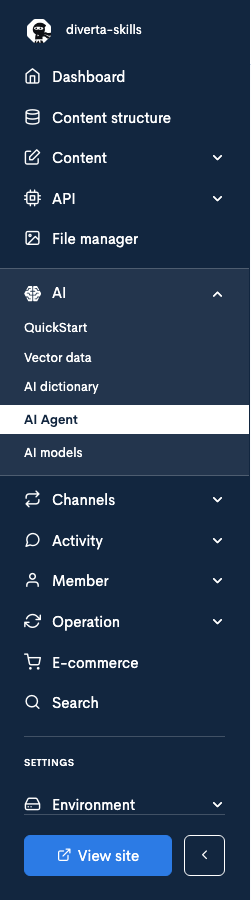
| Screen | What you can do |
|---|---|
| [AI] -> [Quick Start] | Check the response of the Kuroco AI API (to verify how RAG works). |
| [AI] -> [Vector Data] | Enable the AI functionality and check the status of the batch processing that vectorizes content. |
| [AI] -> [AI dictionary] | Check, add, and update AI dictionaries such as replacements and forbidden words. |
| [AI] -> [AI Model List] | Check the available embedding and completions models, their prices, and token limits. |
- For the RAG initial setup steps, see Setting up Kuroco RAG; to verify how it works, see Quick Start; for vector data settings, see Vector Data.
- Related tutorials include Generating AI Responses and Prepare a Vector Template for Fuzzy Search.
- For dictionary and model settings, see AI dictionary and AI Model List.
- For the list of OpenAI-model API endpoints (
chat/rag_search/chat_contents_search, etc.), see Endpoint settings — AI. - The request history of the Kuroco AI API can be checked in the KurocoRAG log.
Combining features
Kuroco's AI features can be combined. Here are some representative examples.
Let AI perform approval in an approval workflow
Trigger email addresses can be used wherever a mail recipient can be specified, such as a form's [E-mail recipients] setting or mail sending in custom functions (sendmail). By specifying an AI agent's trigger email address there, you can embed the agent so that it starts when the mail is sent.
You can start an AI agent with autonomous execution enabled via a trigger email address ({ai_agent_id}@agent.r-cms.jp) and have it perform admin operations such as approving or rejecting in an approval workflow. Because a workflow notification email sent by an approval the agent performs is treated as a new trigger, you can chain it into the next process.
Process inquiry (form) notifications with an AI agent
A form's notification destination email address (the [E-mail recipients] setting) can be set to a trigger email address. By setting the AI agent's trigger email address here, a form submission starts the agent, which receives the submitted content as instructions and carries out a response.
For the form notification settings, see Form basic settings; for where a trigger email address can be specified as a destination, see Trigger email address.
Auto-translate content with AI on save
Using [AI Post-processing] in a content structure, you can run processing such as translating a body entered in Japanese into English and writing it into another field at the moment the content is saved. See Auto-translate content with AI on save for the steps.
Return AI results to users through channels
AI-processed results can be returned to users through the channel messaging features. When you specify a per-channel trigger email address as the mail destination, no actual email is sent; instead, a message is sent to the corresponding channel.
| Destination | Address format |
|---|---|
| Slack | {channel}@slack.r-cms.jp |
| LINE | {LINE ID}@text.line.r-cms.jp |
| Text (SMS) | {tel}@twilio.r-cms.jp |
| X (formerly Twitter) | {twitter_id}@tweets.twitter.r-cms.jp |
Sending to each channel requires that the target channel's integration settings are enabled.
For each channel's settings, see Slack, LINE, Text (SMS), and Twitter; for the destination address format, see Trigger email address.
Billing note
Requests to /direct/rcms_api/admin_mcp/, used by the Admin MCP, are billable in Kuroco as /direct/ requests. When an AI agent repeats operations autonomously, a large number of requests may occur unintentionally. For read-oriented agents, we recommend adding /readonly and narrowing the exposed modules to only what is needed.
You can also check Kuroco's fees and usage details (including the "AI processing unit" billing item) on the Usage screen. For cost optimization, see Optimization of Kuroco Usage Fees.
Related documents
- Content Structure Extensions
- Auto-translate content with AI on save
- Web Spiders
- Integrating with Microsoft Teams
- Form basic settings
- Trigger email address
- AI Agent Assist
- GitHub
- Slack
- LINE
- Text (SMS)
- Model Context Protocol (MCP) Integration with Kuroco
- MCP Client Configuration
- MCP Client Configuration with Authentication Header
- How to Register an MCP Connector in Claude.ai
- Operating the Kuroco admin panel with Admin MCP
- How to use Kuroco Skills
- Kuroco Skills Reference
- Quick Start
- Vector Data
- AI dictionary
- AI Model List
- Endpoint settings
- KurocoRAG log
- Usage
- Optimization of Kuroco Usage Fees
Support
If you have any other questions, please contact us or check out Our Slack Community.