AI Auto Processing
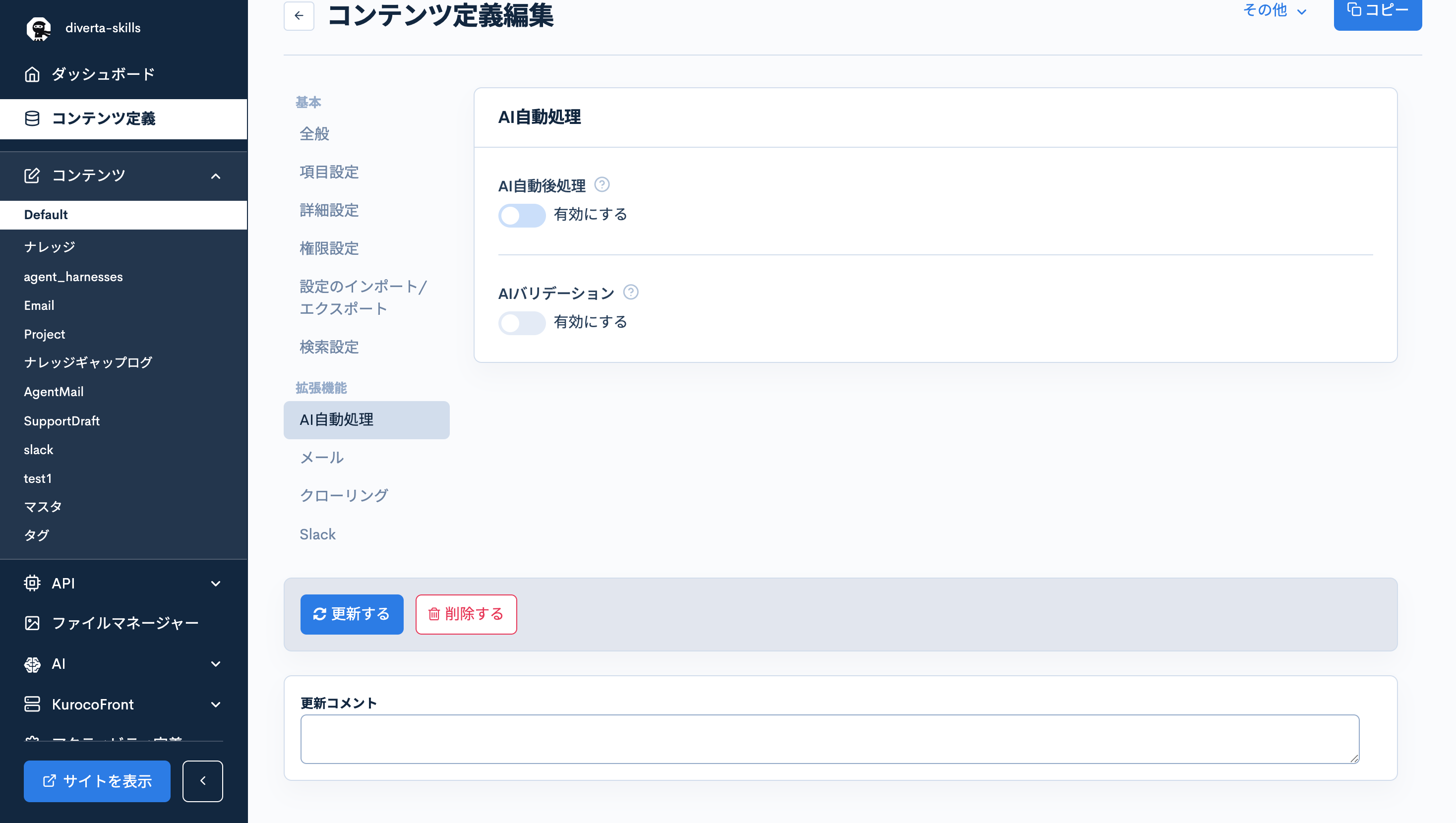
The AI Auto Processing tab in Content Structure allows you to configure AI to run automatically when content is saved.
This tab contains two features with different purposes:
| Feature | Purpose |
|---|---|
| AI Auto Post-Processing | Automatically transforms or generates fields using AI after content is saved |
| AI Validation | Checks content validity using AI when content is saved |
How to access
In the left menu, click [Content Structure] → click the title of the content structure you want to configure → click Extensions → [AI Auto Processing] in the left submenu.
AI Auto Post-Processing
This feature automatically runs AI processing after content is saved, based on the prompt you specify.
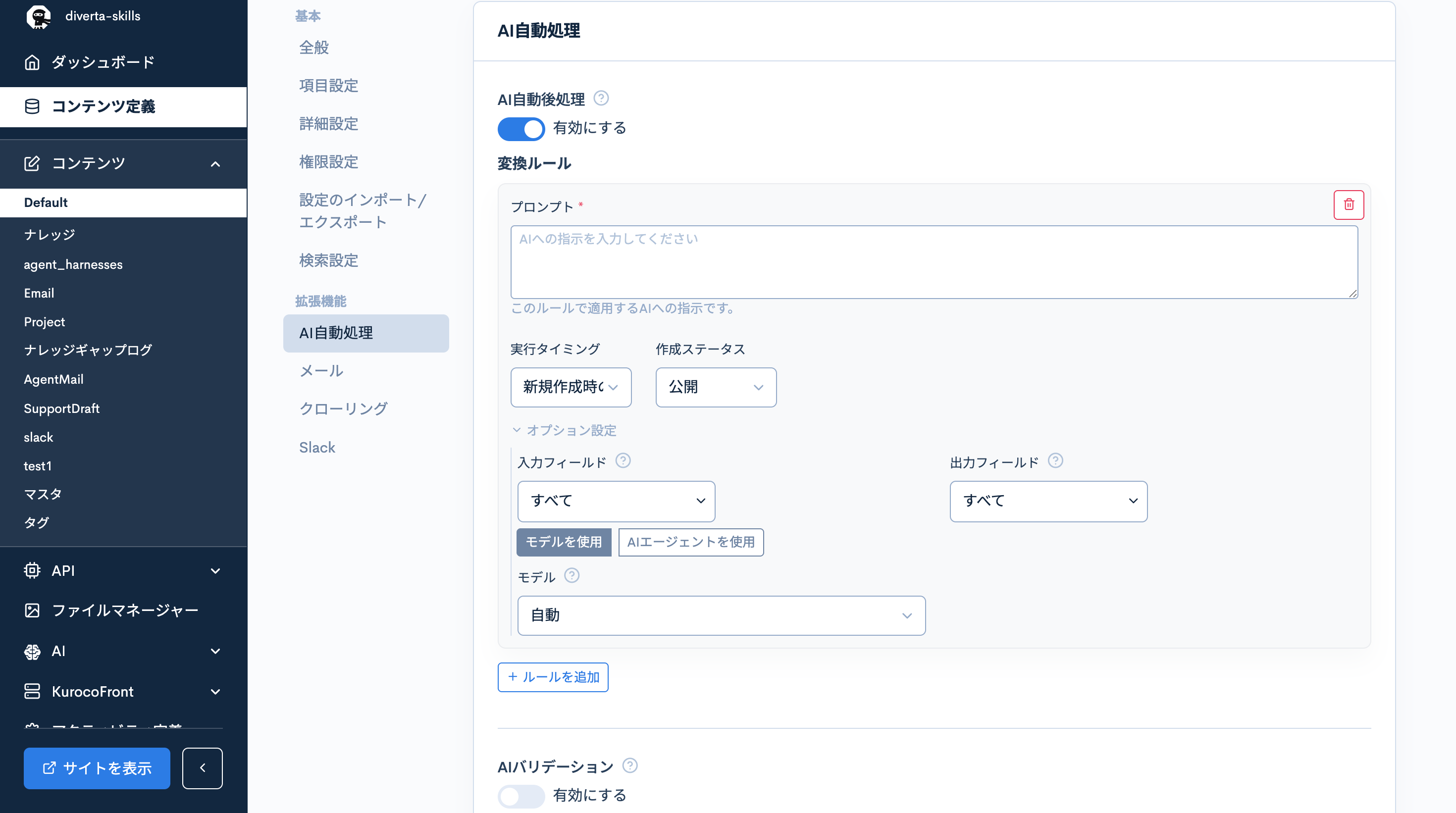
Toggle [Enable] to ON to display the conversion rule settings.
Conversion Rules
Click [+ Add rule] to register multiple rules.
Prompt (required)
Enter instructions for the AI in natural language. You can specify processing such as reading one field's content and writing the result to another field.
Examples:
- "Summarize the body text in the
bodyfield to 200 characters or less and write it to thebodySummaryfield" - "Read the content of the
bodyfield, choose one category from 'Technical' / 'Sales' / 'General Affairs', and write it to thecategoryfield"
Execution Timing
| Option | Description |
|---|---|
| On create only | Runs only when new content is created |
| On create and update | Runs in both cases |
| On update only | Runs only when content is updated |
Creation Status
Specifies the publication status of content to target for processing (e.g., target only "Published" content).
Options
| Item | Description |
|---|---|
| Input fields | Select the fields to pass to the AI |
| Output fields | Select the fields where AI processing results are written |
| Use model / Use AI Agent | Choose whether to delegate processing directly to an LLM or to an AI Agent |
| Model | Specifies the AI model to use |
AI Validation
This feature checks content validity using AI based on the criteria specified in the prompt. If the AI determines there is an issue, the reason is displayed as an error message.
AI validation runs last, after the standard validations (such as required field checks) have been executed. If any standard validation returns an error, AI validation is not executed.
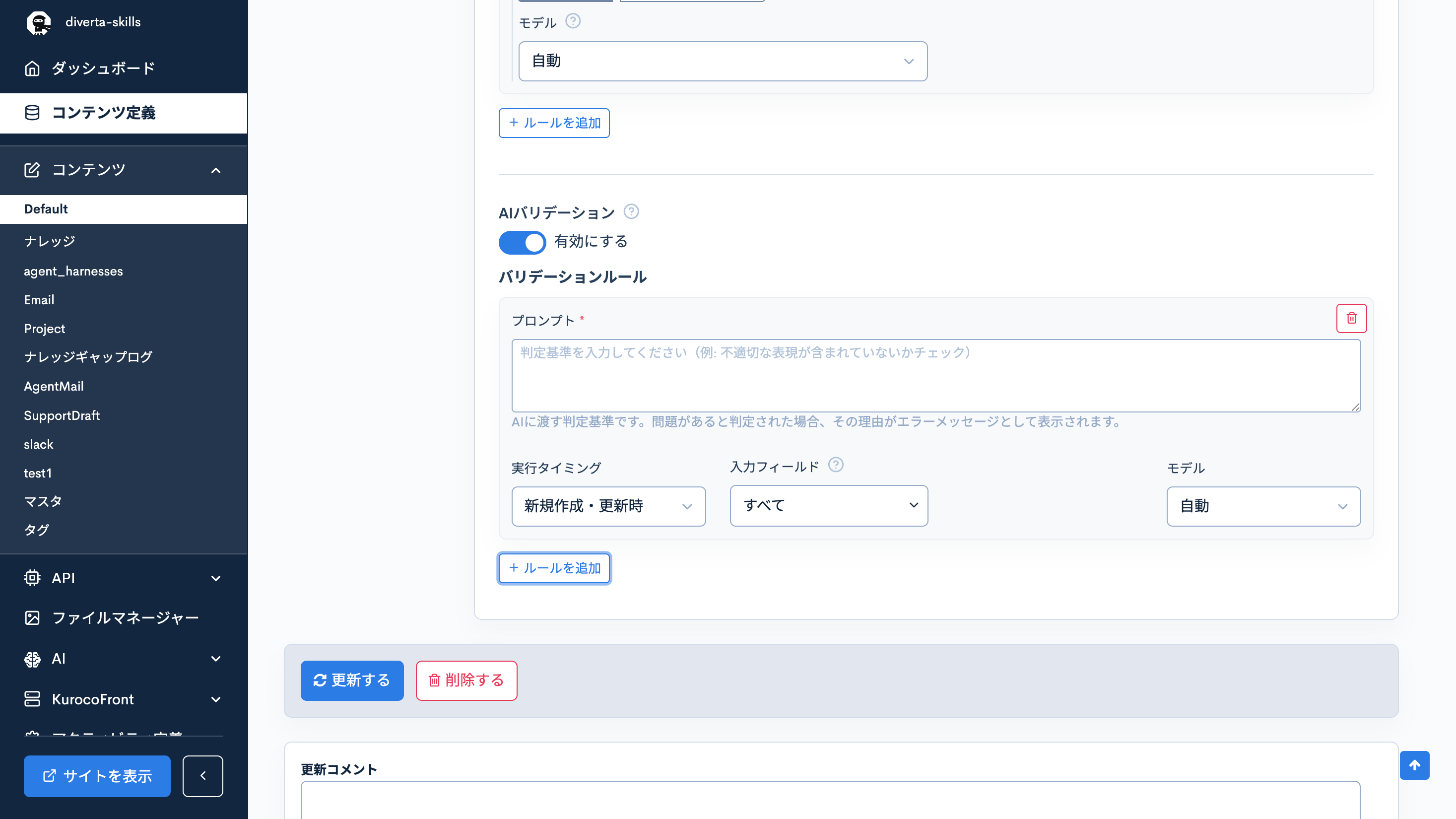
Toggle [Enable] to ON to display the validation rule settings.
Validation Rules
Click [+ Add rule] to register multiple rules.
Prompt (required)
Enter the validation criteria to pass to the AI. If the AI determines there is a problem, this content is displayed as an error message.
Examples:
- "Check that there are no inappropriate or offensive expressions"
- "Check that the customer name, deadline, and person in charge are all included"
Execution Timing
Select when to run the validation.
Input Fields
Select the fields to check.
Model
Specifies the AI model to use.
Related Documentation
Support
If you have any other questions, please contact us or check out Our Slack Community.