Content Structure Extensions
These are the additional configuration options displayed as "Extensions" in the left sidebar of the content structure editor.
How to access
Click [Content Structure] in the left menu, then click the title of the content structure you want to configure, and click Extensions in the left submenu.
The visibility of extension tabs is controlled by the "Data type" selection in the General section of the content structure editor. Only the tab corresponding to the selected type is displayed.
AI Processing
Configure automatic AI processing that runs when content is saved.
This tab contains two distinct features:
| Feature | Purpose |
|---|---|
| AI Post-processing | AI automatically processes and generates field values after content is saved |
| AI Validation | AI checks content validity based on specified criteria when saving |
AI Post-processing
This feature allows AI to automatically execute processing specified by prompts after content is saved.
Turn on the [Enable] toggle to display the transformation rule settings.
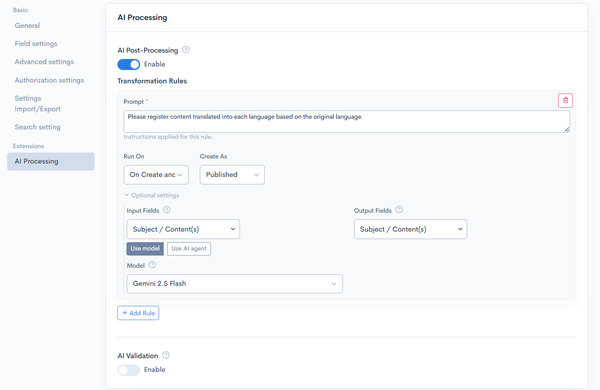
Transformation rules
Click [+ Add rule] to register multiple rules.
Prompt (required)
Enter instructions for the AI. You can describe in natural language how to read one field and write to another.
Examples:
- "Summarize the content of the
bodyfield in 200 characters or less and write it to thebodySummaryfield" - "Based on the content of the
bodyfield, choose one category from 'Technology' / 'Sales' / 'General Affairs' and write it to thecategoryfield"
Execution timing
| Option | Description |
|---|---|
| On create only | Executes only when content is newly created |
| On create and update | Executes on both |
| On update only | Executes only when content is updated |
Creation status
Specifies the publication status of target content for processing (e.g., target only "Published" content).
Optional settings
| Item | Description |
|---|---|
| Input fields | Select which fields to pass to the AI |
| Output fields | Select which fields to write the AI processing results to |
| Use model / Use AI agent | Choose whether to delegate processing directly to an LLM or to an AI agent |
| Model | Specify the AI model to use |
AI Validation
This feature allows AI to check content based on criteria specified in prompts. If the AI determines there is an issue, the reason is displayed as an error message.
AI Validation is executed last, after all standard validations (required field checks, etc.) have passed. If there are errors from prior validation, AI Validation is not executed.
Turn on the [Enable] toggle to display the validation rule settings.
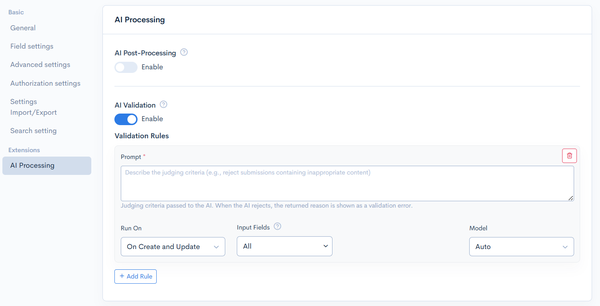
Validation rules
Click [+ Add rule] to register multiple rules.
Prompt (required)
Enter the criteria for AI to evaluate. If the AI determines there is an issue, this content is displayed as an error message.
Examples:
- "Check whether the content contains inappropriate expressions or offensive language"
- "Check whether the customer name, deadline, and person in charge are all included"
Execution timing
Select when to execute the validation.
| Option | Description |
|---|---|
| On create only | Executes only for new content |
| On create and update | Executes on both |
| On update only | Executes only when content is updated |
Input fields
Select the fields to check. If left empty, all available fields (title, body, and all extension items configured in the content structure) are sent. Selecting specific fields narrows the scope of what the AI references.
Model
Specify the AI model to use. Selecting Auto uses the system default model.
AI Validation behavior
- Each rule is evaluated independently. There is no chaining or short-circuiting; every rejected rule returns its own error, so editors can see all rejection reasons in a single save attempt.
- Validation runs last. It is only invoked after all non-AI validations pass, so tokens are not spent on submissions already known to be invalid.
- Fail-closed. If the AI request itself fails (network error, parsing error), a generic validation error blocks the save rather than letting unverified content through.
- Rejection reasons are returned in the editing language. The explanation is displayed in the language the editor is working in.
- Each decision, including approvals, is logged in the application log, so administrators can review why a submission was approved or rejected after the fact.
Mail
Settings for receiving and sending emails. When "Enable email reception" is turned on, extension items required for email (sender, recipients, body, etc.) are automatically added to the content structure.
The Mail tab is displayed when "Mail" is selected as the "Data type" in the General section of the content structure editor.
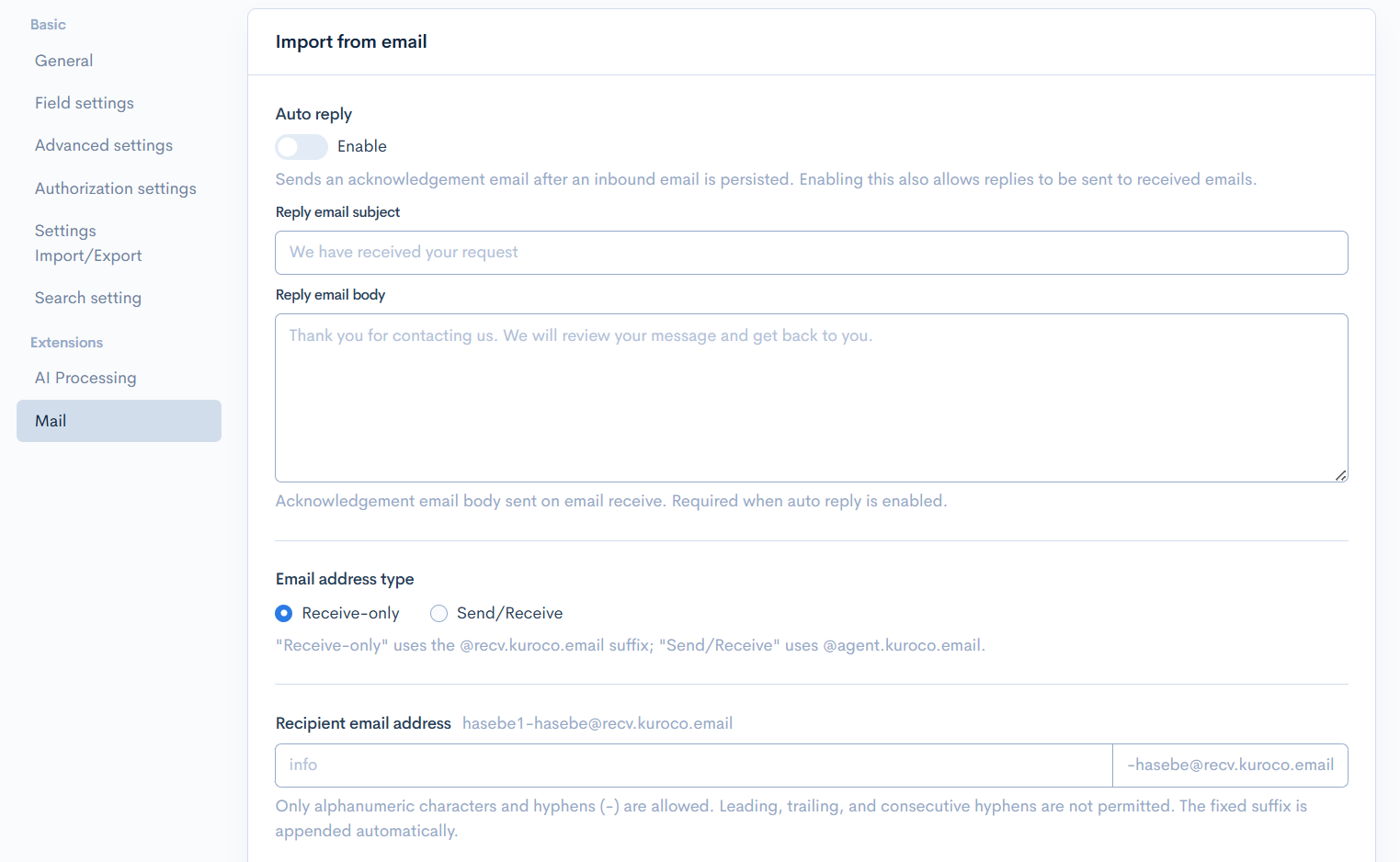
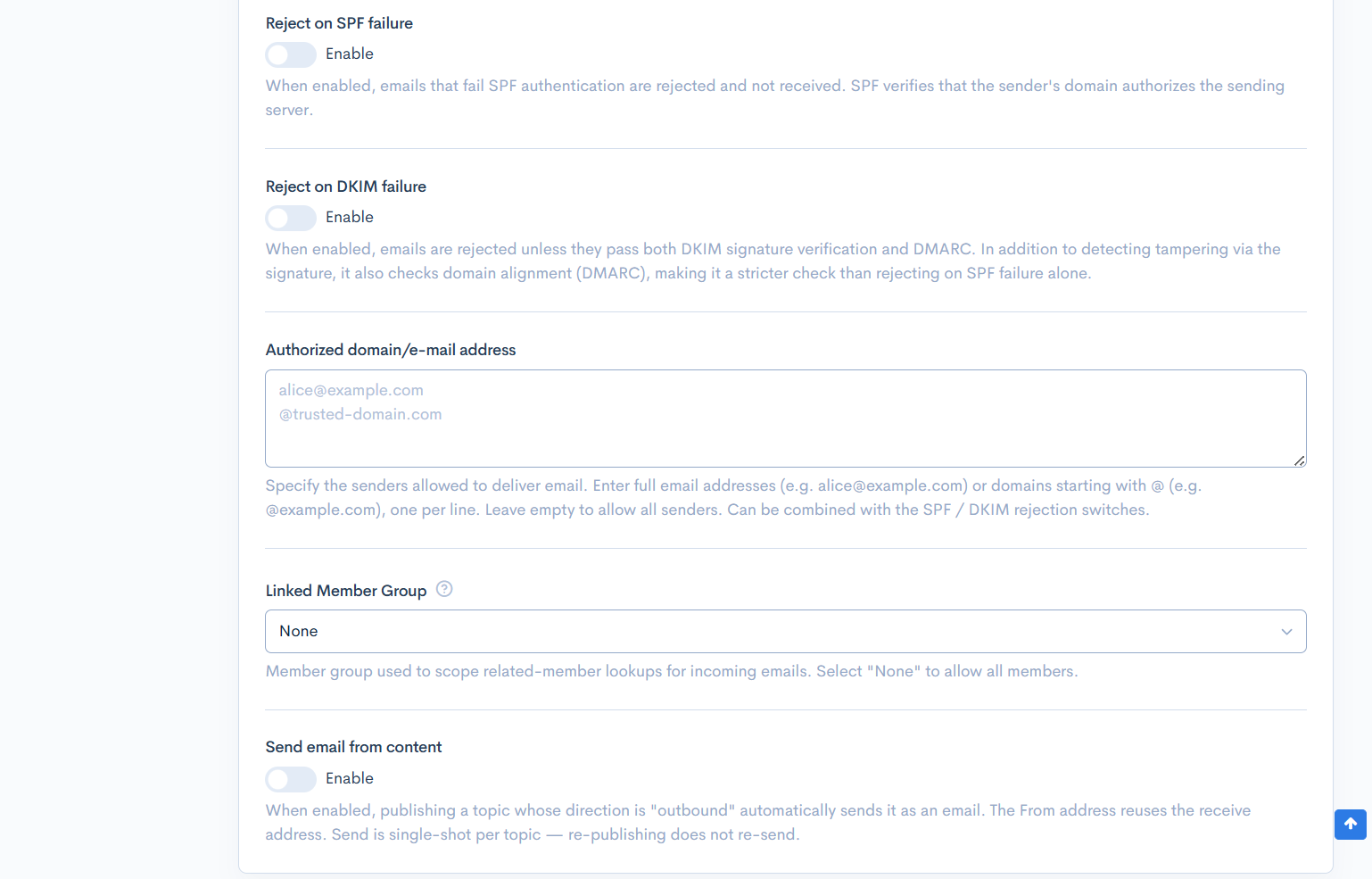
Incoming mail
| Item | Description |
|---|---|
| Enable email reception | When enabled, emails sent to the configured address are received and automatically registered as content. |
| Enable email receipt reply | When enabled, the reply function for received emails is enabled. |
| Email address type | Select the processing type for incoming email.
|
| Receive email address | Enter the local part (before @) of the address to receive emails. Only alphanumeric characters and hyphens (-) are allowed. |
| Reject on SPF failure | When enabled, incoming emails that fail SPF authentication are rejected. |
| Reject on DKIM failure | When enabled, incoming emails that fail DKIM authentication are rejected. |
| Allowed domains / email addresses | Enter email addresses or domains to allow reception from, separated by line breaks. |
| Member group | Member group used to scope related-member lookups for incoming emails. Select "None" to allow all members. |
Crawling
When "Enable web page" is turned on, extension items for storing crawled web page data (URL, content, language, etc.) are automatically added to the content structure.
The Crawling tab is displayed when "Crawling" is selected as the "Data type" in the General section of the content structure editor.
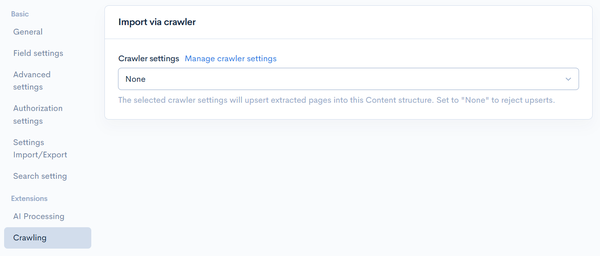
| Item | Description |
|---|---|
| Crawler settings | Select the crawler source URL and settings. See Crawler settings list for details. |
Slack
Settings for storing inbound Slack webhook events and outbound API messages as one record per message.
The Slack tab is displayed when "Slack" is selected as the "Data type" in the General section of the content structure editor.
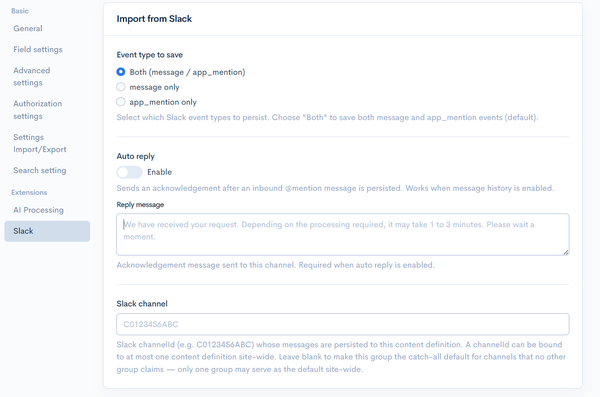
| Item | Description |
|---|---|
| Event type to save | Select which Slack event types to persist.
|
| Auto reply | When enabled, sends an acknowledgement after an inbound @mention message is persisted. |
| Reply message | Acknowledgement message sent to the channel. Required when auto reply is enabled. |
| Slack channel | Slack channelId (e.g. C0123456ABC) whose messages are persisted to this content structure. A channelId can be bound to at most one content structure site-wide. Leave blank to make this the catch-all default for channels that no other group claims (only one group may serve as the default site-wide). |
LINE
Settings for storing inbound LINE Messaging API webhook events as one record per message.
The LINE tab is displayed when "LINE" is selected as the "Data type" in the General section of the content structure editor.
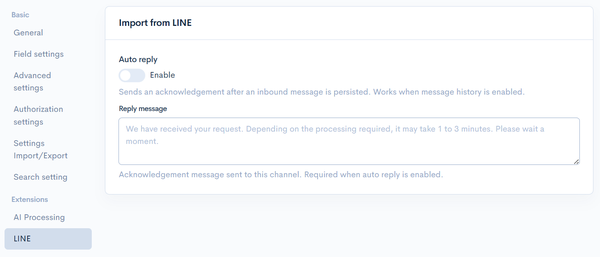
| Item | Description |
|---|---|
| Auto reply | When enabled, sends an acknowledgement after an inbound message is persisted. |
| Reply message | Acknowledgement message sent to the channel. Required when auto reply is enabled. |
Microsoft Teams
Settings for storing inbound Microsoft Teams Bot Framework message activities as one record per message.
The Microsoft Teams tab is displayed when "Microsoft Teams" is selected as the "Data type" in the General section of the content structure editor.
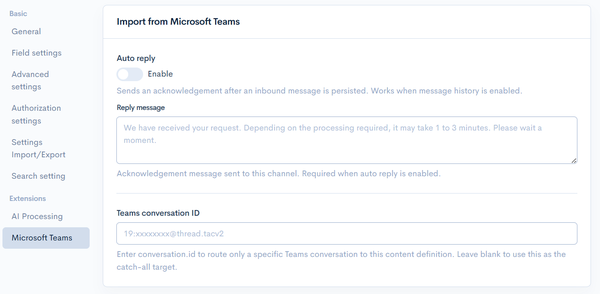
| Item | Description |
|---|---|
| Auto reply | When enabled, sends an acknowledgement after an inbound message is persisted. |
| Reply message | Acknowledgement message sent to the channel. Required when auto reply is enabled. |
| Teams conversation ID | Enter conversation.id to route only a specific Teams conversation to this content structure. Leave blank to use this as the catch-all target. |
Related documentation
Support
If you have any other questions, please contact us or check out Our Slack Community.