Admin MCP
Click [Admin MCP] in the admin panel header (at the top of the screen). It is not listed in the left sidebar menu. The URL is /management/rcms_api/admin_mcp_info/.
The Admin MCP screen lets you check the settings and status required to run Kuroco management operations (reading, creating, updating, and deleting content, members, site settings, API settings, and more) from an MCP client, all on a single screen.
This is a different feature from the MCP server of an API (https://{site_key}.g.kuroco.app/rcms-api/{api_id}/mcp), which is published from the MCP settings of an endpoint. Admin MCP is an MCP server for management operations and does not require an API to be created.
Admin MCP allows an MCP client to perform the same operations as the admin panel. Available operations are controlled at three layers, so check which clients you connect and the permission range of each token before using it.
- The endpoint URL: the path after
/x/selects the exposed modules, and appending/readonlyexcludes write tools. - The OAuth client scopes: only tools permitted by the token scopes can be used.
- The authenticated member permissions: nothing beyond what that member can do in the admin panel can be done via MCP.
How to open Admin MCP
Click Admin MCP in the admin panel header.
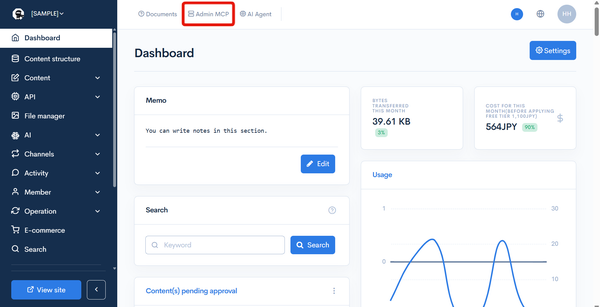
The URL is /management/rcms_api/admin_mcp_info/. Any member who can view the admin panel dashboard can open this screen. The links and operations inside the screen are restricted by their own permissions.
Screen items
The screen consists of several cards. Every card except the first one (Admin MCP) is collapsed on load and toggles when you click its heading.
Admin MCP
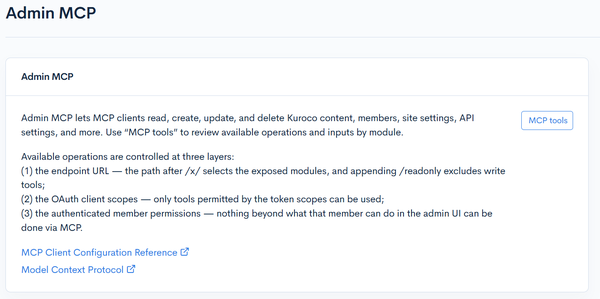
The first card. It shows the same overview text as the introduction of this article, plus the following items.
| Item | Description |
|---|---|
| MCP tools | Click it to select a module and review the tools it exposes together with their input fields. |
| MCP Client Configuration Reference | Opens MCP Client Configuration Reference. |
| Model Context Protocol | Opens the official Model Context Protocol site. |
MCP Client Setup
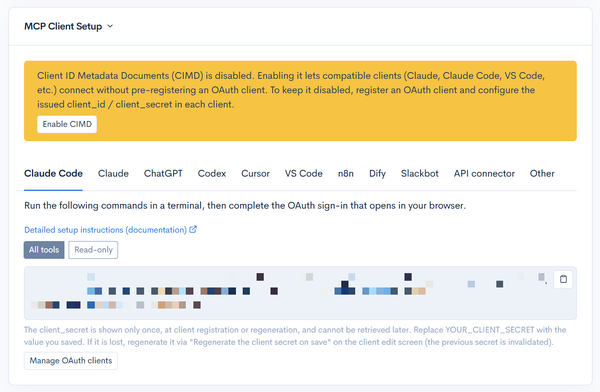
Select the tab for the MCP client you use and follow the steps shown. The tabs are Claude Code, Claude, ChatGPT, Codex, Cursor, VS Code, n8n, Dify, Slackbot, and Other.
The Claude Code, Claude, ChatGPT, Codex, Cursor, VS Code, and Other tabs are organized into two steps: 1. Connect to Admin MCP and 2. Install Kuroco Skills.
| Item | Description |
|---|---|
| CIMD status | When Client ID Metadata Documents (CIMD) is enabled, the card states that compatible clients (Claude, Claude Code, VS Code, etc.) can connect without registering an OAuth client in advance. When it is disabled, a warning is shown together with the Enable CIMD button (which opens the authorization server edit screen) and the Register an OAuth client button. |
| All tools / Read-only | Switches the URLs shown in the tab. Choosing Read-only rewrites the URL to the /readonly form. On the Cursor tab the sample scopes are rewritten as well. |
| Add to Claude | Shown only on the Claude tab. Clicking it opens claude.ai's "Add custom connector" dialog in a new tab, with the connector name (kuroco-{site_key}-admin) and the Remote MCP server URL already filled in. The URL it opens follows the All tools / Read-only selection. The button cannot be used in the Claude Desktop / Mobile apps; in that case, copy and paste the URL shown below it. |
| URLs and configuration samples | Shows the URL, command, or configuration file snippet for the selected client. Use the icon at the top right to copy it to the clipboard. |
| Detailed setup instructions (documentation) | Opens the setup steps for the selected client in MCP Client Configuration Reference. |
| 2. Install Kuroco Skills | The steps for installing Kuroco Skills after connecting. Depending on the client, it shows the installation command (claude plugin commands on Claude Code; the npx skills command on Codex, Cursor, VS Code, and Other) or a button that downloads the zip of all skills (Claude and ChatGPT). |
| Manage OAuth clients / Register an OAuth client | Opens the OAuth Authorization Server client list or registration screen. |
When CIMD is disabled, replace YOUR_CLIENT_SECRET with the client secret you saved at registration. The client secret is shown only once, at client registration or regeneration, and cannot be retrieved later. If it is lost, regenerate it via Regenerate the client secret on save on the client edit screen (the previous secret is invalidated).
To connect with only specific modules exposed, change the URL according to the format described in the Endpoint card.
MCP tooling feedback
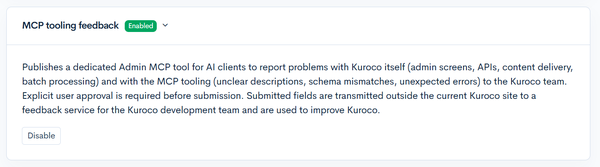
Publishes a dedicated tool for AI clients to report problems with Kuroco itself (admin screens, APIs, content delivery, batch processing) and with the Admin MCP tooling (unclear descriptions, schema mismatches, unexpected errors) to Kuroco.
The current state is shown as an Enabled / Disabled badge next to the card heading, and is switched with the Enable / Disable button.
Explicit user approval is required before submission. Submitted fields are transmitted outside the current Kuroco site to a feedback service for the Kuroco development team and are used to improve Kuroco.
Site-specific Admin MCP instructions
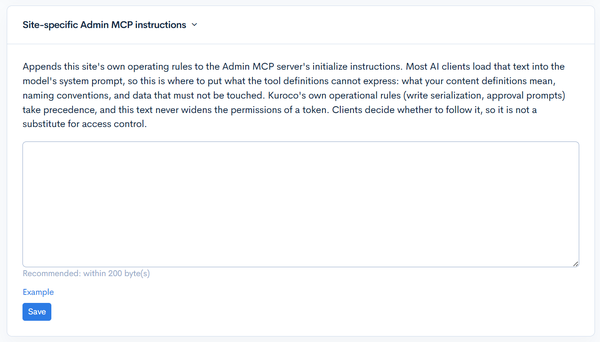
Appends this site's own operating rules to the end of the Admin MCP server's initialize instructions. Most AI clients load that text into the model's system prompt, so this is where to put what the tool definitions cannot express: what your content definitions mean, naming conventions, and data that must not be touched.
Enter the instructions in the text area and click Save. When instructions are stored, an Enabled badge is shown on the card heading.
The recommended length is within 200 bytes. Longer text is still stored and sent, but some MCP clients may not read the end of the instructions. Clicking Example shows a sample.
Kuroco's own operational rules (write serialization, approval prompts) take precedence, and this text never widens the permissions of a token. Clients decide whether to follow it, so it is not a substitute for access control.
Permissions delegated by mcp:tools.write
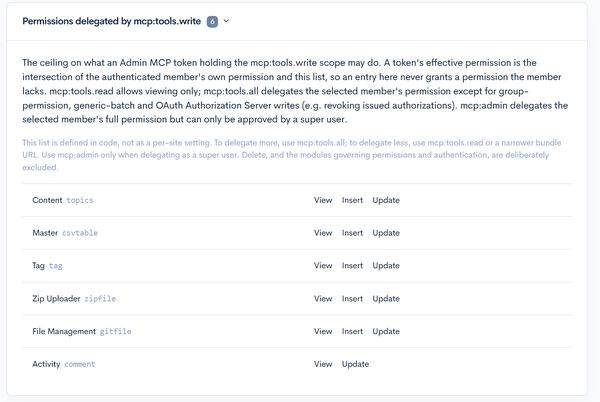
Shows the ceiling on what an Admin MCP token holding the mcp:tools.write scope may do, per module, as View, Insert, Update, and Delete. The badge on the card heading is the number of modules listed.
A token's effective permission is the intersection of the authenticated member's own permission and this list, so an entry here never grants a permission the member lacks. This list is defined in code, not as a per-site setting. To delegate more, use mcp:tools.all; to delegate less, use mcp:tools.read or a narrower bundle URL.
OAuth Authorization Server
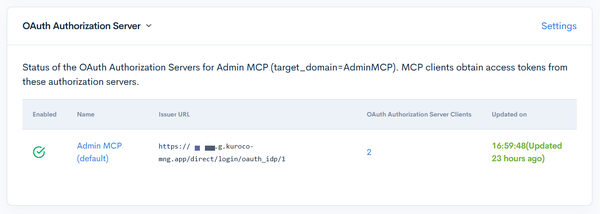
Lists the OAuth Authorization Servers whose target domain is AdminMCP. MCP clients obtain access tokens from these authorization servers.
| Item | Description |
|---|---|
| Enabled | The published state of the authorization server. |
| Name | The authorization server name. Clicking it opens the authorization server edit screen. |
| Issuer URL | The URL that identifies the authorization server. |
| OAuth Authorization Server Clients | The number of registered clients. Clicking it opens the client list. |
| Update time | The last update time of the authorization server. |
Settings on the card heading opens the OAuth Authorization Server list screen.
Clients Connected to Admin MCP
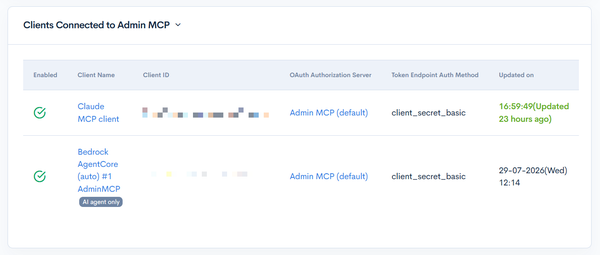
Lists the OAuth clients registered on the Admin MCP authorization servers.
| Item | Description |
|---|---|
| Enabled | The published state of the client. |
| Client Name | The client name. Clicking it opens the client edit screen. Clients created automatically for AI agents carry an AI agent only badge. |
| Client ID | The issued client ID, which you configure in the MCP client. |
| OAuth Authorization Server | The authorization server the client belongs to. |
| Token Endpoint Auth Method | The configured value, such as client_secret_basic, client_secret_post, or none. |
| Update time | The last update time of the client. |
AI Agents Using Admin MCP
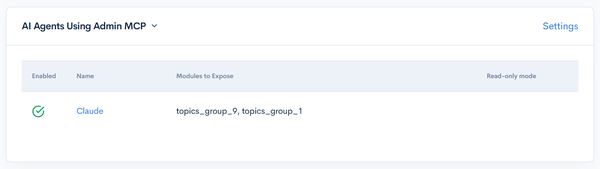
Lists the AI agents that have Admin MCP enabled.
| Item | Description |
|---|---|
| Enabled | The published state of the agent. |
| Name | The agent name. Clicking it opens the agent edit screen. |
| Modules to Expose | The modules the agent uses as MCP tools. |
| Read-only mode | Shows a Read-only mode badge for agents with read-only mode enabled. |
Settings on the card heading opens the AI agent list screen.
Endpoint
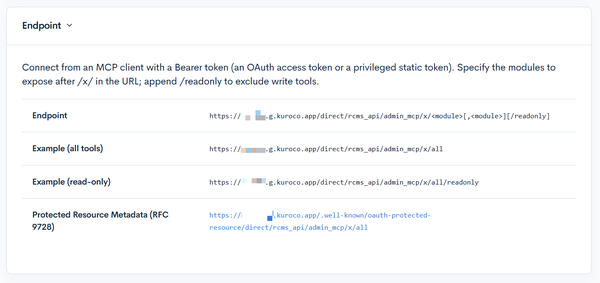
Connect from an MCP client with a Bearer token (an OAuth access token or a privileged static token). Specify the modules to expose after /x/ in the URL; append /readonly to exclude write tools.
| Item | Description |
|---|---|
| Endpoint | https://{site_key}.g.kuroco.app/direct/rcms_api/admin_mcp/x/<module>[,<module>][/readonly] |
| Example (all tools) | https://{site_key}.g.kuroco.app/direct/rcms_api/admin_mcp/x/all |
| Example (read-only) | https://{site_key}.g.kuroco.app/direct/rcms_api/admin_mcp/x/all/readonly |
| Protected Resource Metadata (RFC 9728) | The metadata URL of the endpoint. Clicking it shows the document. |
For details on the endpoint URL, see MCP Server Reference.
Notes
- The OAuth Authorization Server and the OAuth client used to connect are created automatically when this screen is opened. Once an administrator deletes either of them, the deletion is treated as intentional and they are not recreated; register them manually when they are needed again.
- The Target resource of an OAuth client must match the URL configured in the MCP client exactly. Otherwise the issued token is rejected on connection (
invalid_target)./x/alland/x/all/readonlyare treated as different resources. - Toggling MCP tooling feedback and saving Site-specific Admin MCP instructions require the update permission for site settings. Without the permission, the corresponding forms and buttons are not displayed.
- When Admin MCP access restriction (IP address) under Environment settings -> Admin panel -> Admin panel is enabled, access to the Admin MCP endpoint (
/direct/rcms_api/admin_mcp/) is limited to the allowed IP addresses. Admin MCP access from AI agent features inside the admin panel is also subject to this restriction.
Related documents
Support
If you have any other questions, please contact us or check out Our Slack Community.