AI Agent
On the AI Agent screens, you can view, add, and update AI agents that run on Kuroco. For each agent, you configure the "permitted actions" — the tools, skills, and MCP servers it is allowed to use.
This feature is currently in beta. Each agent session runs in an isolated environment — your data is not used for training and is not exposed externally. However, the agent execution location is in the US. Data resides in the Tokyo region. During the beta period, Diverta Inc. system administrators may review session content for service and performance improvements.
AI agent execution is subject to usage-based billing. Agent execution time is aggregated as "AI agent processing time" (Computing). In addition, for models run via Amazon Bedrock, token usage is added to "AI processing unit". You can check the actual usage in the daily usage section of the Usage screen.
Agent List
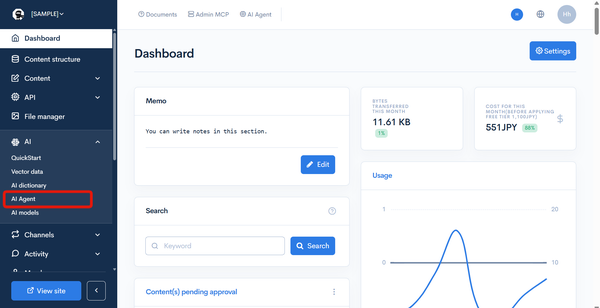
How to access
Click [AI] -> [AI Agent].
Field descriptions
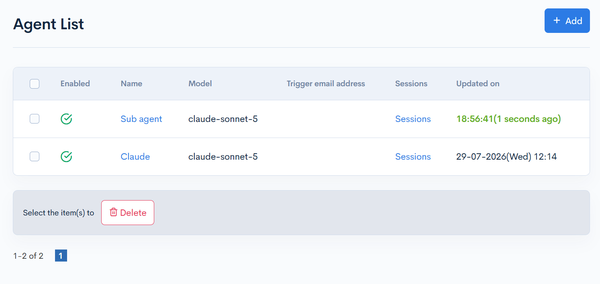
| Field | Description |
|---|---|
| Enabled | Indicates whether the agent is enabled. |
| Name | Displays the agent name. Click it to open the agent editor. |
| Model | Displays the model used by the agent. |
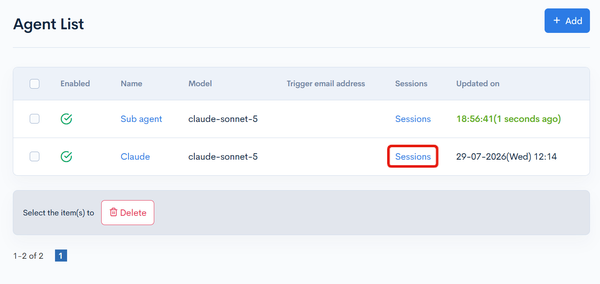
| Sessions | Click to open the agent's session list. |
| Trigger email address | Displays the trigger email address for agents with autonomous execution enabled. The local part (before the @) is the slug when one is set, and the agent ID otherwise. |
| Updated on | Displays the date and time the agent was last updated. |
Click [Add] to create a new agent.
Agent Editor
How to access
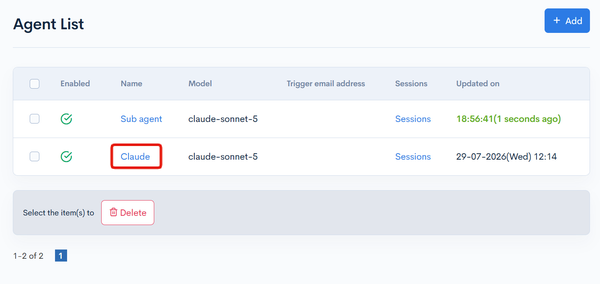
Click [AI] -> [AI Agent], then click the name of the target agent in the list.
Basic information
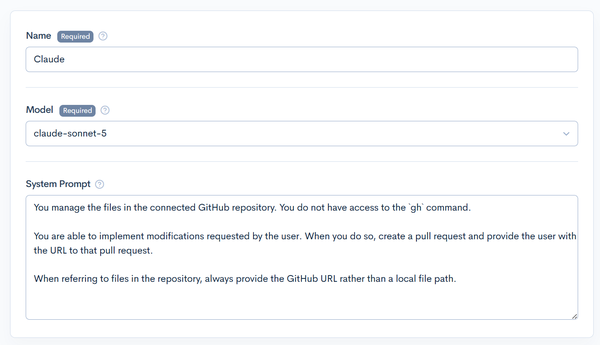
| Field | Description |
|---|---|
| Name | Set the display name for the agent. (Required) |
| Model | Select the model to use. (Required) The default is claude-sonnet-4-6. The available models depend on the harness type of the execution environment. |
| System Prompt | Enter the system prompt that controls the agent's behavior. |
When an OpenAI Agents API environment is selected in [Environment], the following fields can also be set.
| Field | Description |
|---|---|
| Response format | Select the format of the agent's responses from "Text (normal responses)" or "JSON Schema". Normally select "Text (normal responses)". Select "JSON Schema" to get JSON with defined fields and types for processing in a program. This does not change the input message format. |
| JSON Schema | Displayed when "JSON Schema" is selected in Response format. Enter the JSON schema of the response. The root of the schema must be an object, and every object must set additionalProperties to false and list all of its properties in required. A schema that does not meet these requirements cannot be saved. |
| Verbosity | Select the verbosity of responses from "Model default" / low / medium / high. |
| Reasoning effort | Select the reasoning effort from "Model default" / none / minimal / low / medium / high / xhigh / max. |
| Reasoning summary | Select the reasoning summary from "Model default" / auto / concise / detailed. |
Environment and status
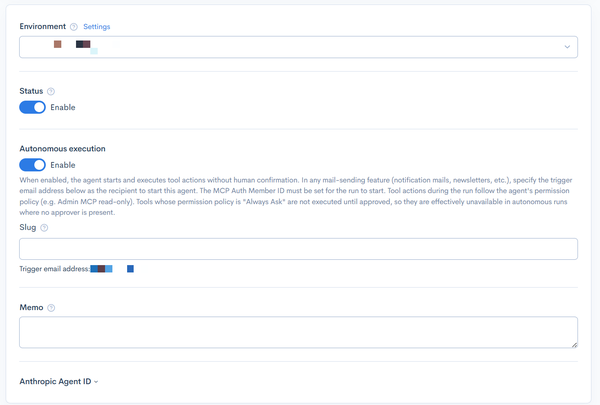
| Field | Description |
|---|---|
| Environment | Select the agent execution environment. You can manage network and package settings. Click [Settings] to open the Environment editor. A saved agent cannot be moved between OpenAI Agents API and another harness; create a new agent instead. |
| Status | Disabling makes the agent unavailable. |
| Autonomous execution | When enabled, the agent can be triggered without human confirmation. If the linked member's (MCP auth member's) email address is empty, it is automatically set to the trigger email address below, and notification emails sent to that address trigger the agent. Tool operations at runtime follow the agent's permission policies (such as the Admin MCP read-only setting). |
| Slug | Displayed when autonomous execution is enabled. An identifier used as the local part (before the @) of the trigger email address. Letters, numbers, hyphens and underscores are allowed (numbers only is not). The slug is case-insensitive, and a value already used by another agent cannot be set. When empty, the agent ID is used. The agent-ID address keeps working even when a slug is set. |
| Trigger email address | Displayed when autonomous execution is enabled. Notification emails sent to this address trigger the agent. The preview updates as you type the slug. |
| Memo | Enter a memo for management purposes. |
| Agent ID | Displayed after the agent is saved, when the agent has been created on the harness side. Click it to see the ID assigned to this agent. |
Permitted actions
Configure the tools and connections available to the agent, organized in tabs.
When an OpenAI Agents API environment is selected in [Environment], the permitted actions and MCP authentication settings are not displayed. Code execution and file operations are always enabled, and individual tool settings and approval settings are unavailable. Adding external tools (including MCP and GitHub) and skills is not supported.
The [Agent Tools] and [Skills] tabs are not shown when the selected [Environment] uses the Bedrock Managed Harness. These are Anthropic Managed Agents features; only the model, system prompt, and MCP tools are applied to the Bedrock Managed Harness.
A permission policy can be set for tool execution.
| Permission policy | Description |
|---|---|
| Always Allow | Skips confirmation when a tool runs. |
| Always Ask | Requires approval before each tool runs. |
Agent Tools
Select the built-in tools available to the agent. In addition to the [Default Permission Policy], you can set a per-tool permission policy.
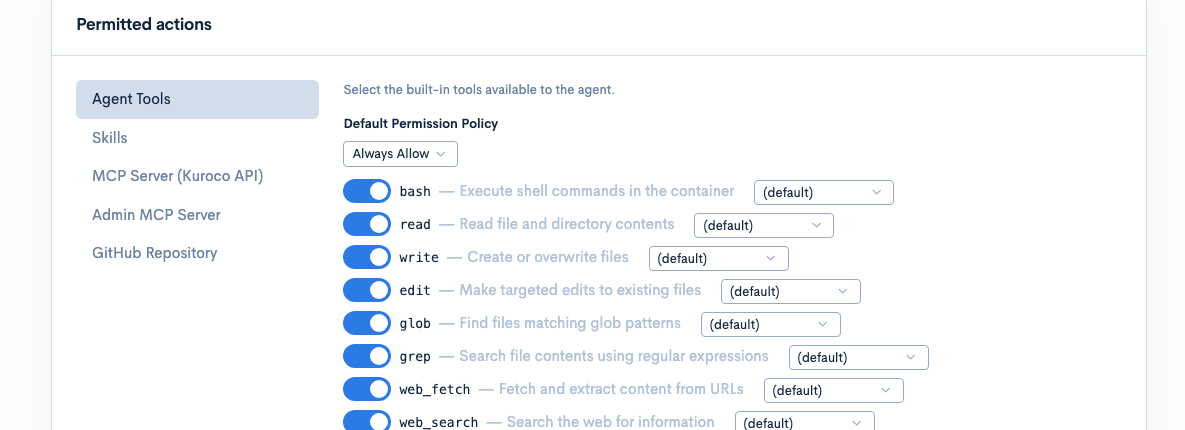
| Tool | Description |
|---|---|
| bash | Execute shell commands in the container |
| read | Read file and directory contents |
| write | Create or overwrite files |
| edit | Make targeted edits to existing files |
| glob | Find files matching glob patterns |
| grep | Search file contents using regular expressions |
| web_fetch | Fetch and extract content from URLs |
| web_search | Search the web for information |
Skills
Select the Anthropic-managed skills to enable for this agent.
| Skill | Description |
|---|---|
| xlsx | Excel spreadsheet creation and editing |
| docx | Word document creation and editing |
| pptx | PowerPoint presentation creation and editing |
| PDF document manipulation and analysis |
If Kuroco Skills are provided, they are shown as "Auto-included" and are always attached to the agent.
MCP Server (Kuroco API)
Select a Kuroco API MCP server. The agent can use this API as MCP tools.
| Field | Description |
|---|---|
| MCP Server (Kuroco API) | Select the Kuroco API to connect. Only APIs with dynamic access token (dynamic_token) security are listed. On save, an OAuth IdP and client with target_domain=API are provisioned automatically. |
| Read-only mode | When enabled, write tools (create, update, delete, etc.) of this MCP server (Kuroco API) become unavailable to the AI agent. |
| MCP Permission Policy | "Always Allow" skips confirmation for MCP tools. "Always Ask" (default) requires approval before each MCP tool runs. |
AI agents cannot use the tools that create AI agent sessions (AiAgent::create_session) or send them messages (AiAgent::send_message); these tools are left out of the agent's tool list. This prevents an agent from continuously launching other agents. If the selected API includes these tools, a notice is shown on the screen. Tools that retrieve sessions and message history (AiAgent::get_sessions / AiAgent::get_messages) are available.
If no MCP-enabled Kuroco API is configured, use [Configure MCP on the API] to set up MCP on an endpoint first. See Model Context Protocol (MCP) Integration with Kuroco for the setup steps.
Admin MCP Server
Exposes Kuroco management controllers, such as topics and member, as MCP tools.
| Field | Description |
|---|---|
| Read-only mode | When enabled, write tools (create, update, delete, etc.) of all selected modules become unavailable to the AI agent. |
| Modules to Expose | Select the management modules to expose as MCP tools. (Required) The number of available tools is displayed per module. |
| MCP Permission Policy | "Always Allow" skips confirmation for MCP tools. "Always Ask" (default) requires approval before each MCP tool runs. |
Click [MCP tools] to view the tool list per exposed module.
For the Admin MCP server specification, see the MCP Server Reference.
GitHub Repository
Mounts the site's GitHub repository as a resource. To use it, configure the repository integration and PAT in [GitHub settings].
MCP authentication
| Field | Description |
|---|---|
| MCP Auth Member ID | Set the member ID used when accessing the MCP server. If you have the member view permission, a searchable select field is shown and you can search by name, email address, login ID, or member ID. Without the permission, a plain member ID input field is shown. |
| Regenerate MCP Credential | Regenerates the MCP Credential token. |
The MCP auth member is treated as a member dedicated to that agent. A member already set on another agent cannot be specified.
After configuring, click [Update] to save.
Sessions
How to access
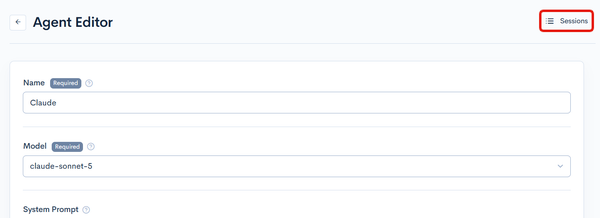
Click [Sessions] in the agent list, or [Sessions] at the top right of the agent editor.
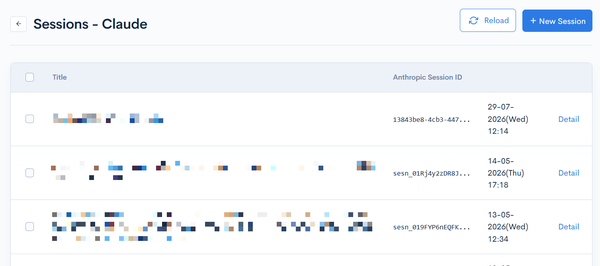
Session list field descriptions
| Field | Description |
|---|---|
| Title | Displays the session title. |
| Anthropic Session ID | Displays the session ID. |
| Created at | Displays the date and time the session was created. |
Click [New Session] to start a new session. Click [Detail] to open the session transcript screen.
Session view
View the session transcript (conversation history) and send messages.
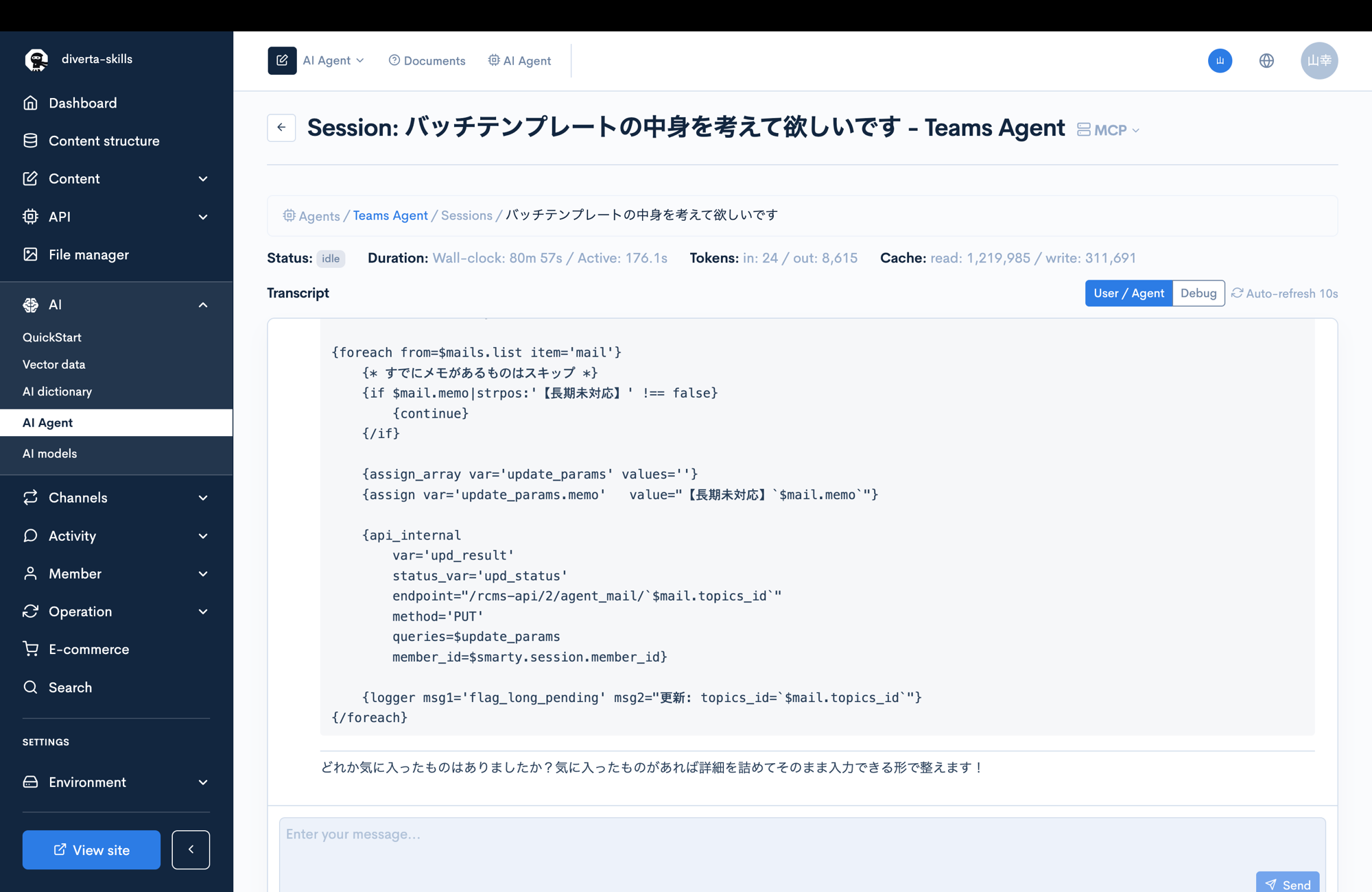
- You can send messages to the agent from the message input field.
- When the agent tries to run a tool whose permission policy is "Always Ask", the session waits for approval (Action Required); choose [Allow] or [Deny].
- Click [Interrupt] to interrupt a running agent.
Notes
- To delete an agent, use [Delete]. Sessions linked to the deleted agent are archived as well.
- Deleting an agent also deletes it in the external service. If it cannot be deleted in the external service (the API key is invalid or expired, the agent cannot be accessed, or an external error occurs), the reason is displayed and the agent is not deleted in Kuroco either.
- In that case, the [Delete in Kuroco only] button is displayed. Click it and confirm to delete the agent in Kuroco only. The agent and its sessions remain in the external service and are not deleted or stopped.
Related documents
- Environment
- MCP Server Reference
- Model Context Protocol (MCP) Integration with Kuroco
- Integrating with Microsoft Teams - An example of building a Teams bot with an AI agent
Support
If you have any other questions, please contact us or check out Our Slack Community.