Microsoft Teams
The Microsoft Teams screen enables you to configure the integration between Kuroco and a Microsoft Teams bot. The configured settings are used so that when a message is sent to the bot in a Teams chat, Kuroco receives and processes it.
Accessing the screen
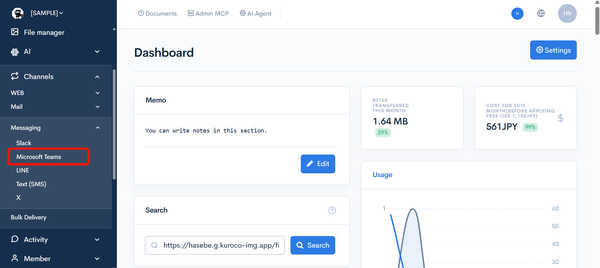
In the left sidebar menu, click [Channels] -> [Messaging] -> [Microsoft Teams].
Item descriptions
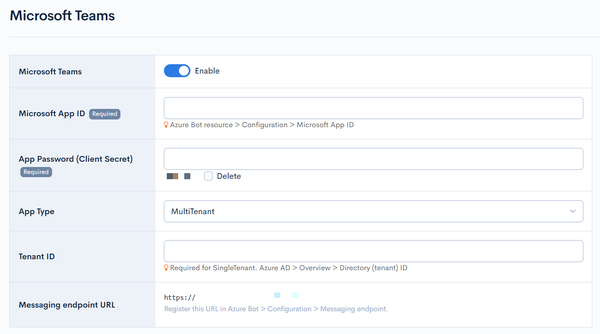
| Item | Description |
|---|---|
| Enable | Turn on the toggle to enable the Microsoft Teams integration. |
| Microsoft App ID | Enter the "Application (client) ID" of the application registered in Azure. |
| App Password (client secret) | Enter the value of the client secret created in Azure. |
| App type | Select the app type (e.g. SingleTenant). |
| Tenant ID | Enter the "Directory (tenant) ID" from Azure. |
| Messaging endpoint URL | A read-only URL that is displayed after you save the settings. Setting this URL as the messaging endpoint of the Azure Bot allows messages from Teams to reach Kuroco.https://{your-site}.g.kuroco.app/direct/topics/teams/ |
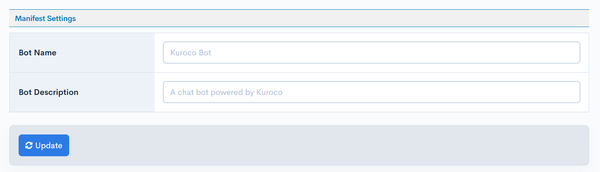
In the "Manifest settings" section, configure the content that is reflected in the manifest for the Teams app package.
| Item | Description |
|---|---|
| Bot name | Enter the bot name displayed in Teams (e.g. KurocoBot). |
| Bot description | Enter the description of the bot (e.g. A chat bot powered by Kuroco). |
Click [Update] to apply the entered content.
Test send
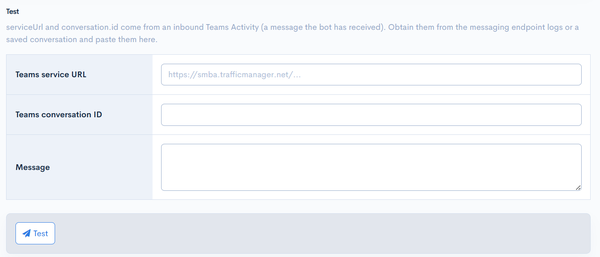
In the "Test" section at the bottom of the settings screen, you can use the saved settings to send an actual message to Teams and verify that the integration is configured correctly.
Sending a test will send a real message to the specified conversation.
| Field | Description |
|---|---|
| Teams serviceUrl | Enter the destination Teams serviceUrl. |
| Teams conversation ID | Enter the destination Teams conversation ID (conversationId). |
| Message | Enter the text to send. |
| Test | Click [Test] to send the entered message to Teams. |
The serviceUrl and conversation ID (conversationId) required for the test send can be checked from a record of the content definition that stores the Teams message history, after you have exchanged messages with the bot at least once. For the steps to obtain them, see Integrate with Microsoft Teams.
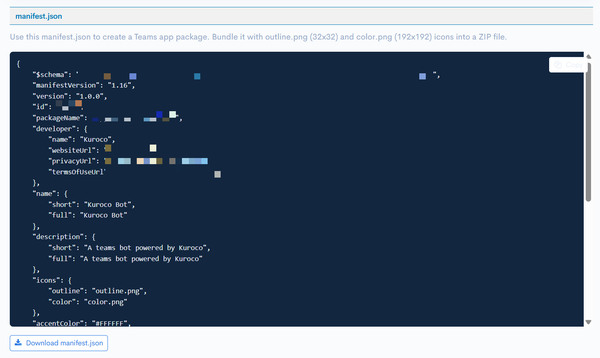
manifest.json
Click [Download manifest.json] in the "manifest.json" section to download the manifest.json for the Teams app package. Install the app in Teams using a ZIP file that bundles the downloaded manifest.json and the icon images.
Related documents
Support
If you have any other questions, please contact us or check out Our Slack Community.