Using custom member filters
Apart from performing searches, custom member filters also allow you to authorize access to pages, specify notification recipients, and implement other actions.
Creating a filter
1. Go to the custom member filter screen
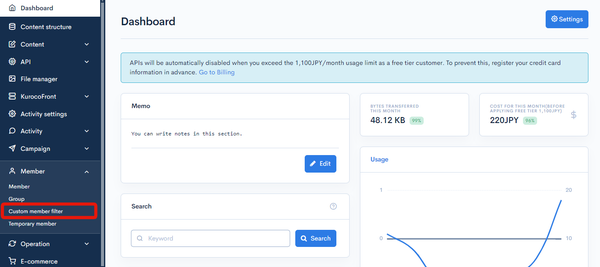
Filter conditions can be specified on the custom member filter screen. In the sidebar menu, select [Member] -> [Custom member filter] in the sidebar menu.
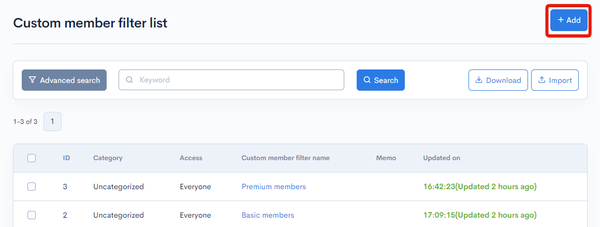
 On the filter list screen, click [Add] in the upper right corner.
2. Set up your filter
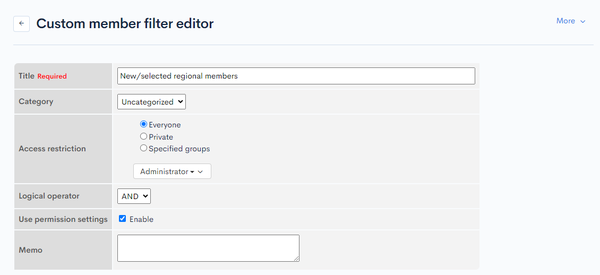
Set up your filter as desired. For more information on the input fields, see User guide: Custom member filter.
Example filter:
- Name:
New/selected regional members - Access restriction: Everyone
- Logical operator: AND
- Use permission settings: Enable
- Memo: (leave blank)
3. Input your filter conditions
You can input your filter conditions under the "Member", "Form", "E-commerce", and/or "Custom function" tabs.
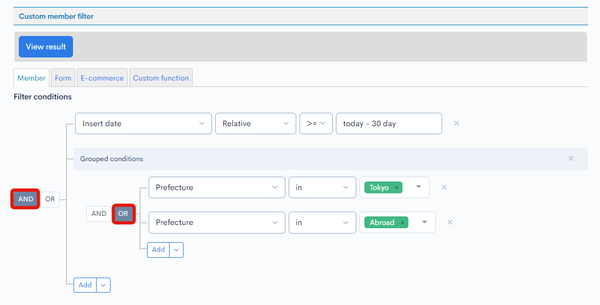
Below is an example filter for members who have registered within the last 30 days and who are living either in Tokyo or abroad.
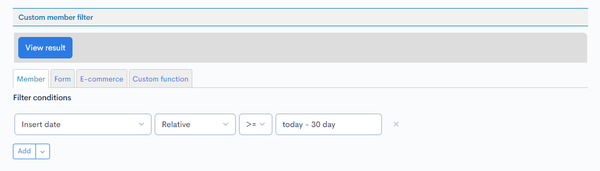
a. Members who have registered within the last 30 days
Under the "Member" tab, select [Insert date] -> [Relative] -> [>=] and enter today -30 day in the textbox.
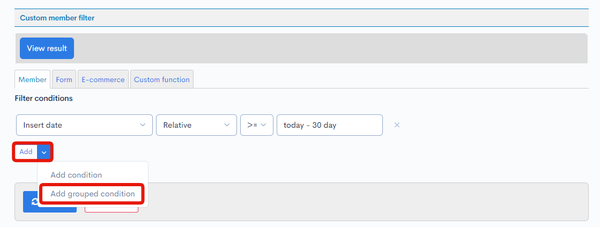
b. Add grouped condition
Click ▼ next to the [Add] button and select [Add grouped condition].
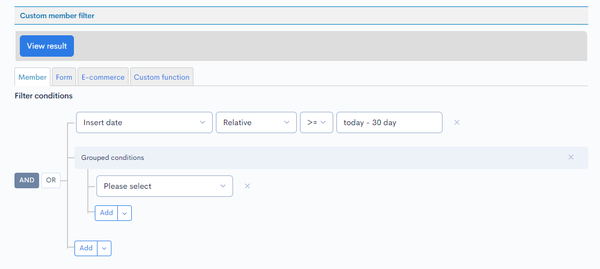
c. Members who are located in Tokyo or abroad
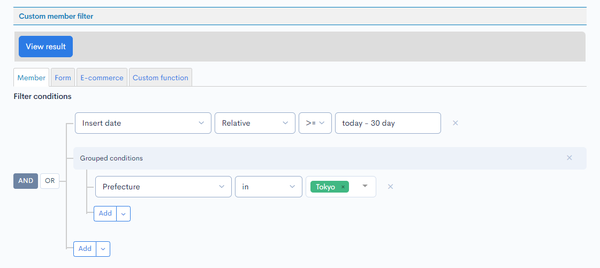
Under "Grouped conditions", select [Prefecture] -> [in] -> [Tokyo].
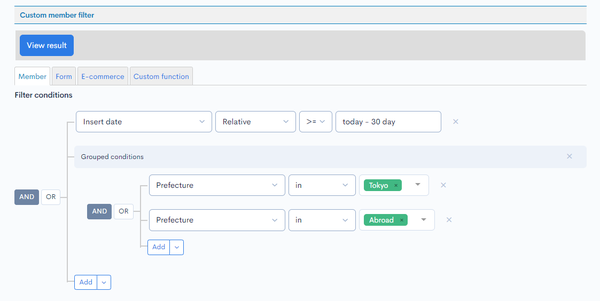
 Then, click [Add] and select [Prefecture] -> [in] -> [Abroad].
d. Select the logical operator
Set the outermost operator (red box) to AND, and the operator within the grouped condition (purple box) to OR.
4. View your filter results
Click [View results] to verify the results.
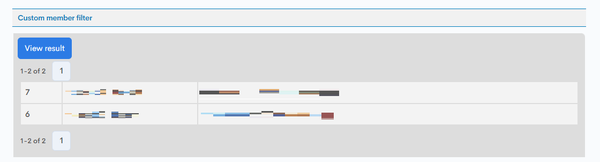 If there are no errors, click [Update] at the bottom of the screen to save your custom filter.
Specifying relative times
While the above example uses a relative specification of today -30 day, you can also configure different times using the PHP date and time format.
Example
| Target date | Input |
|---|---|
| Yesterday at 12:00 | yesterday noon, yesterday 12:00 |
| End of next month | last day of next month |
| Absolute date | 2021-03-24 |
| First Saturday of January, 2021 | first sat of January 2021 |
| Relative date | e.g., +5 weeks, +12 day, -6 month |
Functions that use custom member filters
Custom member filters can be used in the following functions.
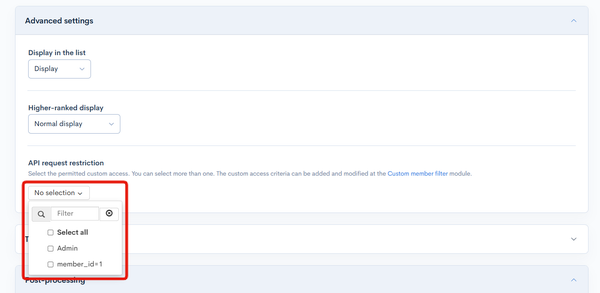
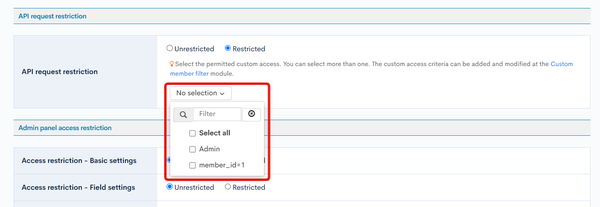
API request restriction in Content editor Advanced settings
Available under "Advanced settings" > "API request restriction" in the content editor.
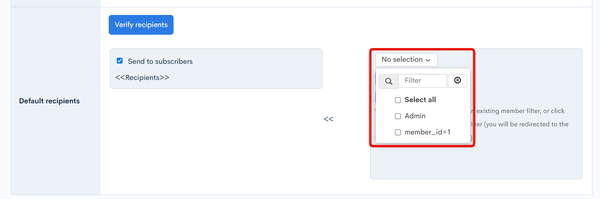
Notification recipients
Go to [Channels] -> [Bulk Notification], then specify filters as default recipient groups in the notification basic settings.
Form basic settings access restriction
Go to [Channels] -> [WEB] -> [Form], then set "API request restriction" in the form basic settings.
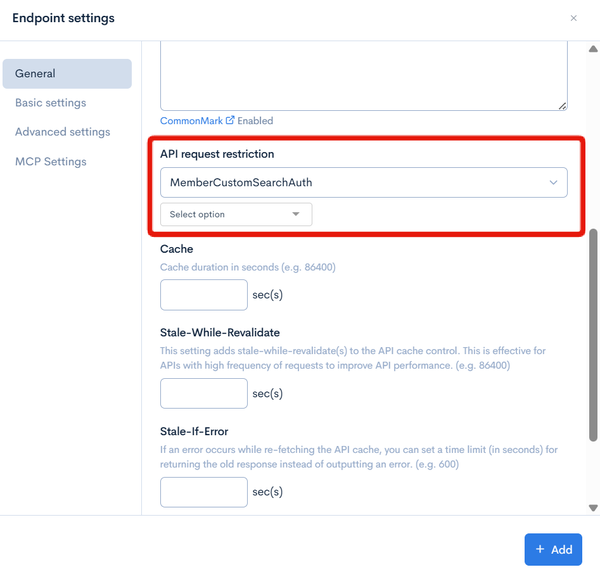
Endpoint settings authentication
Available under "API request restriction" in the Endpoint settings dialog. Select [MemberCustomSearchAuth] to use the filters.
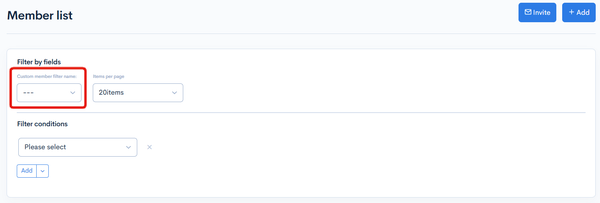
Member search in member list
Available under "Advanced search" in [Member Management] -> Member.
Related documents
Support
If you have any other questions, please contact us or check out Our Slack Community.