OAuth connections
The OAuth connections screen manages the settings that Kuroco uses to connect to external APIs and external MCP servers over OAuth.
A saved connection is used from custom functions and batches by specifying its name in oauth_connection of the api plugin. See Can I call an external API with OAuth from custom functions? for usage. When the request is sent, Kuroco attaches the access token that it has obtained and stored.
An OAuth connection is shared by the entire site. Per-member tokens are not handled.
This screen configures connections from Kuroco to external systems. To let external applications sign in to Kuroco's own API or Admin MCP, use OAuth Authorization Server. To use an OAuth provider for logging in to Kuroco, use OAuth SP.
OAuth connection list
Accessing the screen
Click [External system integration] -> [OAuth connections].
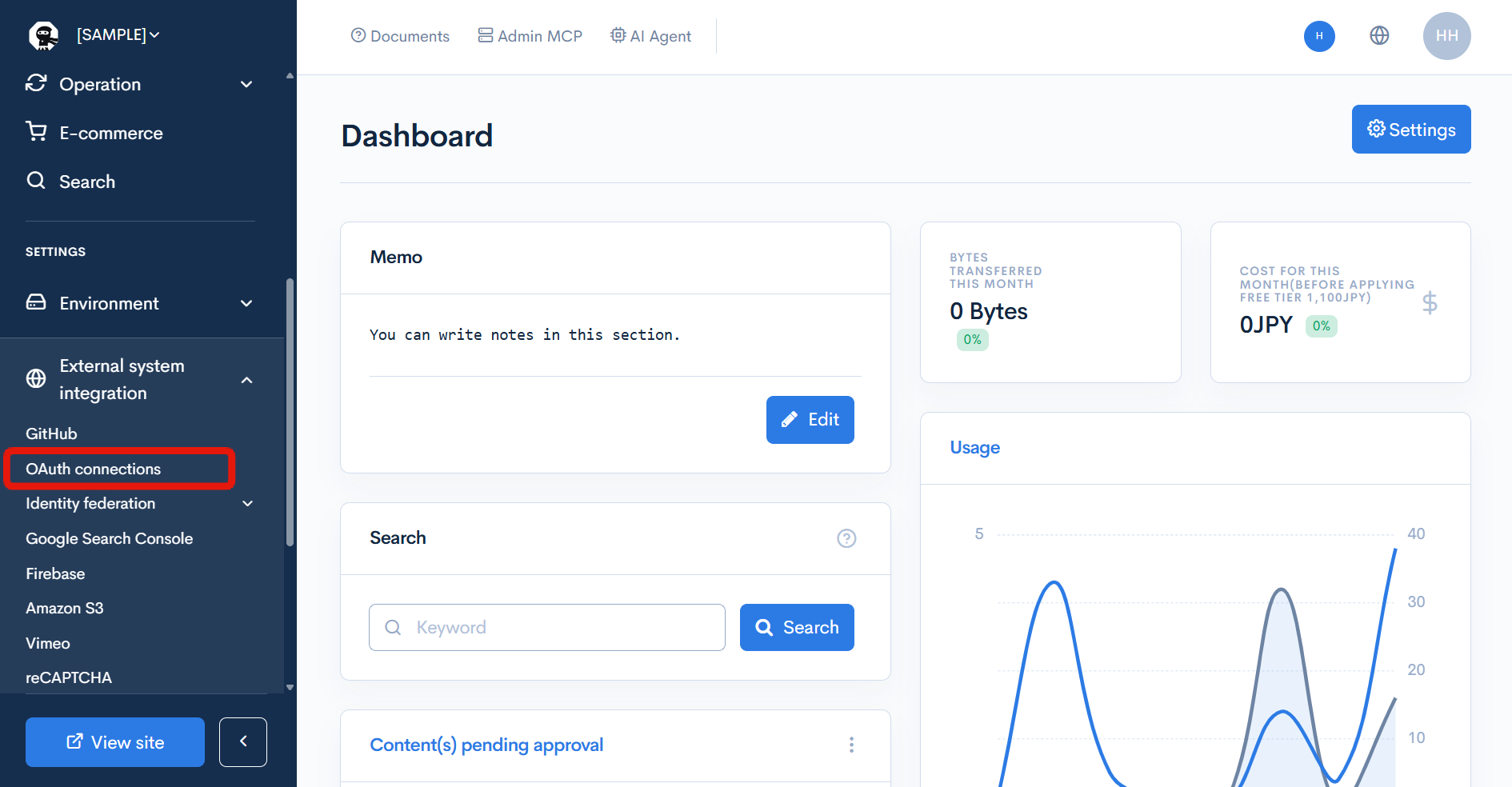
Only superusers can view and operate the OAuth connections screen. For other administrators, [OAuth connections] is not displayed in the side menu.
Field descriptions
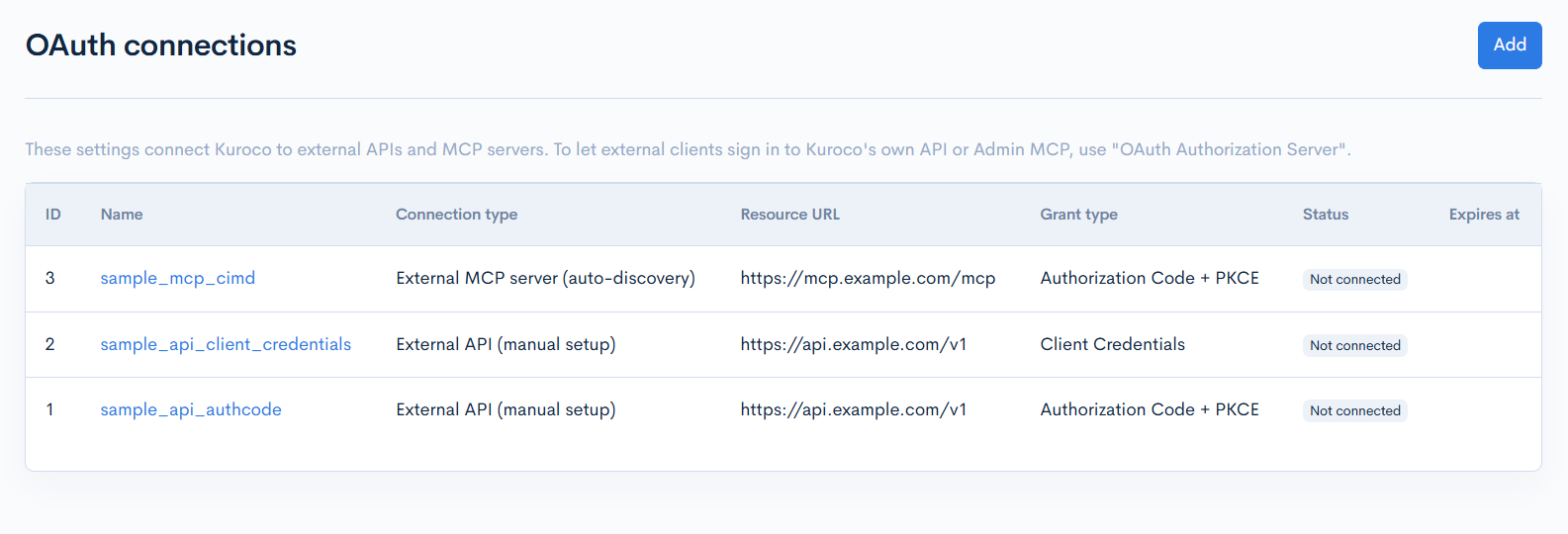
| Item | Description |
|---|---|
| Add | Creates a new OAuth connection. The OAuth connection editor is displayed. |
| ID | ID of the OAuth connection. |
| Name | Connection name. Click it to open the OAuth connection editor. |
| Connection type | External API (manual setup) or External MCP server (auto-discovery). |
| Resource URL | URL of the destination to which the token is attached. |
| Grant type | Grant type used to obtain tokens: Authorization Code + PKCE, Client Credentials, or JWT Bearer. |
| Status | State of the connection. See Status. |
| Expires at | Expiration date and time of the stored access token. |
Status
| Display | Description |
|---|---|
| Not connected | No token has been obtained. A connection is in this state right after creation and after its settings are changed and saved. |
| Active | A token has been obtained and the connection can be used. |
| Expired | The access token has expired. When the connection is used by the api plugin, the token is refreshed if a refresh token exists, or obtained again for Client Credentials and JWT Bearer. For Authorization Code + PKCE without a refresh token, the status becomes Reauthorization required. |
| Reauthorization required | The token could not be refreshed or obtained again. Run [Connect / reauthorize] again. |
| Revoked | [Revoke] has been run. Run [Connect / reauthorize] again to use the connection. |
OAuth connection editor
Opening the editor
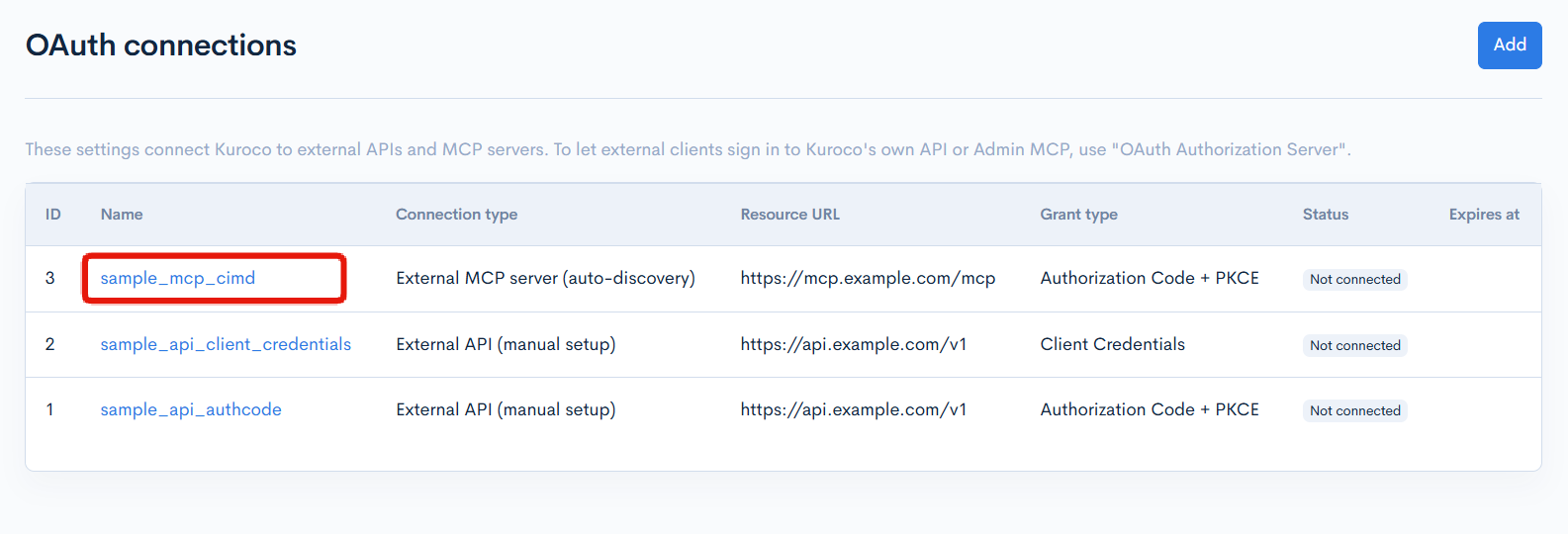
In the OAuth connection list, click [Add] to create a connection, or click [Name] of an existing connection to edit it.
Field descriptions
The editor displays the following areas from top to bottom. Connection state, Connection and authorization, and Revoke and delete are displayed only for saved connections.
- Connection state
- Basic settings
- Client
- Authorization server
- JWT Bearer
- [Save] and [Back]
- Connection and authorization
- Revoke and delete
Only the fields needed for the selected [Connection type], [Grant type], [Client registration], and [Client authentication method] are displayed.
Connection state
Displayed at the top of the screen when a saved connection is opened.
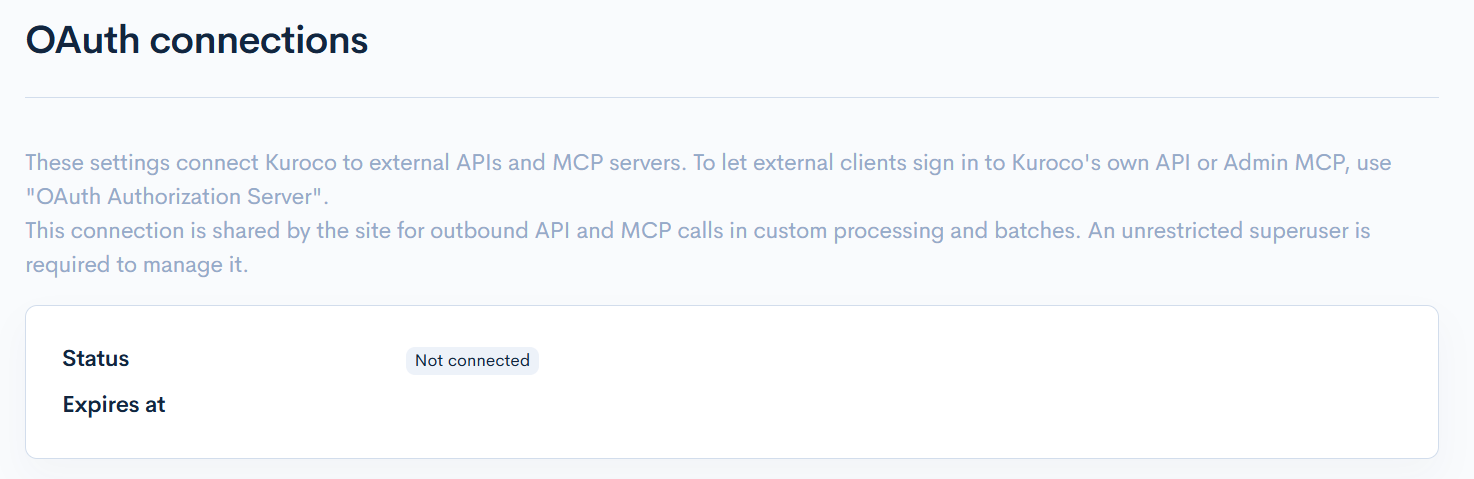
| Item | Description |
|---|---|
| Status | State of the connection. See Status. |
| Expires at | Expiration date and time of the stored access token. |
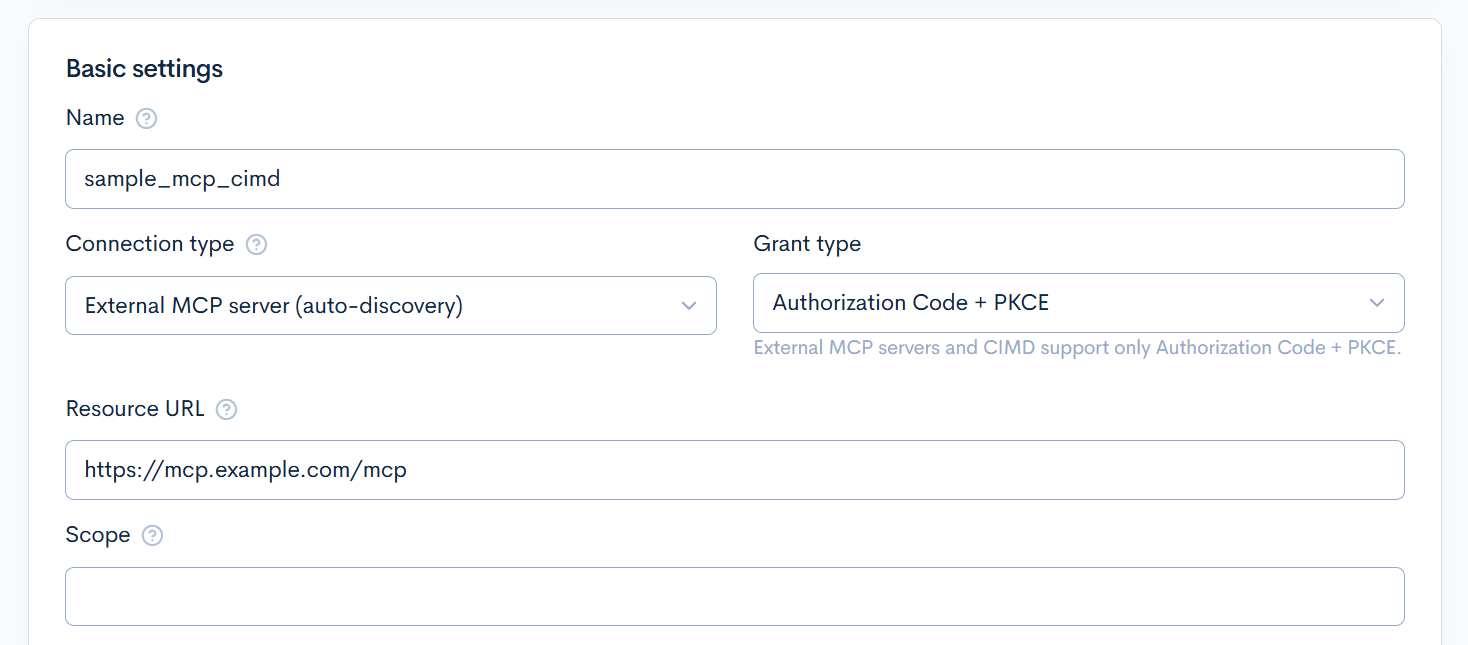
Basic settings
| Item | Description |
|---|---|
| Name | Connection name specified in oauth_connection of the api plugin. Start with a letter and use up to 128 letters, digits, _, or -. The name must be unique within the site. |
| Connection type | External API (manual setup): Set the endpoints manually.External MCP server (auto-discovery): After saving, run [Discover metadata] to set the authorization server details automatically. |
| Grant type | Select how tokens are obtained.Authorization Code + PKCE: An administrator authorizes on the consent screen of the external service in a browser.Client Credentials: Obtains a token with the client ID and client secret.JWT Bearer: Obtains a token with a JWT signed by an RSA private key.When External MCP server (auto-discovery) is selected in [Connection type] or Client ID Metadata Document (CIMD) is selected in [Client registration], the grant type is fixed to Authorization Code + PKCE and "External MCP servers and CIMD support only Authorization Code + PKCE." is displayed. |
| Resource URL | HTTPS URL of the destination that receives the token. Enter a public URL on port 443 without a query. The token is attached only to requests to the same origin and to the path of this URL or paths below it. |
| Scope | Enter the scopes requested from the authorization server, separated by spaces. For external MCP servers, scopes advertised by the authorization server are added when metadata is discovered. |
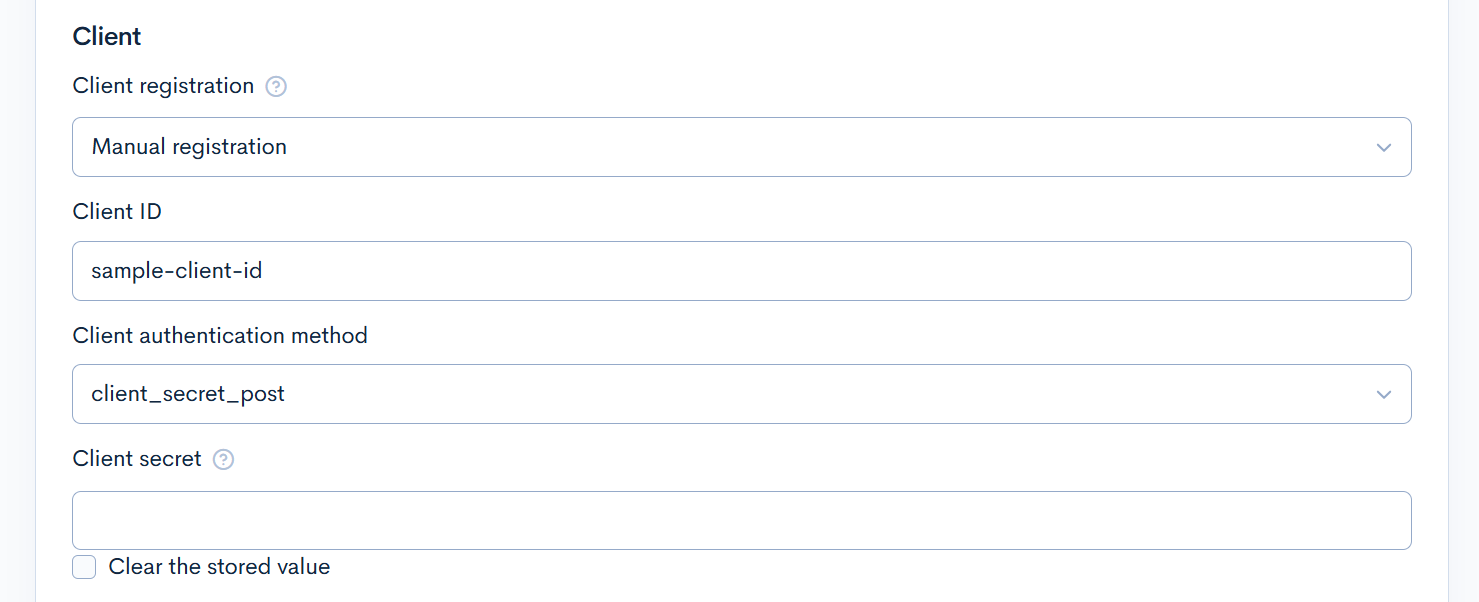
Client
| Item | Description |
|---|---|
| Client registration | Manual registration: Enter the details of the client registered on the external service.Client ID Metadata Document (CIMD): Available when the authorization server supports it. The site's metadata URL becomes the client ID, so no client ID, secret, or redirect URI needs to be registered at the authorization server. |
| CIMD client_id | Displayed when Client ID Metadata Document (CIMD) is selected. The site's metadata URL used as the client ID. Click [Copy] to copy the value. |
| Client ID | Displayed when Manual registration is selected. Enter the client ID issued by the external service. |
| Client authentication method | Displayed when Manual registration is selected. Select the client authentication method at the token endpoint.none: The client secret is not sent.client_secret_post: The client secret is sent in the request body.client_secret_basic: The client secret is sent with Basic authentication. |
| Client secret | Displayed for Manual registration when [Client authentication method] is not none. It is also displayed with none when a client secret is already stored.Enter the client secret issued by the external service. The stored value is never displayed. Save with the field left blank to retain the stored value, or enter a value and save to replace it. |
| Clear the stored value | Displayed when a client secret is stored. Select it and save to clear the stored client secret. |
| Redirect URI to register | Displayed when [Grant type] is Authorization Code + PKCE and Manual registration is selected. Redirect URI to register in the client settings of the external service. Click [Copy] to copy the value. |
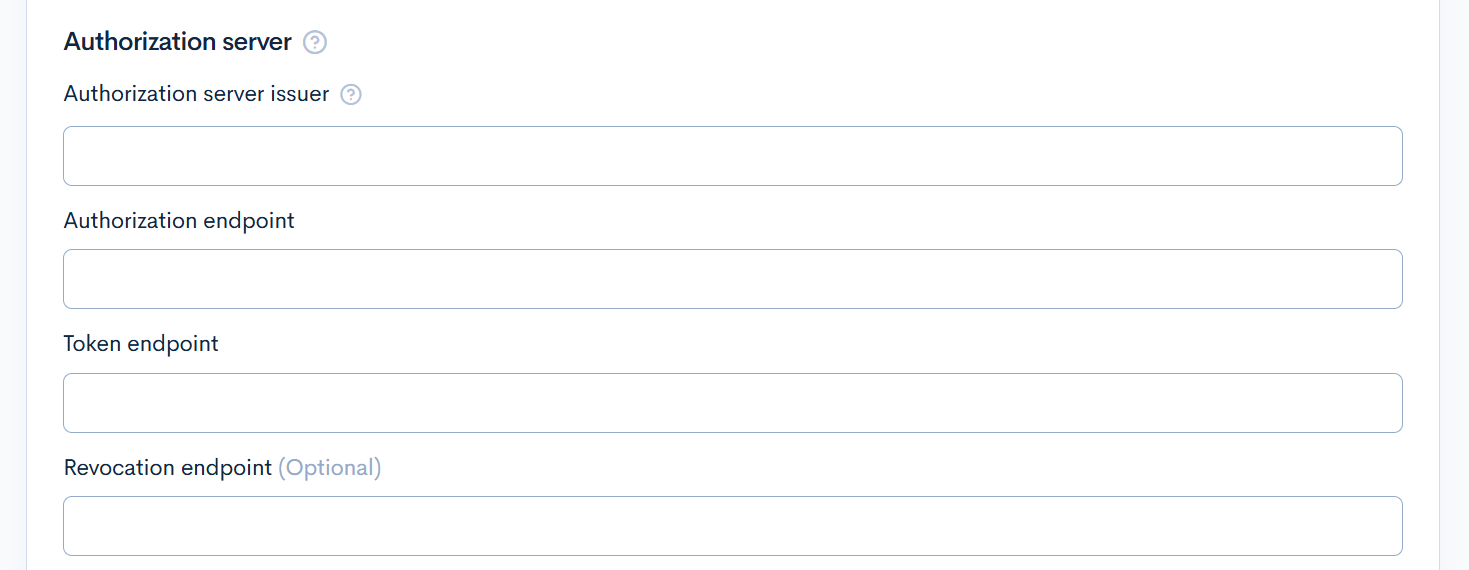
Authorization server
| Item | Description |
|---|---|
| Authorization server issuer | Set this for authorization servers that return iss in authorization responses.Required for external MCP servers with Manual registration. Enter the issuer of the authorization server where the client is registered. Metadata discovery fails if the discovered issuer does not match. It cannot be changed after creation; create another connection to use another issuer.For external MCP servers with CIMD, it is replaced by the discovered value. |
| Authorization endpoint | Displayed when [Grant type] is Authorization Code + PKCE. URL of the authorization endpoint. |
| Token endpoint | URL of the endpoint used to obtain and refresh tokens. |
| Revocation endpoint (Optional) | URL of the endpoint used to revoke tokens. When set, [Revoke] also requests the external service to revoke the tokens. |
For external MCP servers, saving and then running [Discover metadata] sets the authorization and token endpoints automatically, and the revocation endpoint when the server provides one.
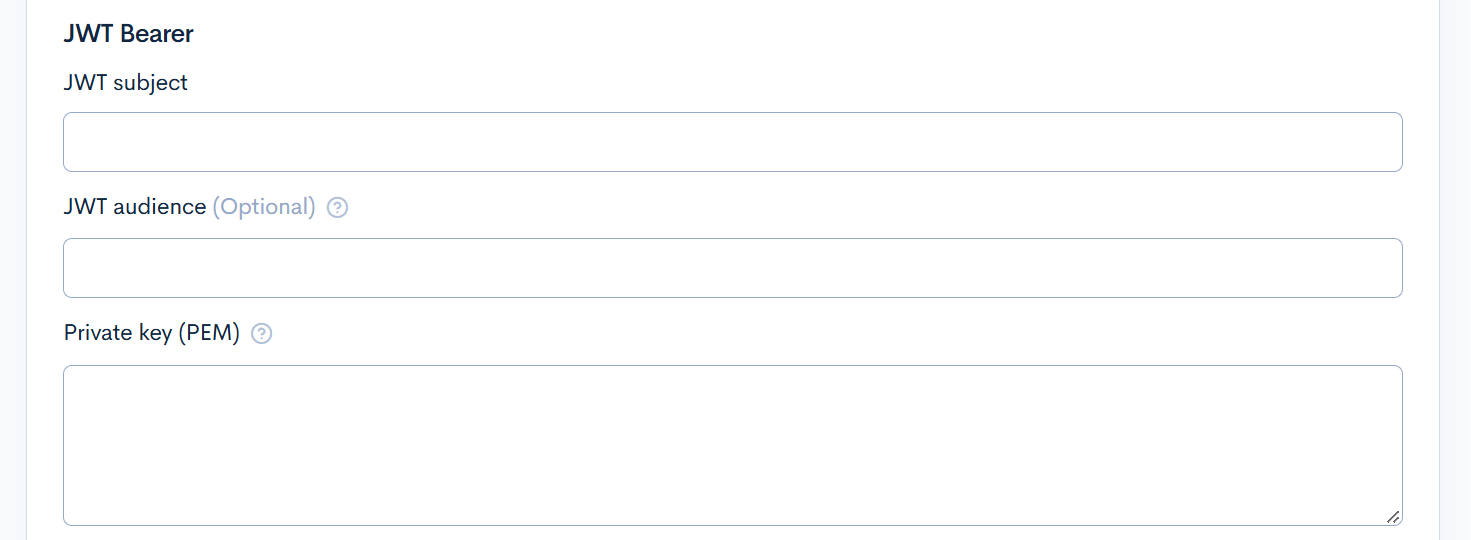
JWT Bearer
Displayed when JWT Bearer is selected in [Grant type].
| Item | Description |
|---|---|
| JWT subject | Enter the value set in sub of the JWT. |
| JWT audience (Optional) | Enter the value set in aud of the JWT. If left blank, the token endpoint is used. Some services require the URL of their login server. |
| Private key (PEM) | Enter the RSA private key used to sign the JWT in PEM format. The stored value is never displayed. Save with the field left blank to retain the stored value, or enter a value and save to replace it. |
| Clear the stored value | Displayed when a private key is stored. Select it and save to clear the stored private key. |
Save
| Button | Description |
|---|---|
| Save | Saves the entered settings. |
| Back | Returns to the OAuth connection list. |
Connection and authorization
Displayed only for saved connections, with the message "Save configuration changes before running these operations. For authorization-code grants, continue at the authorization server and grant consent to complete the connection."

| Button | Description |
|---|---|
| Discover metadata | Displayed when [Connection type] is External MCP server (auto-discovery). Retrieves the Protected Resource Metadata of the MCP server and the Authorization Server Metadata (or OpenID Connect Discovery) of the authorization server, and sets the authorization server details. Running it removes the stored tokens and sets the status to Not connected. |
| Connect / reauthorize | Obtains a token. For Authorization Code + PKCE, [Continue at the authorization server] is displayed at the top of the screen. See Authorization steps for the behavior of each grant type. |
For external MCP servers, click [Save], run [Discover metadata], and then run [Connect / reauthorize]. When metadata is discovered, "Authorization server metadata was discovered." is displayed and [Authorization endpoint] and [Token endpoint] are set.
If the authorization server does not support PKCE S256, metadata discovery fails and the connection cannot be used.
Metadata discovery also fails when Client ID Metadata Document (CIMD) is selected and the authorization server does not support CIMD. In that case, use Manual registration.
Revoke and delete
Displayed only for saved connections.

| Button | Description |
|---|---|
| Revoke | Invalidates the tokens and keeps the configuration. A confirmation dialog displays "Revoke the tokens and disconnect?". The status becomes Revoked.When [Revocation endpoint] is set, the external service is also requested to revoke the tokens. Even if revocation at the external service cannot be confirmed, the tokens in Kuroco are removed and an error message is displayed. |
| Delete | Removes the configuration and stored credentials from the site. A confirmation dialog displays "Are you sure you want to delete this?". |
[Discover metadata], [Connect / reauthorize], [Revoke], and [Delete] run against the saved settings. If you changed the settings, click [Save] first.
[Delete] does not revoke the tokens at the external service. To also revoke them at the external service, run [Revoke] before deleting.
Authorization steps
Authorization Code + PKCE
- Click [Connect / reauthorize].
- Click [Continue at the authorization server] displayed at the top of the screen.
- The consent screen of the external service is displayed. Log in to the external service and grant access.
- A Kuroco relay page is displayed. Click [Complete the connection in the management screen].
- You return to the OAuth connection editor. Confirm that [Status] is
Active.
Authorization must be completed within 15 minutes, in the same browser, by the administrator who clicked [Connect / reauthorize]. If the time has passed or you used another browser, start again from [Connect / reauthorize].
Client Credentials / JWT Bearer
Clicking [Connect / reauthorize] obtains a token from the token endpoint immediately. Confirm that "Connected." is displayed and that [Status] is Active.
When an operation fails
"The OAuth connection operation failed (reason). Check the configuration." is displayed. Use the reason in parentheses to check the settings and the configuration on the destination service.
Operating from Admin MCP
OAuth connections can also be operated from Admin MCP: listing and getting, creating, updating, deleting, discovering metadata, connecting / reauthorizing, and revoking. Admin MCP operations also require a superuser. When authenticating with OAuth, use the mcp:admin scope.
The information obtained through Admin MCP does not include the client secret, private key, or tokens.
For an Authorization Code + PKCE connection, running connect / reauthorize from Admin MCP does not obtain a token; the URL of the OAuth connection editor is returned instead. An administrator opens that URL in a browser and completes authorization from [Connect / reauthorize].
Notes
Changing the settings
When you change any setting other than the name, or a secret, and save, the stored tokens are removed and [Status] returns to Not connected. For external MCP servers, the discovered metadata is also discarded.
After the change, run [Discover metadata] if needed, and obtain a token again with [Connect / reauthorize].
When only the name is changed, the stored tokens are retained. Update the oauth_connection value used in the api plugin as well.
Unsupported features
OAuth connections currently do not support the following:
- Per-member tokens
- Dynamic Client Registration (DCR)
- Calling tools of external MCP servers
Related documents
Support
If you have any other questions, please contact us or check out Our Slack Community.