How to use proxy login
Kuroco's proxy login feature allows specific members to log in on behalf of another member's account. This tutorial explains how to configure and use the proxy login feature.
What is proxy login?
Proxy login is a feature that allows members with specific permissions to log in on behalf of another member. It is useful in the following scenarios:
- Providing support when a member cannot log in
- Verifying a member's screen display and data
- Making content changes or configuration updates on behalf of a member
- Allowing users who belong to multiple groups to switch between accounts per group
Configuring proxy login permissions (granting proxy login access in the member editor) requires editor or super user privileges.
Prerequisites
- Configuring proxy login requires editor or super user privileges.
- Using proxy login is available even for members without management screen access (via the
Login/alias_loginendpoint).
Setup instructions
Step 1: Open the member editor
- Log in to the Kuroco management screen.
- Click [Member management] -> [Member].
- From the member list, click the name of the target member (the member you want to log in as) to open their editor.
Step 2: Configure proxy login permission
Find the "Proxy login permission" field in the ID information section of the member editor.
| Item | Description |
|---|---|
| Proxy login permission | Enter the member IDs allowed to log in on this user's behalf. Only users with permission to log in to the management screen can set proxy logins. |
- In the "Proxy login permission" field, enter the member ID of the administrator (the member who will perform the proxy login).
- If you want to allow multiple members to perform proxy logins, enter each member ID.
- Click [Update] to save the settings.
You can find member IDs in the "ID" column on the member list screen.
Step 3: Execute a proxy login
There are two ways to execute a proxy login: from the management screen or via the API.
From the management screen
Members with management screen access can execute proxy logins directly from the management screen.
- Log in to the management screen as the authorized member.
- Click the member icon displayed at the top of the screen.
- Open "Login as" and click the name of the member you want to log in as.een.
- You are now logged in as the target member.
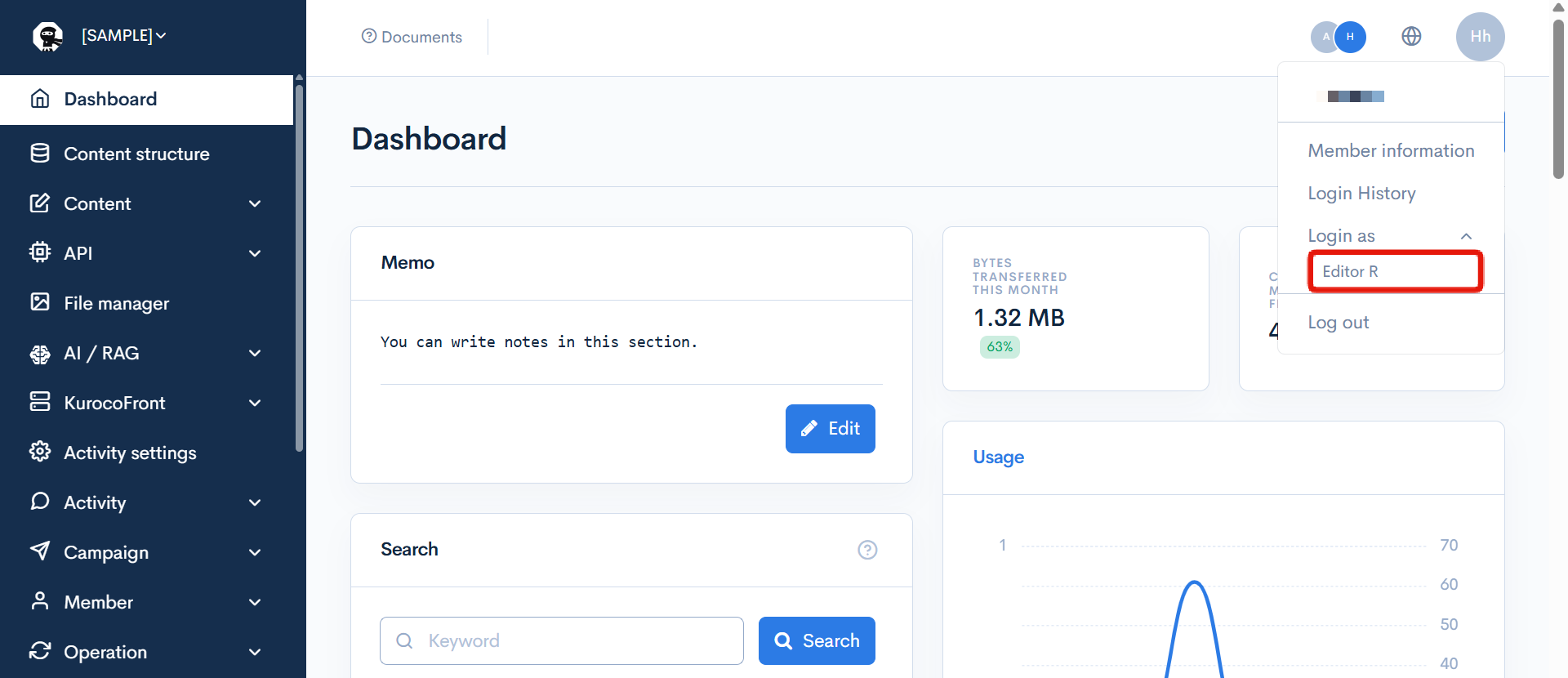
The "Login as" dropdown in the management screen only displays members who have management screen access.
Via the API
Members without management screen access can also execute proxy logins using the Login/alias_login endpoint.
Use this method when implementing proxy login from the frontend.
While in a proxy login session, you will access the frontend and APIs with the target member's permissions. The target member's profile information and content viewing permissions will be applied.
You can check which member IDs the currently logged-in member is allowed to impersonate by calling the Login::profile endpoint with aliaslogin_target set in the basic_info parameter.
Configuration examples
Example 1: Customer support use case
If a customer support agent (Member ID: 1) needs to proxy login as a regular member (Member ID: 100):
- Open the editor for Member ID: 100.
- Enter member ID
1in the "Proxy login permission" field. - Click [Update] to save.
The administrator logged in with Member ID: 1 can now proxy login as Member ID: 100.
Example 2: Allow multiple administrators
To allow multiple support agents (Member IDs: 1, 2, 3) to proxy login:
- Open the target member's editor.
- Enter member IDs
1,2, and3in the "Proxy login permission" field. - Click [Update] to save.
Important notes
- Editor or super user privileges required for configuration: Configuring proxy login permissions (granting access in the member editor) requires editor or super user privileges.
- No management screen access required for usage: Members without management screen access can use proxy login via the API endpoint (
Login/alias_login). - Accountability: Actions performed during a proxy login session are recorded in the operation logs. Use proxy login only when necessary.
- Security considerations: Grant proxy login permissions only to trusted members. Remove unnecessary proxy login permissions promptly.
- Login permission required: The target member must have their "Authorized to log in" setting enabled.
Related documentation
Support
If you have any other questions, please contact us or check out Our Slack Community.