Sidebar layout
Sidebar layout lets you customize the structure of the sidebar menu shown on the left side of the admin panel.
You can hide menu items, change their display names and icons, reorder them, add folders and links, and switch which layout applies to each administrator.
Sidebar layout list
Accessing the screen
Click [Environment] -> [Admin panel] -> [Sidebar layout].
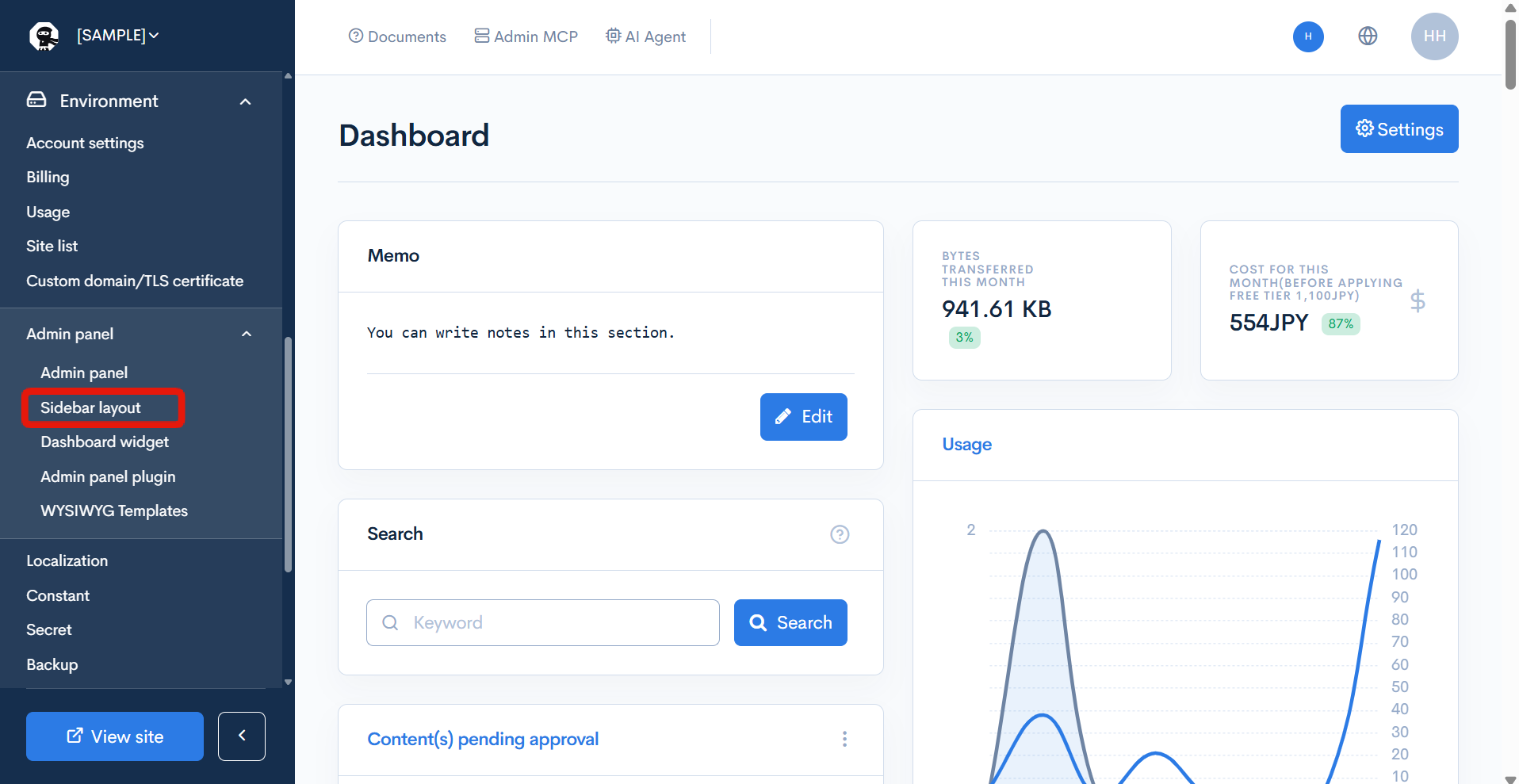
The sidebar layout list screen is displayed.
Item descriptions
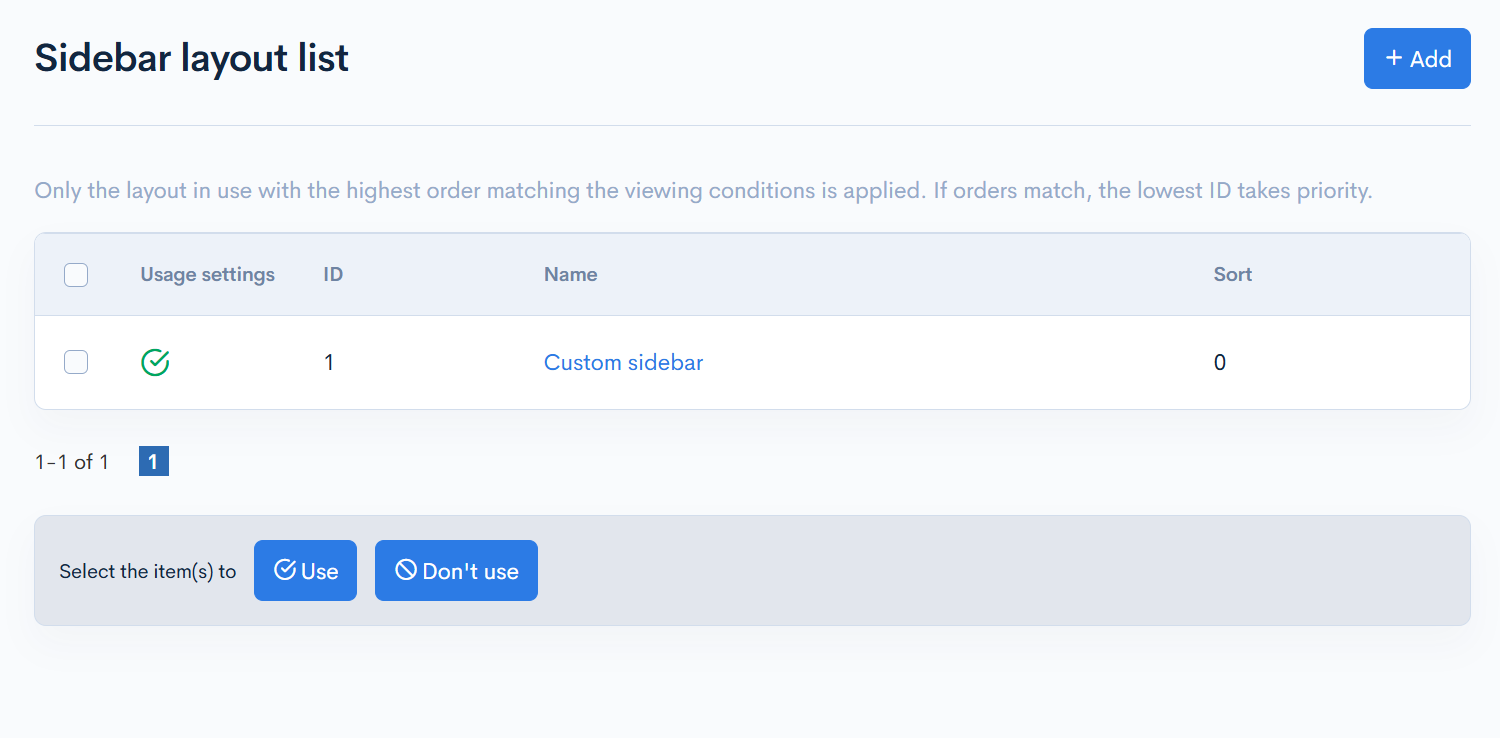
| Item | Description |
|---|---|
| Checkbox | Selects rows for bulk operations. |
| Usage setting | Shows whether the layout is set to "Use" or "Do not use". |
| ID | ID of the sidebar layout. |
| Name | Name of the sidebar layout. Click it to open the sidebar layout editor screen. |
| Order | Priority of the layout. Larger values take precedence. |
The list is sorted by order, from largest to smallest.
Actions
| Button | Description |
|---|---|
| Add | Opens the sidebar layout editor screen (new). |
| Bulk [Use] / [Do not use] | Changes the usage setting of the checked rows at once. |
How the applied layout is determined
When an administrator opens the admin panel, exactly one layout is chosen as follows.
- Layouts whose usage setting is "Use" and whose access limit matches the administrator are candidates.
- Among the candidates, the layout with the largest order is applied.
- If the order is the same, the layout with the smaller ID takes precedence.
Layouts are never merged. If no layout matches, the default sidebar is displayed.
Editing a sidebar layout
Accessing the screen
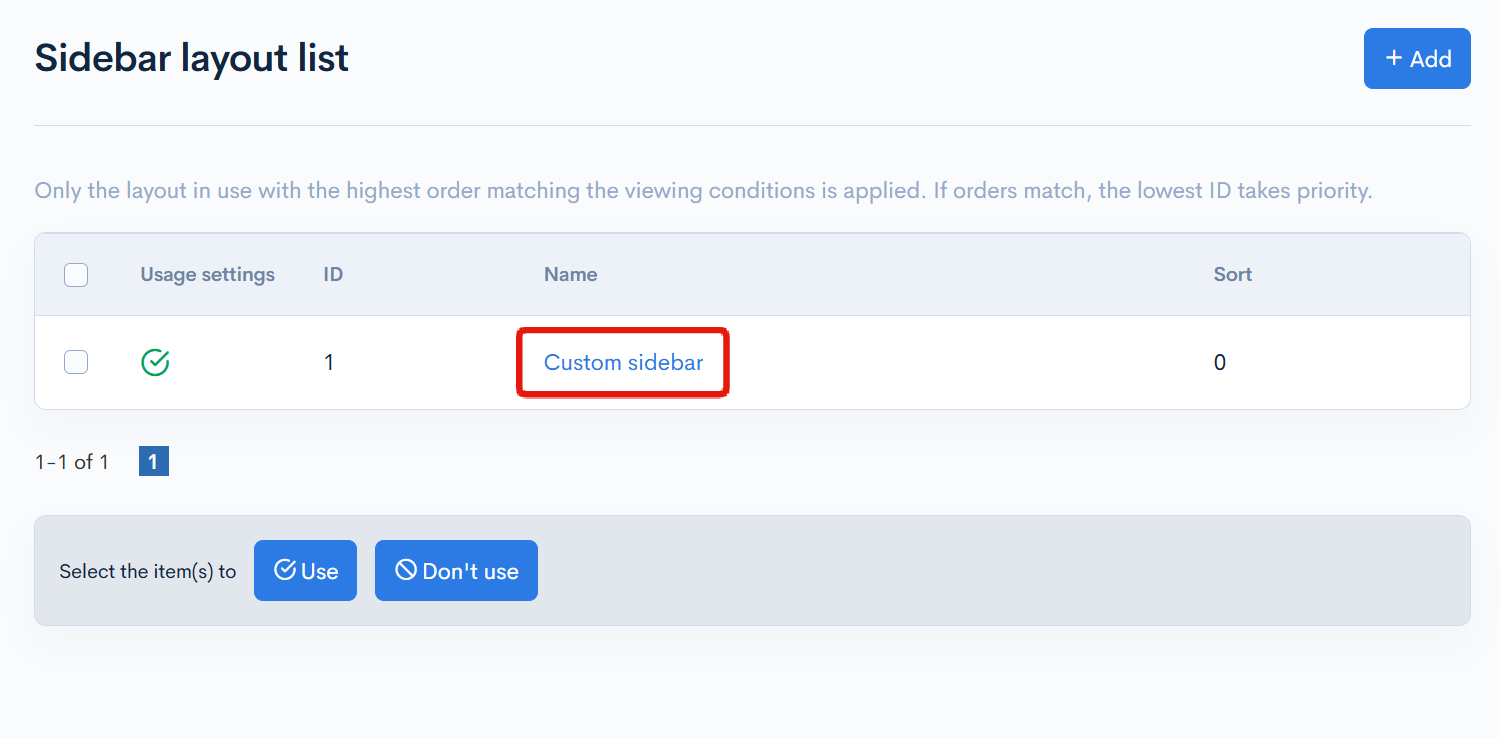
On the sidebar layout list screen, click the name of the sidebar layout you want to edit.
To add a new sidebar layout, click the [Add] button.
Field descriptions
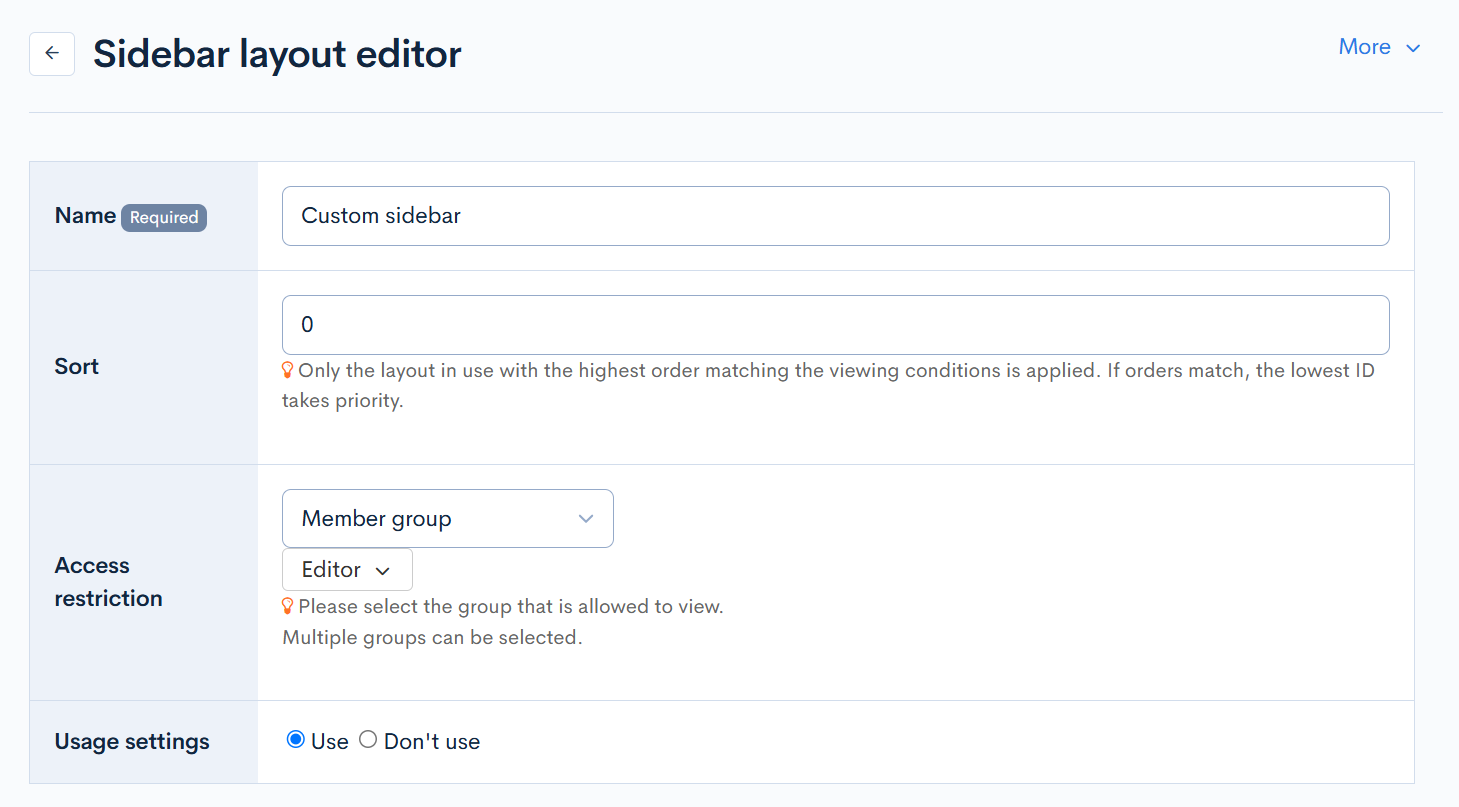
| Field | Description |
|---|---|
| Name (required) | Enter the name of the sidebar layout. This is an administrative name and is not shown in the sidebar. |
| Order | Enter the priority of the layout as a number. When several layouts match, the one with the larger value is applied. |
| Access limit | Sets which administrators the layout applies to. ・None: All administrators are targeted. ・Member group: Administrators belonging to the selected groups are targeted. Multiple selection is possible. Select at least one. ・Member search conditions: Administrators matching the selected custom member filters are targeted. Multiple selection is possible. Select at least one. |
| Usage setting | Select "Use" to apply this layout to matching administrators. When "Do not use" is selected, the layout is not applied. |
| Sidebar layout editor | Edits the sidebar menu structure. See Sidebar layout editor. |
Actions
| Button | Description |
|---|---|
| Add | Shown when creating a new layout. Saves the entered content. |
| Update | Shown when editing an existing layout. Saves the entered content. |
| Delete | Shown when editing an existing layout. Deletes the layout. |
| [More] -> [Changelog] | Shown when editing an existing layout. Displays the update history of the layout. |
Sidebar layout editor
The sidebar layout editor shows the tree of menu items on the left and the settings of the selected item on the right.
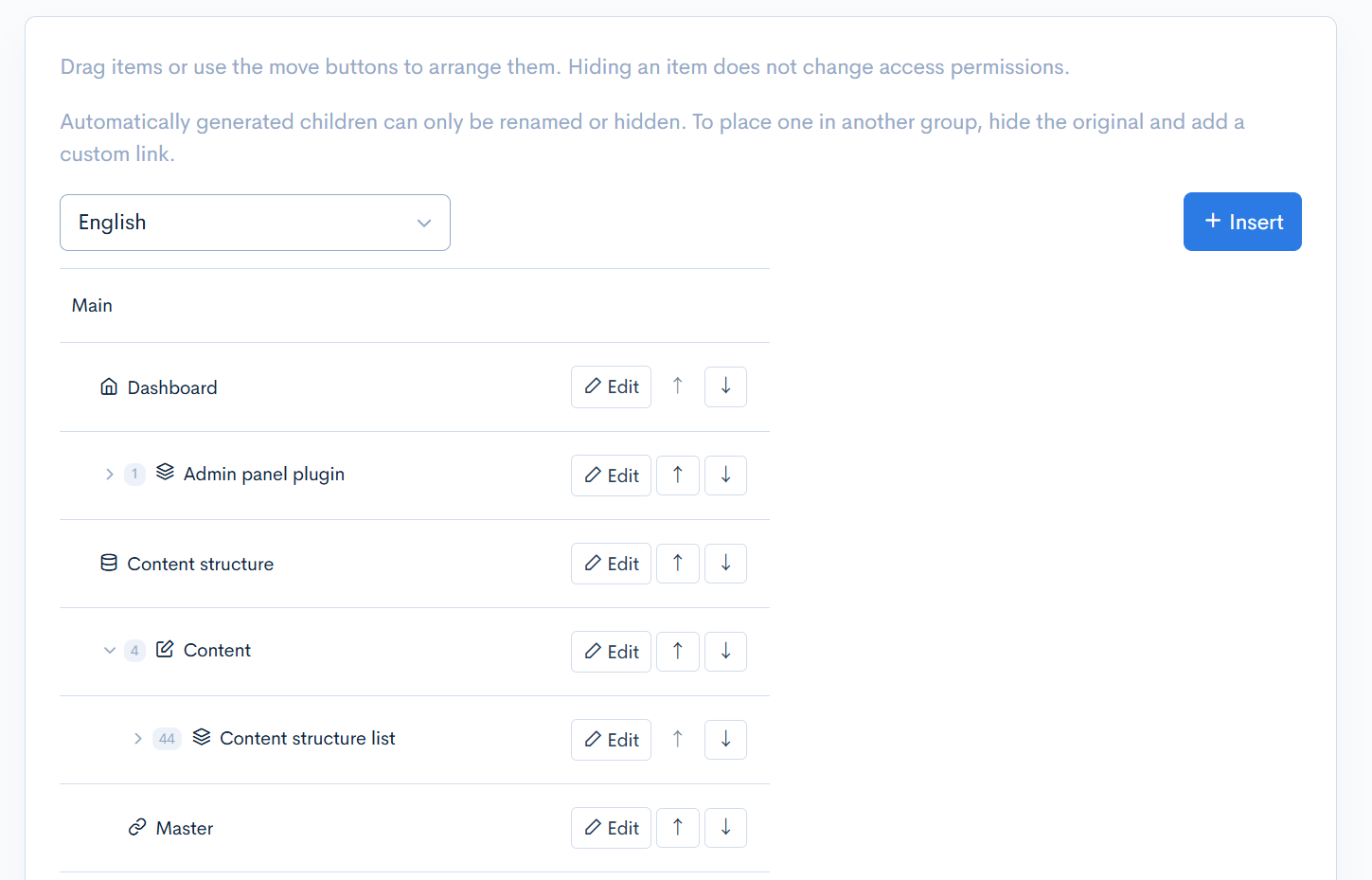
Editor items
| Item | Description |
|---|---|
| Language | Selects the language whose display names you are editing. Different display names can be set per language. |
| [Add] button | Opens a dialog to add a folder or link. See Adding folders and links. |
| Menu item tree | Shows the current sidebar structure. Items set to hidden have a "Hidden" badge. |
| [Edit] button | Selects the item and shows its settings on the right. |
| [Move up] / [Move down] buttons | Moves the item one position at a time. |
| Expand / collapse children | Toggles the display of child items. |
Settings of the selected item
| Item | Description |
|---|---|
| Name | Enter the display name in the selected language. |
| Icon | Select the icon of the item. |
| Parent | Select the folder (parent item) in which the item is placed. |
| Hidden | When checked, the item is not shown in the sidebar. |
| [Apply changes] button | Applies the settings edited on the right to the tree. |
Items can also be reordered and moved to another parent by drag and drop.
Changes made in the editor are not saved until you click the [Add] or [Update] button.
Adding folders and links
Click the [Add] button to open the add dialog.
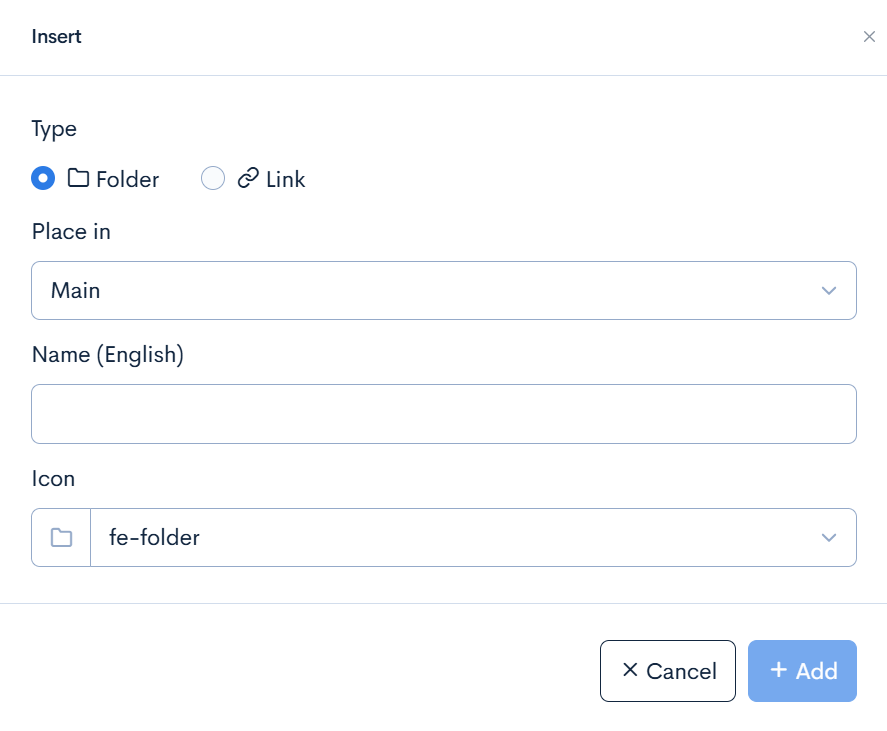
| Item | Description |
|---|---|
| Type | Select "Folder" or "Link". A folder groups child items; a link navigates to the specified URL. |
| Parent | Select the parent item under which the new item is added. |
| Name | Enter the display name in the selected language. |
| Icon | Shown when the type is "Folder". Select the icon of the folder. |
| URL | Shown when the type is "Link". Enter the destination URL. |
The link URL must be one of the following.
- Admin panel page: an existing admin panel URL in the form
/management/module/action/. - External site: a URL starting with
http://orhttps://.
Editing restrictions
- Hiding an item does not change access permissions to that page. Access permissions are configured in Group.
- Child items that are generated automatically from settings, such as content structures, can only be renamed or hidden. To place them in another folder, hide the original item and add a link with the same URL.
- Sections (the large headings of the sidebar) cannot be hidden or moved.
- The [Sidebar layout] item and its parent items cannot be hidden.
- Up to 1000 changes can be saved per layout.
Required permissions
Operating sidebar layouts requires the "Site" permission in the group permission settings.
| Operation | Required permission |
|---|---|
| Viewing the list and editor screens | Site: view |
| Adding | Site: add |
| Updating and changing the usage setting | Site: update |
| Deleting | Site: delete |
Related documents
Support
If you have any other questions, please contact us or check out Our Slack Community.