How to Register an MCP Connector in OpenAI Playground
This page explains how to connect Kuroco MCP to OpenAI's Playground.
By connecting MCP, you can simply ask a question in Playground such as "Get the list of projects" or "Search knowledge" and get an answer based on data from Kuroco.
OpenAI Playground does not support acting as an OAuth client for MCP servers (as of June 2026). For this reason, this page explains the connection steps using Kuroco's privileged static token configuration.
If you plan to build your production setup with an OAuth IdP (dynamic access token) configuration, the steps on this page do not reproduce the production authentication flow. If you want to embed this in application code, see the OpenAI Responses API documentation (attach Authorization: Bearer <token> yourself to call MCP).
Terminology
What is MCP (Model Context Protocol)?
It is a standard specification that lets an AI (such as an OpenAI model) connect to external tools and data. Kuroco provides an MCP server, allowing Playground to call Kuroco APIs directly.
What is Playground?
It is a browser-based verification UI provided by the OpenAI Platform (platform.openai.com). You can configure models, tools, and prompts and check behavior without writing code. An MCP server is registered as a Hosted tool.
What is a privileged static token?
It is an authentication token used to access the Kuroco API. You can issue it from the Swagger UI in the Kuroco admin panel.
Prerequisites
- A Kuroco site must already be created
- An OpenAI account
You need a Kuroco API endpoint with the MCP server enabled (e.g. https://{your-site}.g.kuroco.app/rcms-api/{id}/mcp).
If you have not yet set up the MCP server, first complete the setup in Model Context Protocol (MCP) Integration with Kuroco.
1. Get a privileged static token from Kuroco
- In the Kuroco admin panel, go to [API] and select the target API group.
- Confirm that Security is set to
Privileged static token(change it if not). - Click [Swagger UI] in the top right.
- Click [+ Generate] in the Privileged static token section.
- Set an expiration and issue the token, then note down the value.
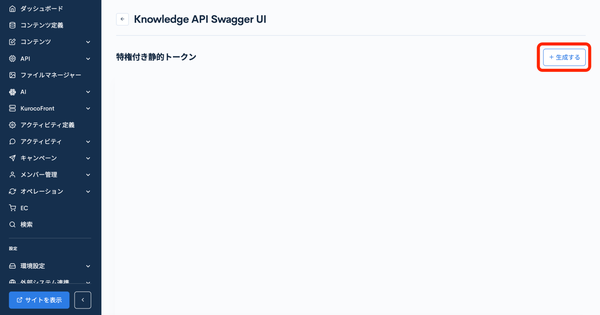
Do not expose the privileged static token externally. Do not embed it directly in client-side code or in a repository — manage it with environment variables or a secret manager instead.
2. Add the MCP server in Playground
- Sign in at platform.openai.com. The Home dashboard is shown first.
- Click the [Chat] tab in the left sidebar (or top navigation).
- Click [Create], shown in the center of the screen, to start a new chat session.
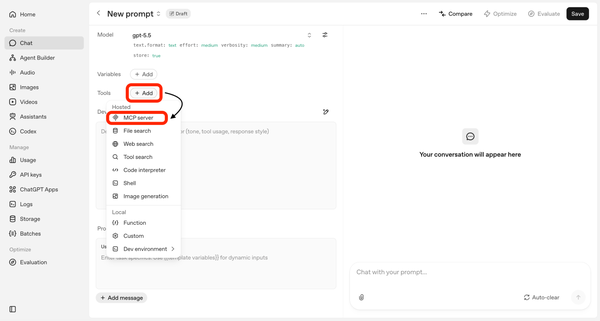
- In the session screen that opens, find the [Tools] section in the right-hand settings panel, click [+ Add] next to it, then select [Hosted] → [MCP server].
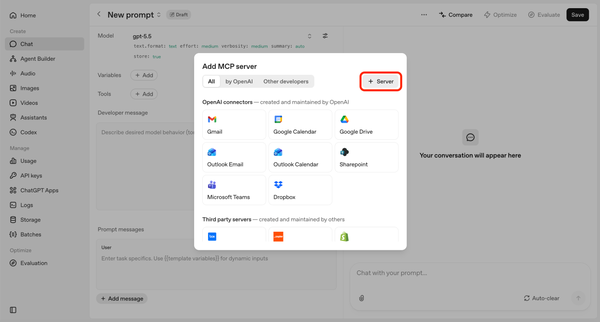
- The [Add MCP server] dialog opens. Click [+ Server] in the top right.
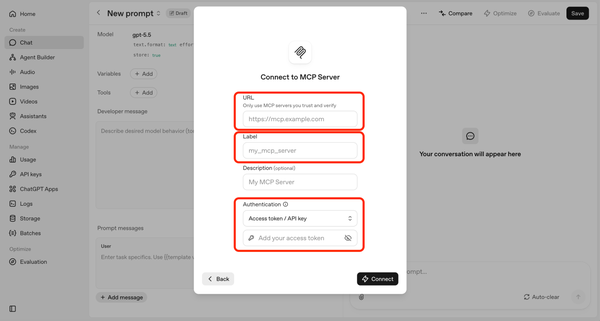
- Enter the following in the [Connect to MCP Server] form.
| Item | Input value |
|---|---|
| URL | https://{your-site}.g.kuroco.app/rcms-api/{id}/mcp |
| Label | kuroco (any identifying name) |
| Description | Optional |
| Authentication | Select Access token / API key and enter the privileged static token you obtained in step 1 |
- Click [Connect].
- Once the connection succeeds, the tool list and the [Approval] settings screen are shown. Click [Add] to finish.
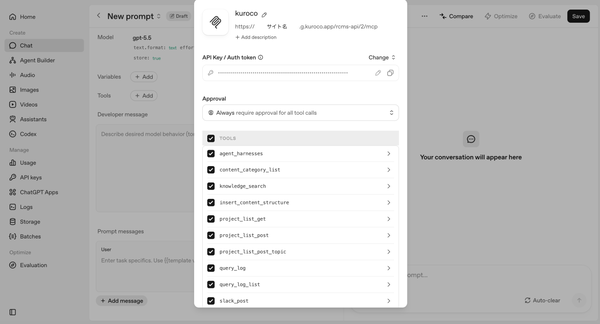
3. Verify the connection
Once the MCP server is connected, verify the behavior by giving instructions in the chat panel on the right side of the Playground screen.
Enter a prompt such as the following.
Get the list of data registered in the connected API
When Playground calls a Kuroco MCP tool, processing happens in the following order.
- Playground selects the appropriate MCP tool based on the content of the question.
- With the default setting (approve every time), a confirmation dialog is shown before the tool runs. Click [Approve] to allow it to run.
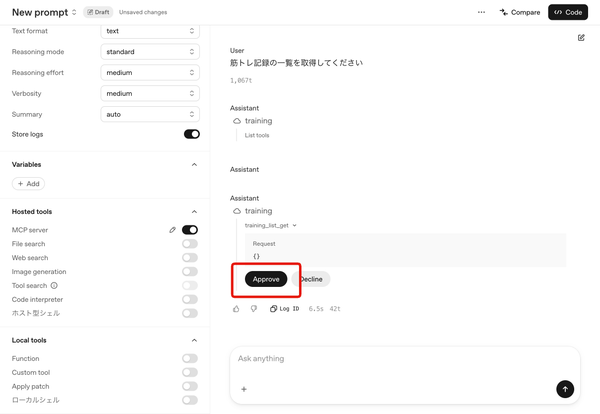
- Playground sends a request to the Kuroco MCP server and retrieves data.
- A reply is generated based on the retrieved data and shown in the chat.
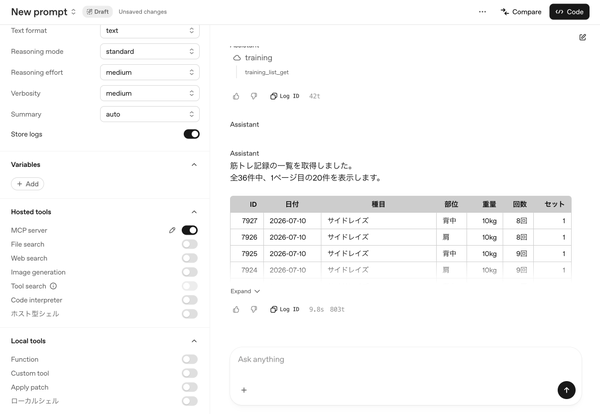
If you want tools to run automatically without approval, change the [Approval] setting to [Never require approval] when adding the MCP server. However, if write operations (such as creating or updating content) are involved, we recommend leaving it set to approve every time to prevent unintended data changes.
If the connection is successful, the name of the tool that ran is shown, and the reply includes content retrieved from Kuroco.
Available tools
The tools shown in Playground after connecting are the names set in the Tool name field of each endpoint's MCP settings on the Kuroco side. The list of tools shown depends on which endpoints have MCP enabled.
For example, if you follow the steps in Model Context Protocol (MCP) Integration with Kuroco, the following tools are shown.
| Tool name | Operation |
|---|---|
search_topics_by_subject | Search content by subject |
create_blog_post | Create content |
update_blog_post | Update content |
Troubleshooting
| Symptom | What to check |
|---|---|
access forbidden is returned | Check that the privileged static token was copied correctly, that the MCP server is enabled on the target API group (step 1), and that the token has access permission for the target API group |
| No tools are shown | Check that the server URL is correct (it must end in /mcp), and try reloading Playground and reconnecting |
OAuth Bearer token required / 401 Unauthorized is returned | Check that Security on the target API group is set to Privileged static token. If it is set to OAuth IdP, Playground cannot connect because it does not support acting as an OAuth client — switch it to Privileged static token |
Related documents
- Model Context Protocol (MCP) Integration with Kuroco — Guide to setting up MCP on the Kuroco side
- MCP Client Configuration Reference — Details on authentication settings, including static tokens
Support
If you have any other questions, please contact us or check out Our Slack Community.