Auto-translate content with AI on save
Overview
With Kuroco's AI automatic processing, you can run AI processing automatically when content is saved.
In this tutorial, on a site with localization (multi-language) enabled, you implement a feature that translates content entered in Japanese (the primary language) into English (a secondary language) with AI and sets it automatically when the content is saved.
As an advanced step, this tutorial also explains how to chain translations from English (a secondary language) into other secondary languages (such as Korean and Portuguese), and how rules are executed and ordered when multiple rules are configured.
Translations with AI automatic processing are counted under the "AI processing unit" item. Processing many pieces of content or several secondary languages at once increases the AI processing unit fee accordingly. After setting this up, do not run it on a large amount of content right away. We recommend first trying it on a small amount of content to check the translation results and the AI processing unit fee, and then moving on to full-scale operation.
What you will learn
You will implement AI auto-translation with the following steps.
- Enable localization
- Create a content structure
- Configure AI automatic processing
- Verify the behavior
- Advanced: translate from English into other secondary languages
Prerequisites
- A Kuroco site has been created
- Localization (multi-language) is available
1. Enable localization
To set up AI translation into a secondary language, enable localization in advance.
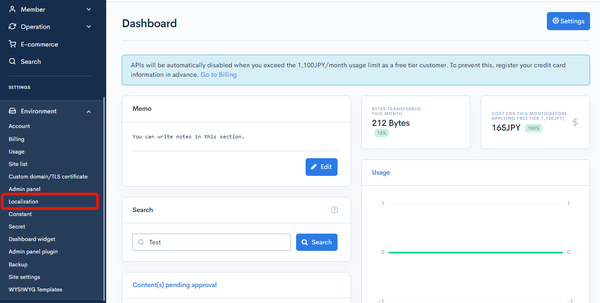
Click [Environment settings] -> [Localization].
Turn on [Enable] for [Multi-language settings], and select the primary and secondary languages. Here, configure them as follows.
| Item | Value |
|---|---|
| Primary language | Japanese |
| Secondary language | English |
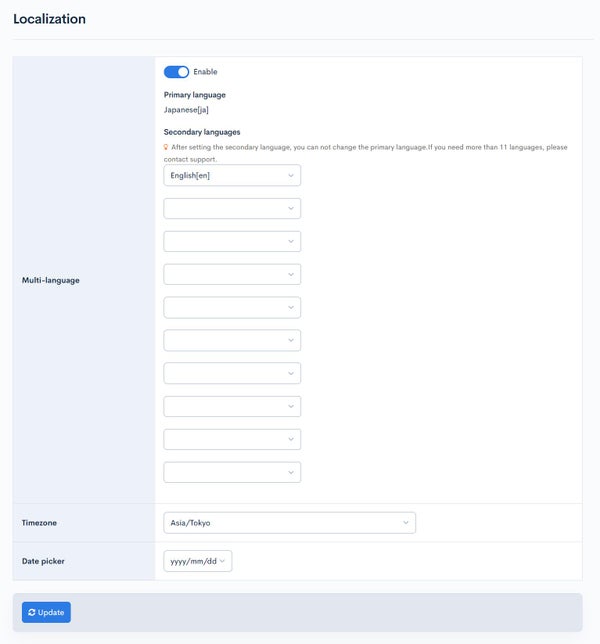
Click [Update] to save the settings.
When you add a secondary language, a language tab appears on the content edit screen, and you can save data per language. For details on secondary-language behavior, see About secondary languages.
2. Create a content structure
Create a content structure with the body field to translate. When localization is enabled, you can save a value per language for the same field.
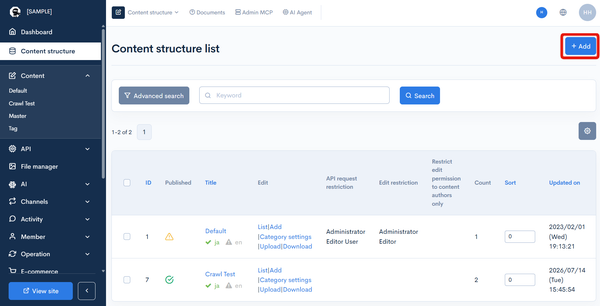
Click [Content structure], then click [Add].
Enter the following.
| Item | Value |
|---|---|
| Content structure name | Translation test |
Next, add the following extended field.
| Slug | Field name | Field setting |
|---|---|---|
| body | Body | Text area |
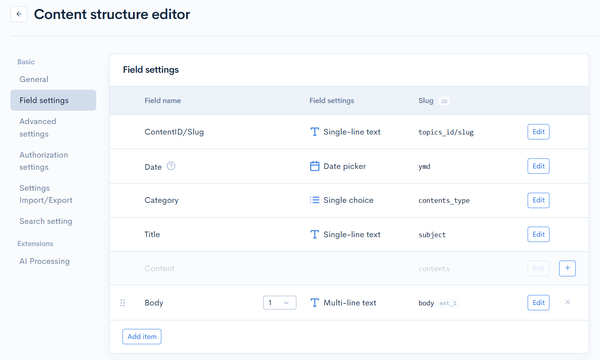
Click [Add] to save the content structure.
3. Configure AI automatic processing
Open the content structure you created, and click [AI automatic processing] in the left side menu.
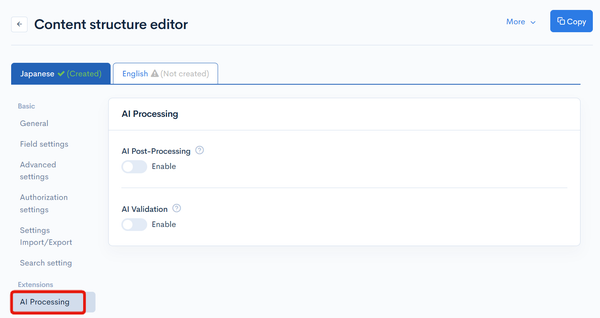
Enable AI post-processing
Turn on [Enable] for [AI post-processing].
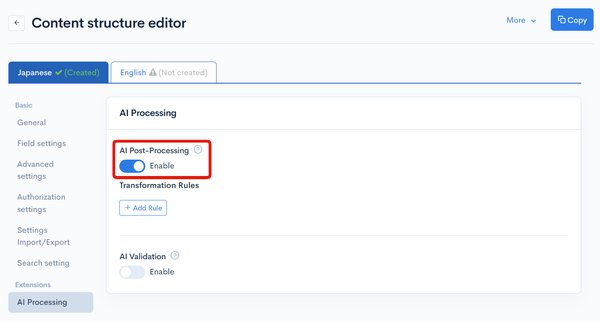
Add a rule
Click [Add rule], and configure a rule that translates from Japanese into English as follows.
| Item | Value |
|---|---|
| Prompt | See below |
| Execution timing | On create and update |
| Creation status | Published |
| Input language | Japanese |
| Output language | English |
Example prompt:
Translate the input into natural English. Keep HTML tags and line-break structure unchanged, and translate only the text. Return only the translation, with no explanation or preamble.
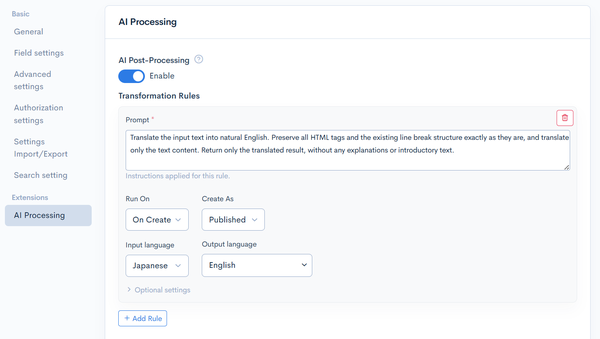
Click [Update] to save the settings.
The target language is specified with [Input language] and [Output language]. The content of the specified [Input language] is translated and saved as the secondary-language data of the [Output language].
4. Verify the behavior
Create new content from the content structure you configured.
Click [Content structure], click [List] for [Translation test], then click [Add].
Enter Japanese text in the Body field of the primary language (Japanese), and click [Add].
| Field | Example value |
|---|---|
| Title | Kurocoについて |
| Body | Kurocoはヘッドレスコンテンツ管理システムです。 |
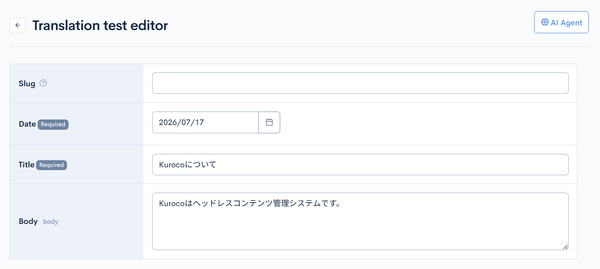
After saving, switch the language tab on the content edit screen to [English]. Confirm that the English text translated by AI is automatically set in the Body field.
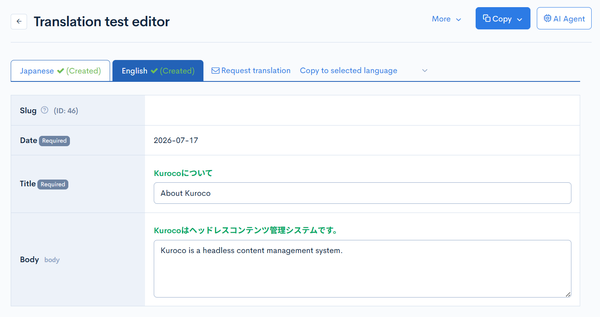
AI post-processing runs in the background after content is saved. It may take some time for the translation result to be reflected.
This completes the AI auto-translation implementation.
Advanced: translate from English into other secondary languages
You can also chain translations from English (a secondary language) into other secondary languages (such as Korean and Portuguese).
With this setup, when the Japanese-to-English translation is not as expected, you can manually correct only the English data and then re-translate the other secondary languages from it.
To use this setup, in 1. Enable localization you must add not only English but also the secondary languages to translate into (such as Korean and Portuguese).
Add a rule per secondary language
Under [AI post-processing], click [Add rule] and register one rule per target secondary language. Combining multiple output languages into a single rule may not produce the intended translation.
| Input language | Output language | Execution timing | Creation status |
|---|---|---|---|
| English | Korean | On create and update | Published |
| English | Portuguese (BR) | On create / update | Published |
Example prompt (rule for Korean):
Translate the input into natural Korean. Keep HTML tags and line-break structure unchanged, and translate only the text. Return only the translation, with no explanation or preamble.
Register the Portuguese rule in the same way, specifying the target language in the prompt.
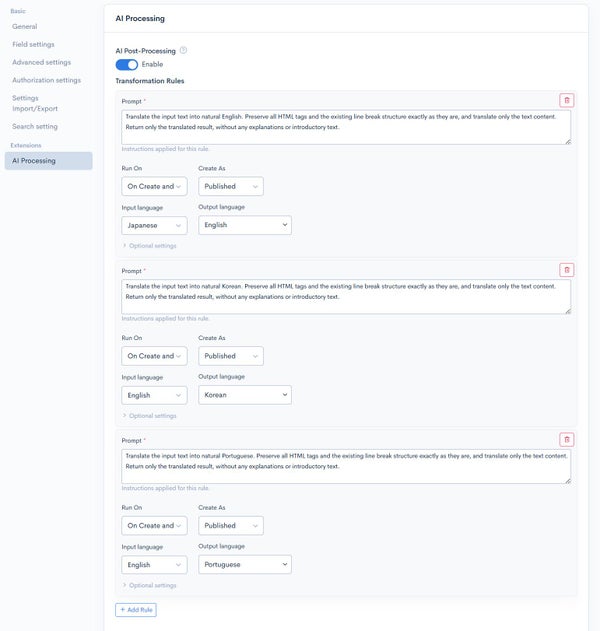
Click [Update] to save the settings.
Rule execution order and conditions
When multiple rules are registered, they are executed under the following conditions.
- Only rules whose [Input language] matches the saved language are executed. When you save in Japanese, only the rule whose [Input language] is Japanese (Japanese to English) runs; rules whose [Input language] is English do not run at this point.
- When a translation result is saved as the secondary language of its [Output language], rules whose [Input language] is that language run next. When the English translation result is saved, the rules whose [Input language] is English (English to Korean, English to Portuguese) run next. Through this chaining, translation proceeds in the order Japanese to English to the other secondary languages.
- A language that has already been used as a translation source is not translated again. This prevents translation from repeating between the same languages. Therefore, even if you set the same language for [Input language] and [Output language], translation does not repeat indefinitely.
- A rule whose input has not changed since the previous run is not re-executed.
Translation into secondary languages runs sequentially after the English translation is saved. It may take some time until the result is reflected in all secondary languages.
Related documents
Support
If you have any other questions, please contact us or check out Our Slack Community.