Admin API/MCP logs
The Admin API/MCP logs screen displays the logs of the management operations performed through the Admin API and the Admin MCP. Operations performed directly in the admin panel are recorded in the Admin panel logs.
Accessing the screen
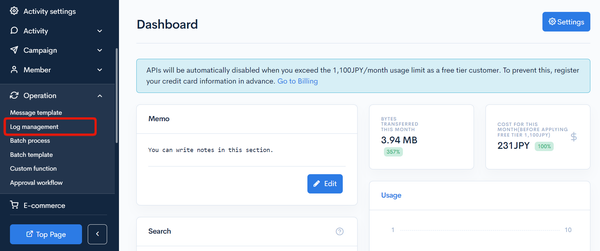
In the left sidebar menu, click [Operation] -> [Log management].
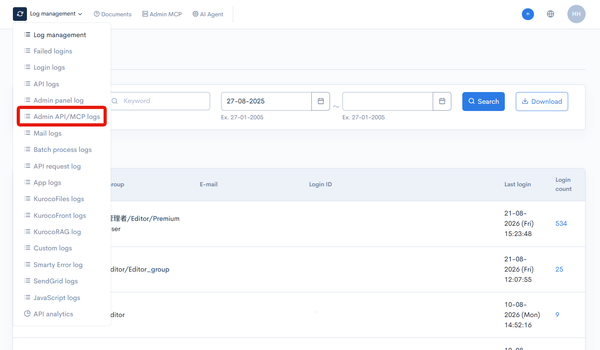
Click the [Log management] link above the page title, and select [Admin API/MCP logs] in the dropdown menu.
Field descriptions
Filter conditions
You can filter the logs using the keyword search, the log date/time and the advanced search functions.
Keyword search
Enter the search keyword in the [URI] text box and click [Search] to filter logs whose URI contains the specified keyword.
Timestamp search
Select the date and time range for the timestamp and click [Search].
The designated logging period is 35 days. When specifying past log dates, please make sure to specify within the 35-day range.
Advanced search
Click the [Advanced search] button to input advanced filter conditions.
The following input options are available:
| Field | Description | Specifiable conditions |
|---|---|---|
| Host | Site accessed. | Available search operations |
| Log level | Log level indicating the importance of the message. | Available search operations |
| Action | Gateway the request came through. | Action |
| HTTP method / credential | HTTP method of the request and the credential used for the authentication. | Available search operations |
| Operation | Requested endpoint, or the executed operation. | Available search operations |
| Execution time / result | Execution time of the request, or the result of the operation. | Available search operations |
| Body size | Size of the response. | Available search operations |
| URI | URI of the endpoint the request was made to. | Available search operations |
| Client IP address | IP address of the user who attempted the access. | Available search operations |
| Member ID | Member ID of the user who attempted the access. | Available search operations |
| Application request ID | Unique request ID used by Kuroco. | Available search operations |
| User agent | User agent of the client used for the access. | Available search operations |
The advanced search function allows you to concatenate multiple conditions using AND or OR.
AND: Returns only data matching all the specified conditions in your search.OR: Returns data matching any of your specified conditions.
Available search operations
You can specify the following operations in the search conditions:
| Operation | Input type | Returned data |
|---|---|---|
contains | Text string | Entries matching part of the search term. |
not contains | Text string | Entries not matching any part of the search term. |
= | Alphanumeric string | Entries exactly matching the search term. |
!= | Alphanumeric string | Entries not exactly matching the search term. |
< | Alphanumeric string | Entries less than the search term. |
> | Alphanumeric string | Entries greater than the search term. |
<= | Alphanumeric string | Entries less than or equal to the search term. |
>= | Alphanumeric string | Entries greater than or equal to the search term. |
starts with | Text string | Entries beginning with the search term. |
not starts with | Text string | Entries not beginning with the search term. |
ends with | Text string | Entries ending with the search term. |
not ends with | Text string | Entries not ending with the search term. |
in | Alphanumeric string | Entries matching any of the search terms (for multiple search terms only). |
not in | Alphanumeric string | Entries not matching any of the search terms (for multiple search terms only). |
Sort
Under "Sort", you can specify the sort key and display order of the search results.
ASC: Ascending, from oldest to newest.DESC: Descending, from newest to oldest.
Log entries
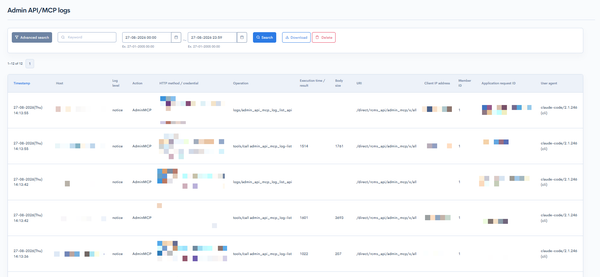
The columns displayed for the log entries are as follows:
| Column | Description |
|---|---|
| Timestamp | Date and time the log was recorded. |
| Host | Site accessed. |
| Log level | Log level indicating the importance of the message. |
| Action | Gateway the request came through. See: Action below for details. |
| HTTP method / credential | HTTP method of the request and the credential used for the authentication. |
| Operation | Requested endpoint, or the executed operation. See: Recorded log types below for details. |
| Execution time / result | Execution time of the request in milliseconds, or the result of the operation. See: Recorded log types below for details. |
| Body size | Size of the response in bytes. |
| URI | URI of the endpoint the request was made to. |
| Client IP address | IP address of the user who attempted the access. |
| Member ID | Member ID of the user who attempted the access. |
| Application request ID | Unique request ID used by Kuroco. |
| User agent | User agent of the client used for the access. |
Action
| Value | Description |
|---|---|
| AdminAPI | Request made through the Admin API. |
| AdminMCP | Request made through the Admin MCP. |
[Action] shows these values in the log list. In the advanced search, the [Action] dropdown shows the options as [Admin API] and [Admin MCP]. Select one of them to display the logs of that gateway only.
Recorded log types
Two kinds of logs are recorded for a single request:
| Type | Operation | Execution time / result | Body size |
|---|---|---|---|
| Access log | Requested endpoint, or the JSON-RPC method name. | Execution time of the request in milliseconds. | Size of the response in bytes. |
| Executed operation log | Executed operation. | Summary of the result. | Not displayed. |
Buttons
| Button | Description |
|---|---|
| Search | Search based on the above settings. |
| Download | Download a list of the displayed logs. |
| Delete | Delete a list of the displayed logs. |
Log list download
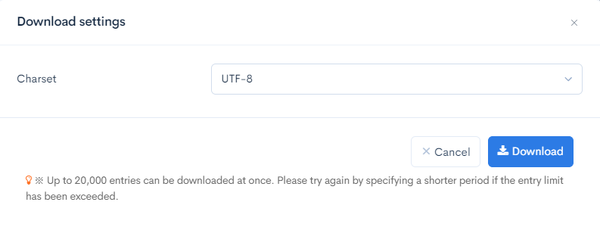
After click [Download] button, the download settings will open.
| Field(s) | Description |
|---|---|
| Charset | Character encoding of the output CSV file. |
| Cancel | Cancel downloading. |
| Download | Execute downloading. |
Related documents
Support
If you have any other questions, please contact us or check out Our Slack Community.