Log Retention Settings
On the log retention screen, you can set how long Kuroco keeps its logs. There is one retention period per site, and it applies to every log type available on that site. Logs older than the retention period are deleted by a deletion process that runs once a day.
Deleted logs cannot be restored. If you shorten the retention period, all logs older than the new period are deleted at the next run of the deletion process.
Accessing the screen
Click [Operation] -> [Log management], then click [Log retention] at the top right of the log management screen.
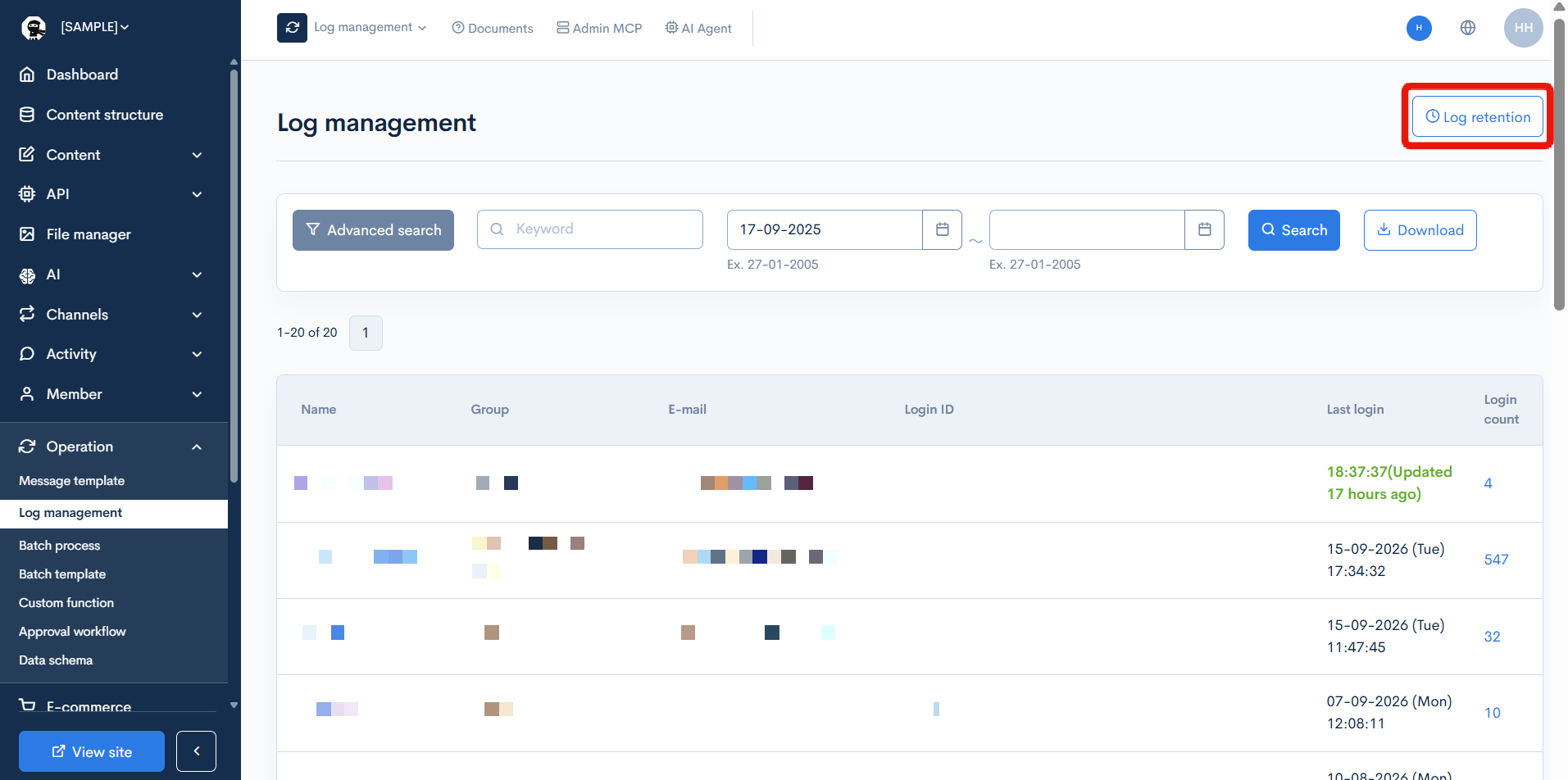
The [Log retention] button and the log retention screen are shown only to groups that have the [View] permission for "Log management".
Item descriptions
The screen shows a single [Retention Period] dropdown. The period you select here applies to every log type on the site.
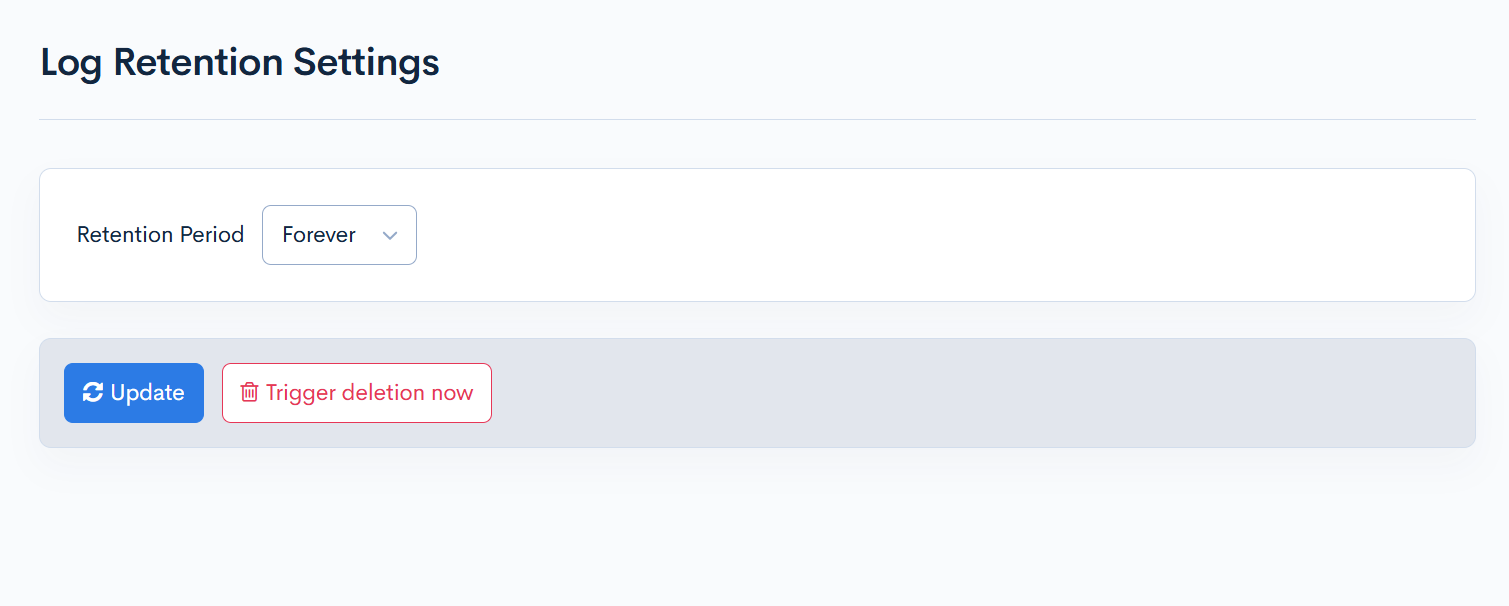
| Item | Description |
|---|---|
| Retention Period | The period for which the logs are kept. |
Retention periods you can select
The [Retention Period] dropdown offers the following values.
| Option | Description |
|---|---|
| 7 days | Deletes logs older than 7 days. |
| 1 month | Deletes logs older than 30 days. |
| 3 months | Deletes logs older than 90 days. |
| 6 months | Deletes logs older than 180 days. |
| 1 year | Deletes logs older than 365 days. |
| 3 years | Deletes logs older than 1095 days. |
| 7 years | Deletes logs older than 2555 days. |
| No expiration | Excludes the logs from automatic deletion. |
A site with no retention period set is treated as "No expiration", and no log is deleted automatically.
Log types the retention period applies to
The retention period applies to all of the following log types available on the site. You cannot set a different period per type. Which types are covered depends on the products you use (Kuroco CMS / KurocoEdge).
| Type | Description |
|---|---|
| App logs | Application logs. |
| Admin panel log | Logs of operations performed in the admin panel. |
| Admin API/MCP logs | Logs of operations performed through the Admin API and Admin MCP. |
| Batch process logs | Logs related to batch processing. |
| Custom logs | Logs output from original processes. |
| Mail logs | Logs related to sending email. |
| Login logs | Member login history. |
| API request log | History of API requests. |
| Smarty Error log | Smarty error logs. |
| KurocoRAG log | KurocoRAG logs. |
| API logs | History of API requests to endpoints. |
| KurocoFront logs | Logs of access to front-end files served by Kuroco. |
| JavaScript logs | JavaScript logs. |
| KurocoFiles logs | Logs of access to files stored in Kuroco. |
| KurocoEdge logs | KurocoEdge logs. |
| SendGrid logs | SendGrid logs. |
Buttons
| Button | Description |
|---|---|
| Update | Saves the selected retention period. |
| Trigger deletion now | Runs the deletion batch according to the saved retention period, without waiting for the next scheduled run. |
Operations
Setting the retention period
- Click [Operation] -> [Log management], then click [Log retention] at the top right.
- Select a period from [Retention Period].
- Click [Update].
The setting is saved when "Updated" is displayed. From then on, the deletion process that runs once a day automatically deletes logs older than the retention period.
Only a superuser can save the retention period. For any other user the [Retention Period] dropdown is displayed but disabled, and the [Update] button is not shown.
Triggering deletion now
- Click [Trigger deletion now].
- A confirmation modal is displayed. Check its content and click [Trigger deletion now].
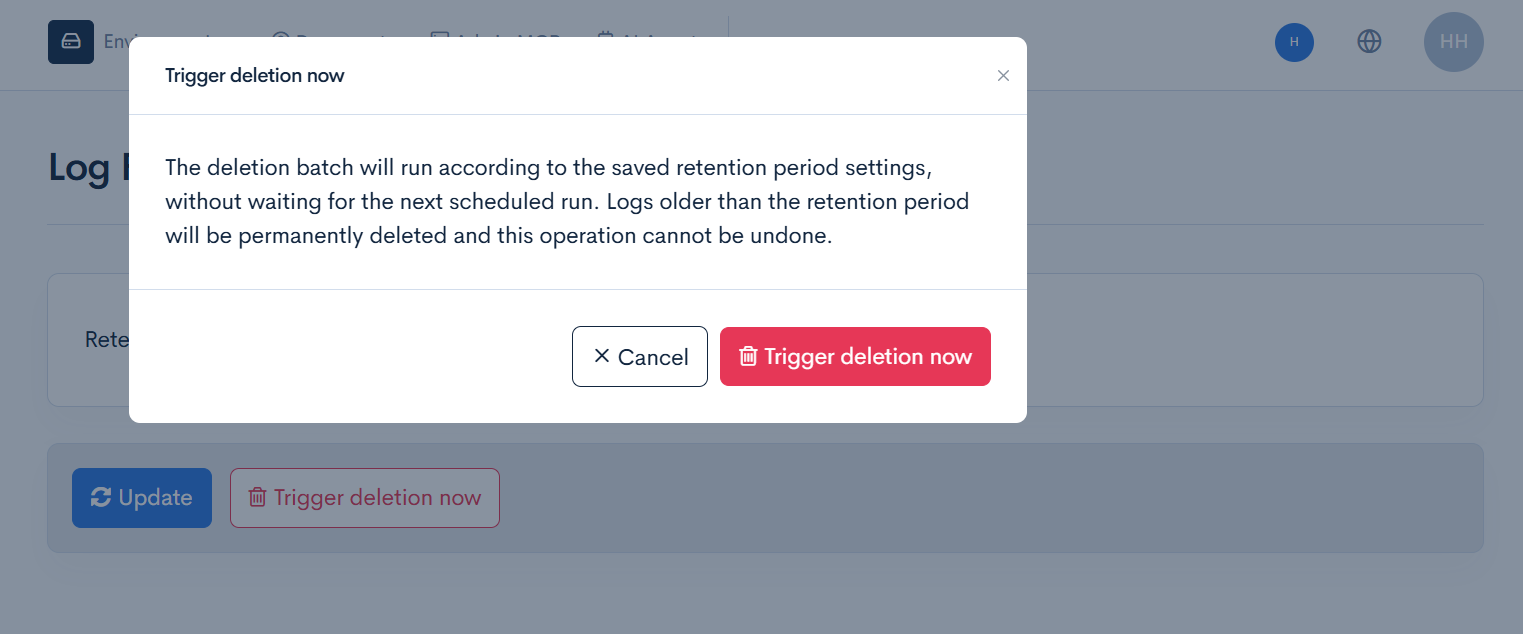
The deletion batch is registered when "Sent to the batch processing" is displayed. The deletion runs as a batch process, so it is not finished the moment you click the button.
The scope of this deletion is the same as the scheduled run: only logs older than the saved retention period are deleted, and the retention setting itself is not changed.
If the message "The deletion batch could not be queued — the batch limit may have been reached." is displayed, the deletion batch was not registered. Resolve the batch limit and try again.
Notes
- Viewing the screen requires the [View] permission for "Log management". [Trigger deletion now] additionally requires the [Delete] permission for "Log management". Saving the retention period can only be done by a superuser. For how to configure permissions, see Group.
- Deletion is performed only by retention period. There is no operation that deletes all logs at once.
- Logs recorded very recently may be excluded from a deletion run and remain. They are deleted at a later run of the deletion process.
- Saving a retention period does not delete anything until the deletion process runs. To delete immediately, use [Trigger deletion now].
Related documents
Support
If you have any other questions, please contact us or check out Our Slack Community.