Implementing SSO Login Flow in a SPA
Overview
This tutorial explains how to implement the full SSO login flow in a frontend SPA (Single Page Application) that uses Kuroco as its backend API.
While Using Single Sign-On Login in Frontend covers the basic Kuroco configuration and grant_token concept, this tutorial focuses on the frontend implementation details — how to handle the redirect flow, exchange tokens, and restore the user's original page after login.
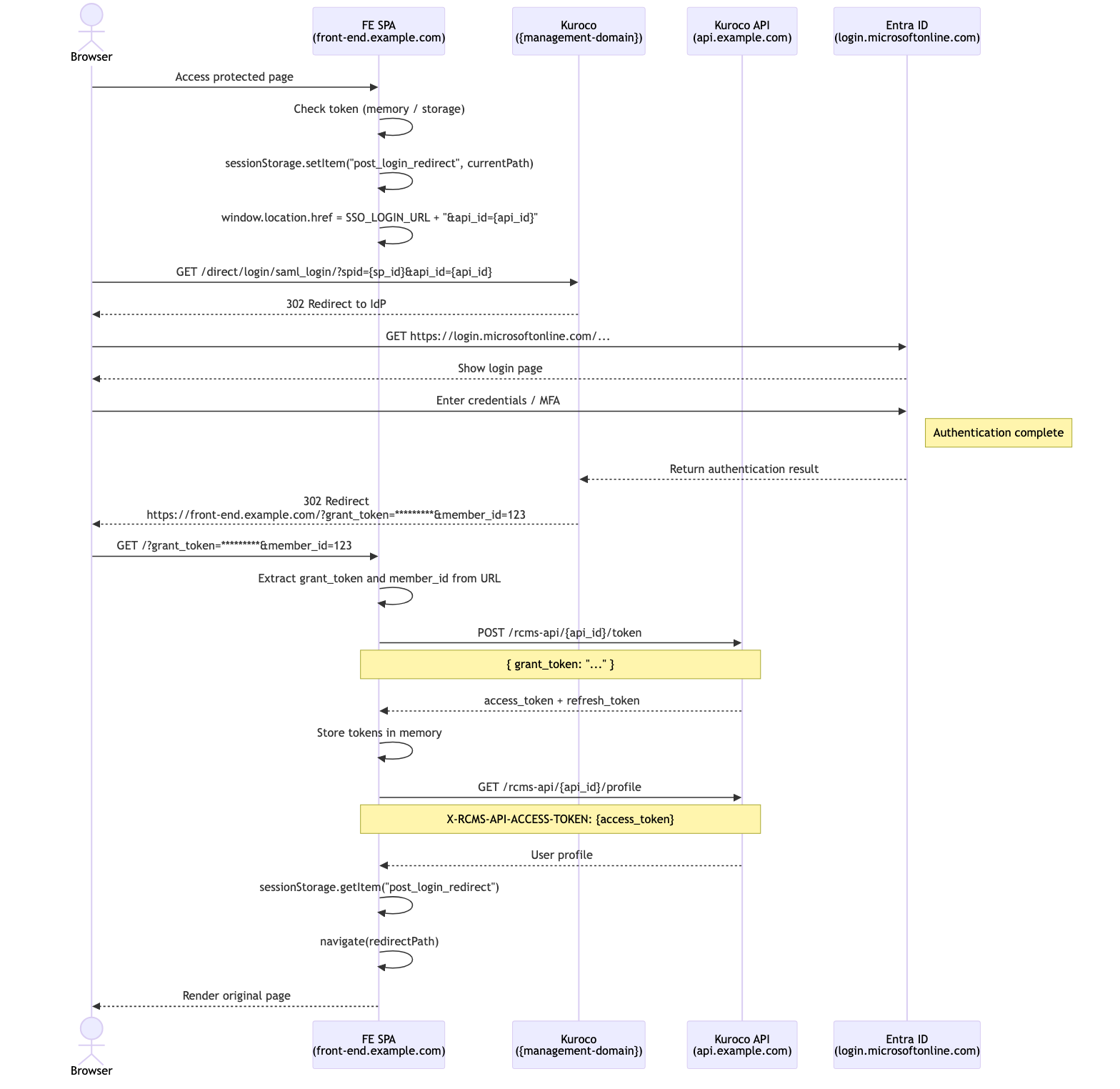
The sequence diagram below shows the complete flow using Microsoft Entra ID as the IdP. The same pattern applies to any SSO provider (OAuth SP, SAML SP, IDaaS SP) configured in Kuroco.
What You Will Learn
- How the SSO redirect flow works end-to-end
- How to save and restore the user's original URL across the SSO redirect
- How to exchange a
grant_tokenfor anaccess_token - How to confirm login and navigate back to the original page
Prerequisites
-
A Kuroco project with SSO configured (OAuth SP, SAML SP, or IDaaS SP)
- In the SSO settings, check the target API under "(For API) Generate Grant Token"
-
An API with Dynamic Access Token security and a
tokenendpoint configured as follows:Field Setting Path token Category Authentication Model Login(v1) Operation token use_refresh_token Checked access_token_lifespan 86400 (1 day in seconds) refresh_token_lifespan 604800 (7 days in seconds) -
A frontend SPA (React, Vue, Nuxt, Next.js, etc.)
If you have not yet configured SSO in Kuroco, please refer to the following tutorials first:
- Using Single Sign-On Login in Frontend
- Implementing SSO via OAuth authentication
- Use IDaaS to Implement Microsoft Entra External ID SSO
Flow Overview
The SSO login flow consists of the following steps:
- User accesses a protected page without authentication
- Frontend saves the current URL and redirects to Kuroco's SSO login endpoint
- Kuroco redirects the browser to the external IdP (e.g., Entra ID)
- User authenticates with the IdP
- IdP returns the result to Kuroco, which redirects to the frontend callback URL with a
grant_token - Frontend exchanges the
grant_tokenfor anaccess_tokenandrefresh_token - Frontend confirms login by calling the profile endpoint
- Frontend navigates the user back to their original page
Token Types and Roles
Three types of tokens are used in the SSO flow, each with a different purpose and lifespan.
| Token | Purpose | How to Obtain | Lifespan | Usage |
|---|---|---|---|---|
grant_token | Temporary token used to issue an access_token | Appended as a query parameter to the Return URL after successful SSO authentication | Very short (must be exchanged immediately) | One-time only |
access_token | Used to authenticate API requests. Set in the X-RCMS-API-ACCESS-TOKEN header | Obtained by sending grant_token or refresh_token to the token endpoint | Configurable (e.g., 86400s = 1 day) | Reusable until expiry |
refresh_token | Used to reissue an expired access_token | Obtained alongside access_token when sending grant_token to the token endpoint | Configurable (e.g., 604800s = 7 days) | Reusable until expiry |
Token flow:
SSO authentication success
  └→ grant_token (URL parameter)
       └→ Send to token endpoint
            ├→ access_token (used for API authentication)
            └→ refresh_token (used to reissue access_token on expiry)
                  └→ Send to token endpoint
                       ├→ New access_token
                       └→ New refresh_token
Both access_token and refresh_token are obtained from the same token endpoint (/rcms-api/{api_id}/token), but with different request body parameters:
- Initial issuance:
{ "grant_token": "..." } - Reissuance (refresh):
{ "refresh_token": "..." }
Endpoints Used
The following endpoints are used in this tutorial. All must be created in advance in the Kuroco admin panel.
| Endpoint | Method | Path | Purpose | Auth Header |
|---|---|---|---|---|
| SSO Login | GET | Obtained from SSO settings in admin panel | Initiate SSO authentication flow | Not required |
| token | POST | /rcms-api/{api_id}/token | Exchange grant_token for access_token, reissue via refresh_token | Not required |
| profile | GET | /rcms-api/{api_id}/profile | Confirm login and retrieve user information | X-RCMS-API-ACCESS-TOKEN |
| logout | POST | /rcms-api/{api_id}/logout | Log out the user | X-RCMS-API-ACCESS-TOKEN |
Create the token, profile, and logout endpoints in the API settings of the Kuroco admin panel:
token endpoint (see the configuration table in Prerequisites)
- Category: Authentication / Model: Login(v1) / Operation: token
profile endpoint
- Category: Authentication / Model: Login(v1) / Operation: profile
logout endpoint
- Category: Authentication / Model: Login(v1) / Operation: logout
Implementation
Step 1: Detect unauthenticated state
When a user accesses a protected page, check whether they have a valid token. If not, save their current URL so they can be redirected back after login.
const currentPath = window.location.pathname + window.location.search

if (!accessToken) {
  sessionStorage.setItem("post_login_redirect", currentPath)
}
Use sessionStorage instead of localStorage for the redirect URL. It is automatically cleared when the browser tab is closed, which is more appropriate for transient login state.
Step 2: Redirect to SSO login
Redirect the user to Kuroco's SSO login URL. This URL can be obtained from the SSO settings page in the Kuroco admin panel.
The location of the login URL differs by SSO type:
| SSO Type | Admin Panel Location | URL Field |
|---|---|---|
| OAuth SP | [External System Integration] → [Identity federation] → [OAuth SP] → Edit | Login URL |
| SAML SP | [External System Integration] → [Identity federation] → [SAML SP] → Edit | Login SAML SP ACS URI |
| IDaaS SP | [External System Integration] → [Identity federation] → [IDaaS SP] → Edit | Login URL |
// Kuroco API domain (use your custom domain if configured)
const KUROCO_API = "https://api.example.com"

// The SSO login URL is obtained from the SSO settings (OAuth SP / SAML SP / IDaaS SP) in the Kuroco admin panel
// Example: https://{management-domain}/direct/login/saml_login/?spid={sp_id}
const SSO_LOGIN_URL = "https://{management-domain}/direct/login/saml_login/?spid={sp_id}"
Redirect to the SSO login URL. You can append the api_id parameter to explicitly specify which API should generate the grant_token (useful when multiple APIs are checked in the admin panel).
// Append api_id to specify the target API
window.location.href = `${SSO_LOGIN_URL}&api_id={api_id}`

// Or without api_id (when only one API is configured)
window.location.href = SSO_LOGIN_URL
Obtain the SSO login URL from the SSO settings page in the Kuroco admin panel. The callback URL (redirect destination after authentication) is configured via "Return URL (Success)" in the admin panel. Store the user's actual return destination in sessionStorage instead (as shown in Step 1).
Step 3: Handle the callback
After successful SSO authentication, Kuroco redirects to the "Return URL (Success)" configured in the admin panel, appending grant_token and member_id as GET parameters (e.g., https://front-end.example.com/?grant_token=*********&member_id=123). Extract these on the callback page.
const params = new URLSearchParams(window.location.search)
const grantToken = params.get("grant_token")
const memberId = params.get("member_id")

if (!grantToken) {
  // Handle error: redirect to login page or show error
  throw new Error("grant_token not found in callback URL")
}
Step 4: Exchange grant_token for access_token
Send the grant_token to Kuroco's token endpoint to obtain an access_token and refresh_token.
const response = await fetch(
  `${KUROCO_API}/rcms-api/{api_id}/token`,
  {
    method: "POST",
    credentials: "include",
    headers: {
      "Content-Type": "application/json",
    },
    body: JSON.stringify({ grant_token: grantToken }),
  }
)

const data = await response.json()
const { access_token, refresh_token } = data
The grant_token is a one-time-use, short-lived token. It is exposed in the URL, so it must be exchanged for an access token immediately and cannot be reused.
The token endpoint response has the following structure. The actual token strings are in the .value property:
{
  "access_token": { "value": "access-token-string", ... },
  "refresh_token": { "value": "refresh-token-string", ... }
}
Step 5: Store tokens
Store the tokens securely. In-memory storage is recommended for SPAs. Extract the token strings from .value.
// Store in memory or secure storage
setAccessToken(access_token.value)
setRefreshToken(refresh_token.value)
Step 6: Confirm login
Verify the login by calling the profile endpoint with the new access token.
const profileResponse = await fetch(`${KUROCO_API}/rcms-api/{api_id}/profile`, {
  credentials: "include",
  headers: {
    "X-RCMS-API-ACCESS-TOKEN": access_token.value,
  },
})

const user = await profileResponse.json()
Step 7: Redirect to original page
Retrieve the saved URL from sessionStorage and navigate the user back to their original destination.
const redirectPath =
  sessionStorage.getItem("post_login_redirect") || "/"

sessionStorage.removeItem("post_login_redirect")

// Use your router's navigation (e.g., React Router, Vue Router)
navigate(redirectPath)
Token Refresh
When the access_token expires, use the refresh_token to obtain a new one. If the refresh also fails, redirect the user through the SSO flow again.
const refreshResponse = await fetch(
  `${KUROCO_API}/rcms-api/{api_id}/token`,
  {
    method: "POST",
    credentials: "include",
    headers: {
      "Content-Type": "application/json",
    },
    body: JSON.stringify({ refresh_token: refreshToken }),
  }
)

if (!refreshResponse.ok) {
  // Refresh failed — restart SSO flow
  sessionStorage.setItem(
    "post_login_redirect",
    window.location.pathname + window.location.search
  )
  window.location.href = SSO_LOGIN_URL
  return
}

const refreshData = await refreshResponse.json()
setAccessToken(refreshData.access_token.value)
setRefreshToken(refreshData.refresh_token.value)
Consider implementing automatic retry logic: when an API request returns 401 Unauthorized, automatically refresh the token using refresh_token and retry the original request. If the retry also fails, clear all tokens and restart the SSO flow.
Key Design Points
SSO login URL and callback URL
The SSO login URL (e.g., https://{management-domain}/direct/login/saml_login/?spid={sp_id}) and the callback URL (Return URL) after authentication are both managed in the SSO settings in the Kuroco admin panel. Check the target API under "(For API) Generate Grant Token" in the SSO settings to enable grant_token parameter appending to the Return URL. The user's actual return destination is managed separately on the frontend using sessionStorage.
One API per authentication scope
In Kuroco, when using dynamic access token authentication, login sessions are scoped per API (api_id). If you use SSO login, the user is only authenticated for the API that the SSO is configured against. Keep all endpoints that require authentication under the same api_id to avoid session issues.
Note: With cookie authentication, the authentication state is shared across multiple
api_ids. See API Security for details.
grant_token security
The grant_token is exposed in the URL, so it must be exchanged for an access_token immediately upon receiving it in the callback. See Token Types and Roles above for details.
Related Documents
Support
If you have any other questions, please contact us or check out Our Slack Community.