Create a Slack app and configure the bot user OAuth token in Kuroco
Summary
To integrate Kuroco with Slack, you create a Slack app and configure its "Bot User OAuth Token" in Kuroco.
This page explains the steps that are common to every Slack integration tutorial:
- Create Slack app
- Install the app to your workspace
- Obtain the Bot User OAuth Token
- Update App information
- Add the app to a Slack channel
- Integrate Kuroco with Slack
The contents of the app manifest (YAML) differ depending on what you want the integration to do.
If the tutorial that links to this page provides a manifest, use that manifest instead of the example below.
Create Slack app
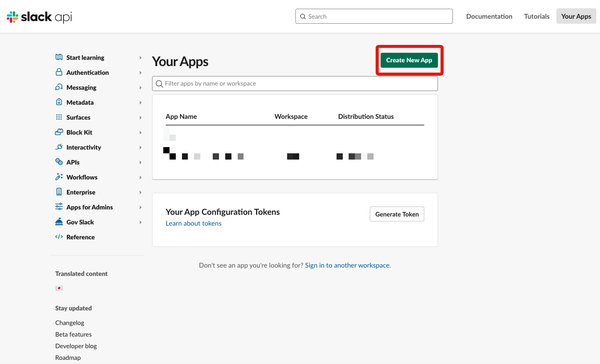
Access Slack API and click [Create New App].
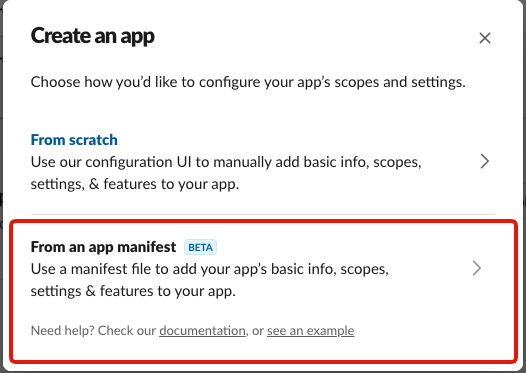
Click [From an app manifest] on the displayed modal.
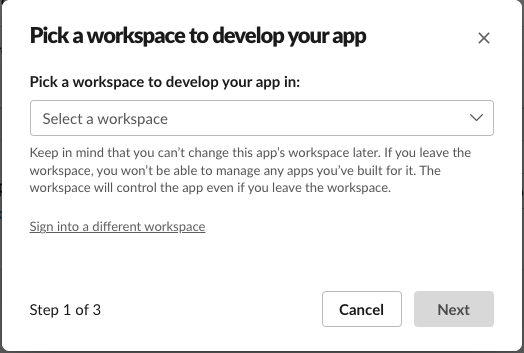
The Workspace selection screen is displayed.
From the "Pick a workspace to develop your app in:" field, select the workspace where you want to use the App and click [Next].
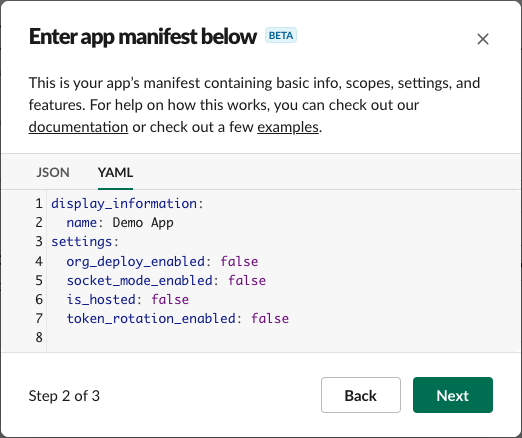
On the "Enter app manifest below" screen, paste your app manifest into the "YAML" text area and click [NEXT].
If you only need to post messages to Slack, you can use the following manifest.
_metadata:
  major_version: 1
  minor_version: 1
display_information:
  name: KurocoNotification
features:
  bot_user:
    display_name: KurocoNotification
    always_online: true
oauth_config:
  scopes:
    bot:
      - chat:write
      - im:write
The above settings allow bots to add messages to Slack.
If you want to read channel information or posted content, please refer to the Slack reference.
-Create and configure apps with manifests
-OAuth Permission scopes
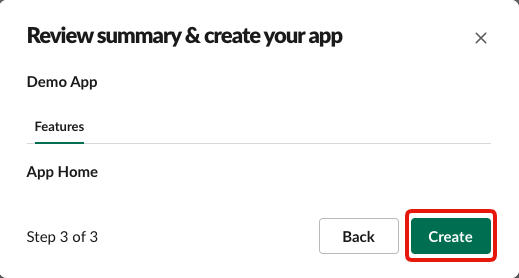
Click [Create] to complete the app creation.
Install the app to your workspace
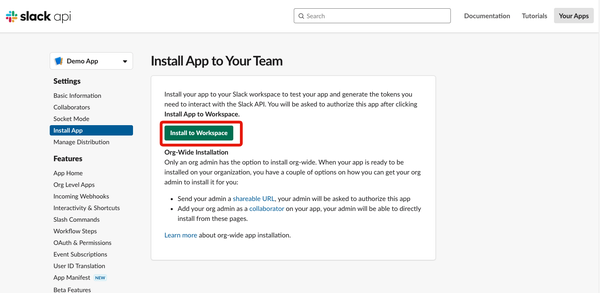
Next, install the app you just created into your workspace.
Click [Install App] on the side menu and then click [Install to Workspace].
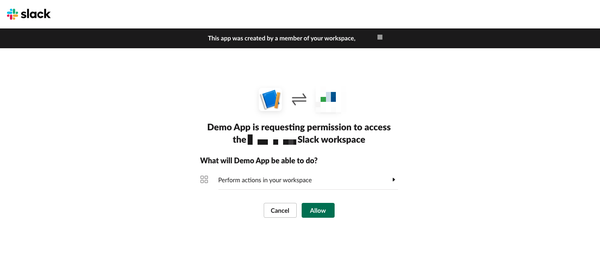
Access permission request will be displayed so click [Allow].
Obtain the Bot User OAuth Token
Click [OAuth & Permissions] on the side menu.
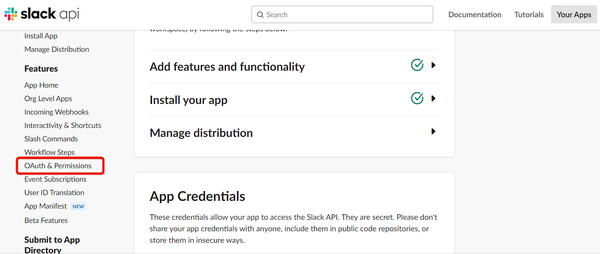
Copy "Bot User OAuth Token".
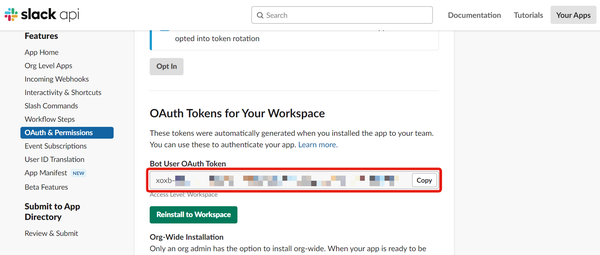
The Bot User OAuth Token is a credential that can operate your Slack workspace. Do not share it with third parties.
Update App information
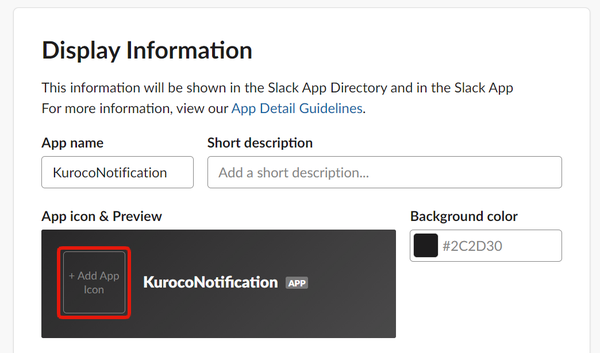
By default, the app icon is not displayed, so we need to set the image by the following process.
Click [Basic Information] on the side menu.
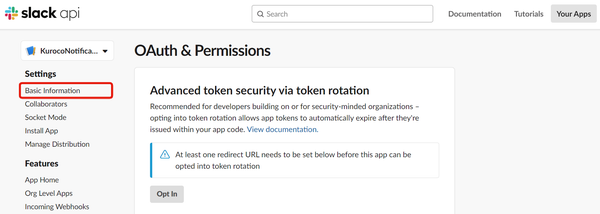
Click [Add App Icon] on "Display Information".
In this example, we upload the Kuroco's icon.(You can view and save the image from here.)
Once the image is uploaded, it is complete.
The icon is now set.
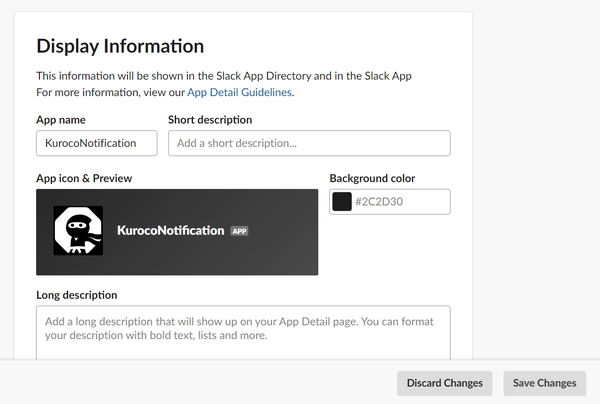
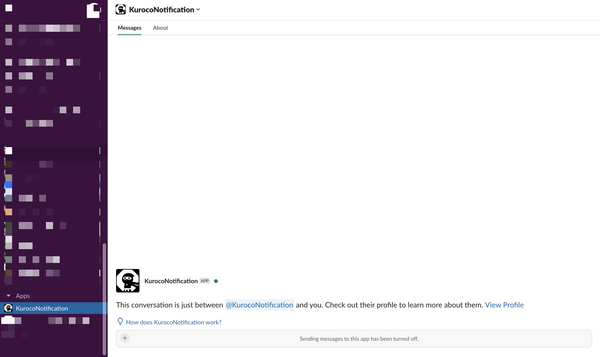
On your Slack workspace, the app you created is added under [App].
Add the app to a Slack channel
If the bot posts to a channel, add the App to that Slack channel.
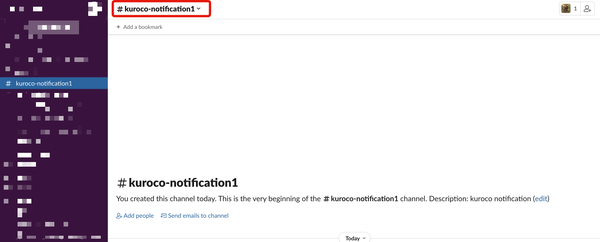
Click on the channel name at the top left in the channel where you want to receive notifications.
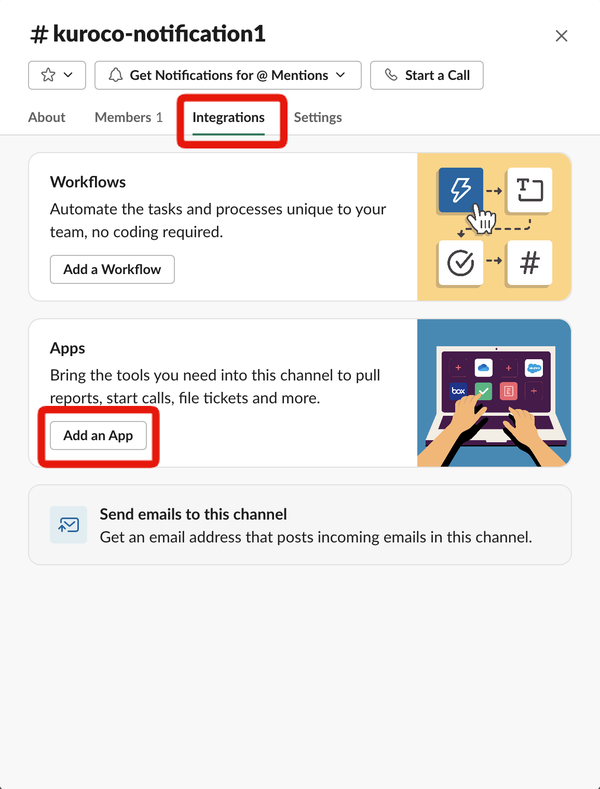
Click [Integrations] > [Add an App].
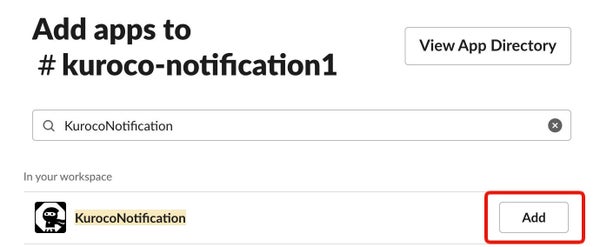
Add the app you created.
Integrate Kuroco with Slack
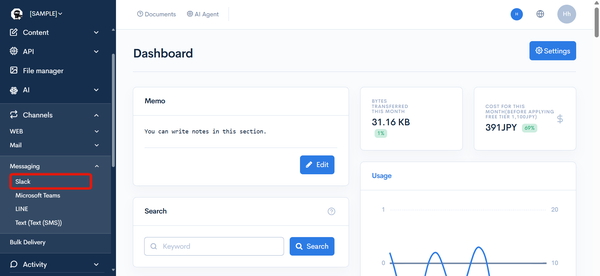
Access your Kuroco admin panel and click [Channels] > [Messaging] > [Slack] on the side menu.
Check [Enable], enter the "Bot user OAuth token" you copied previously and click [Update].
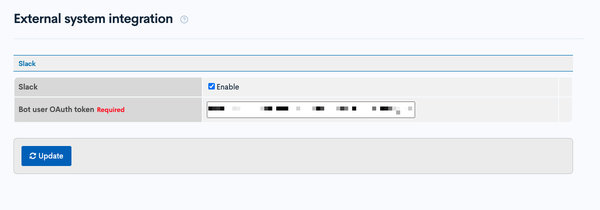
The Slack integration is now configured in Kuroco.
You can verify that the integration is configured correctly from the test send form on the Slack integration screen. For details, see Slack.
Related documents
Support
If you have any other questions, please contact us or check out Our Slack Community.